Get 30% off your WordPress Hosting with code WPSAVE10. Launch Faster. Save More!
  • 00 Days
  • 00 Hours
  • 00 Minutes
  • 00 Seconds

Databases – Enhance Hosting

Add & Manage Databases

To add a new database to a website:

  1. Open Websites in the left sidebar
  2. Select the website you would like to add the database to
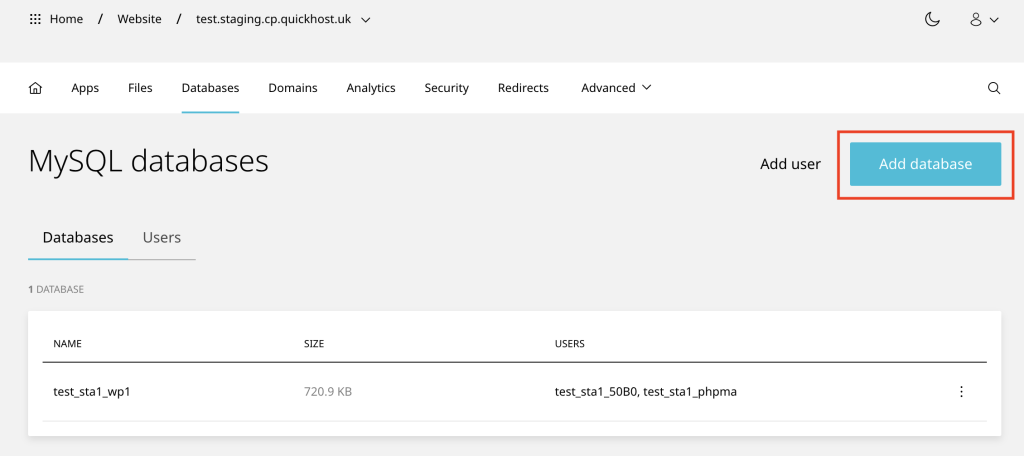
  3. When the website dashboard loads select Databases in the top navigation
  4. Select Add and input the database name
  5. Click Add to finish

299_enh-add-web-db-add-1024x456.png

phpMyAdmin

phpMyAdmin is an advanced MySQL database management tool and is recommended only for experienced users.

To access phpMyAdmin:

  1. On a Websites dashboard select Databases
  2. On the Database you would like to access select Manage in the drop-down menu
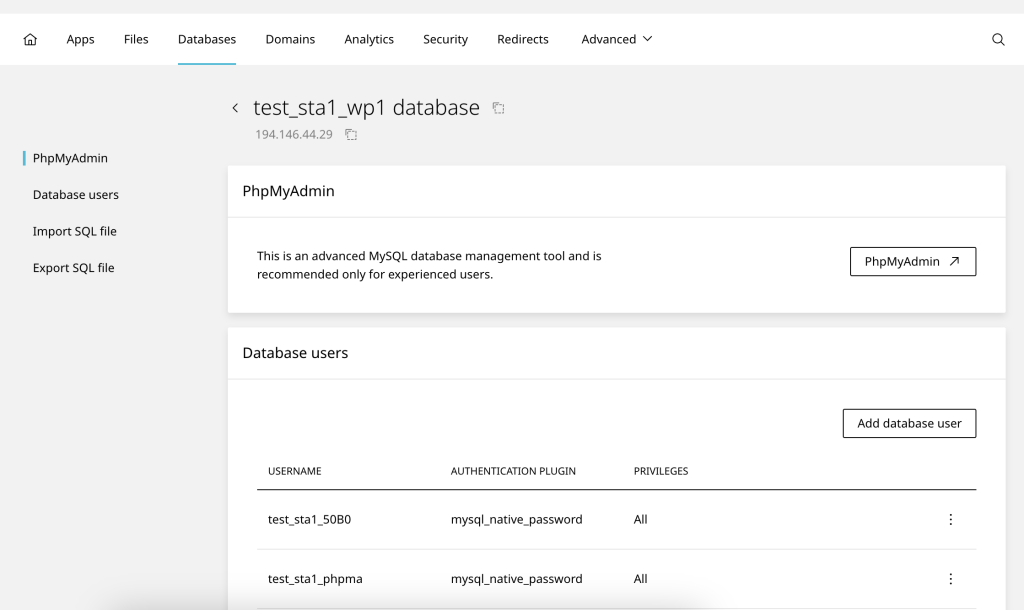
  3. When the database management page loads select the phpMyAdmin button
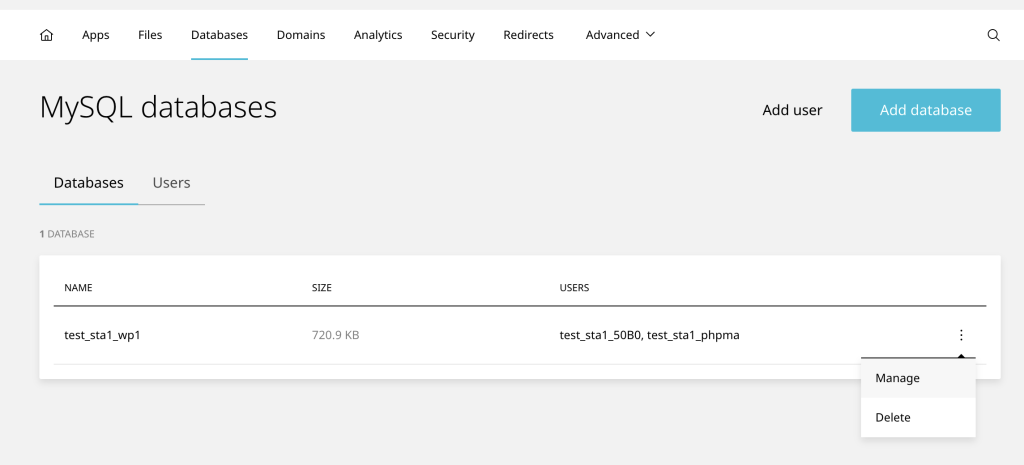
297_enh-add-web-db-1024x465.png

298_enh-add-web-db-1-1024x610.png

  • 0 Users Found This Useful
Was this answer helpful?

Related Articles

How to disable PHP error reporting – Enhance Hosting

In this guide, we will learn how to hide or suppress PHP errors and notices such as the common...

How to manage DNS – Enhance Hosting

How to add or edit DNS To add or edit DNS entries: Open Websites in the left sidebar Select...

Add a Staging Site & Push Live – Enhance Hosting

To add a staging website Open Websites in the left sidebar Click Add new Select either Start...

Importing a cPanel backup – Enhance Hosting

The cPanel importer allows you to migrate a cPanel account into your website. To import a...

How to manage FTP accounts – Enhance Hosting

To add an FTP accounts on a single website: On the website dashboard select the advanced...