Installing a new WordPress theme allows you to change the appearance and functionality of your website. Below, you will find the methods to install a theme using the WordPress Theme Browser, by uploading a theme, and via FTP.
Method 1: Installing a Theme Using WordPress Theme Browser
This is the easiest way to install a theme directly from WordPress.
- Login to Your WordPress Dashboard
- Navigate to your website’s admin panel (usually yourdomain.com/wp-admin) and log in.
- Access Theme Browser
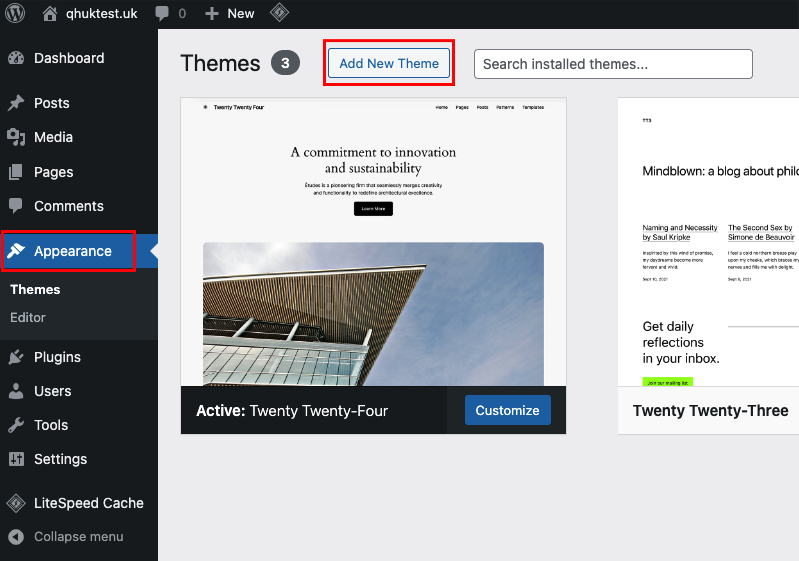
- Go to Appearance > Themes in the left-hand sidebar.
- Add New Theme
- Click on the Add New button at the top of the screen.
- Browse or Search Themes
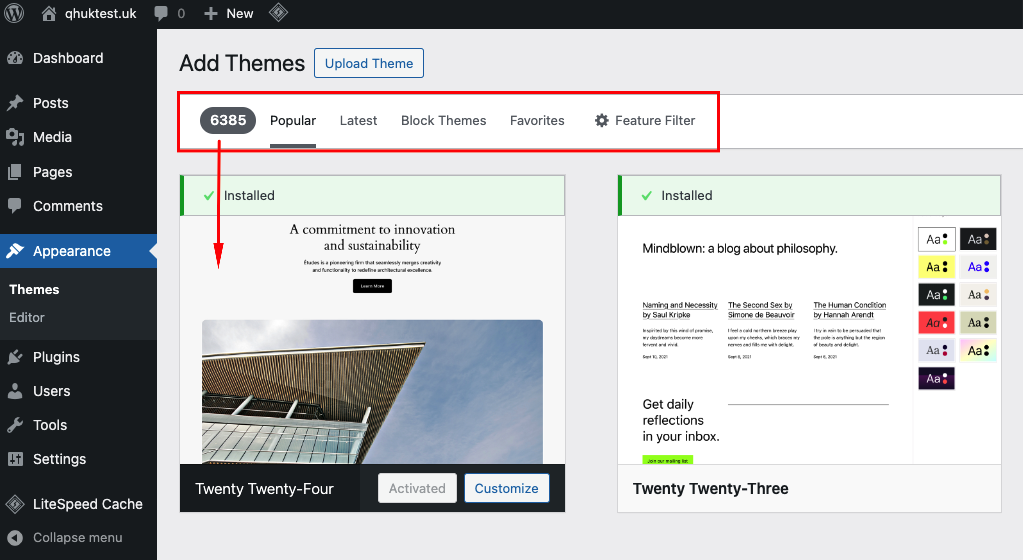
- Use the feature filter or search bar to explore the available themes. You can preview them by clicking on Preview.
- Install Your Chosen Theme
- Hover over the theme you like and click the Install button.
- Activate the Theme
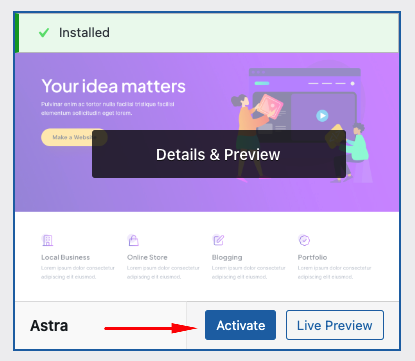
- Once installed, click Activate to apply the theme to your site.
Method 2: Uploading a Theme
If you have purchased a theme or downloaded it from a third-party source, follow these steps:
- Prepare Your Theme File
- Ensure your theme is in a .zip format.
- Go to Theme Section
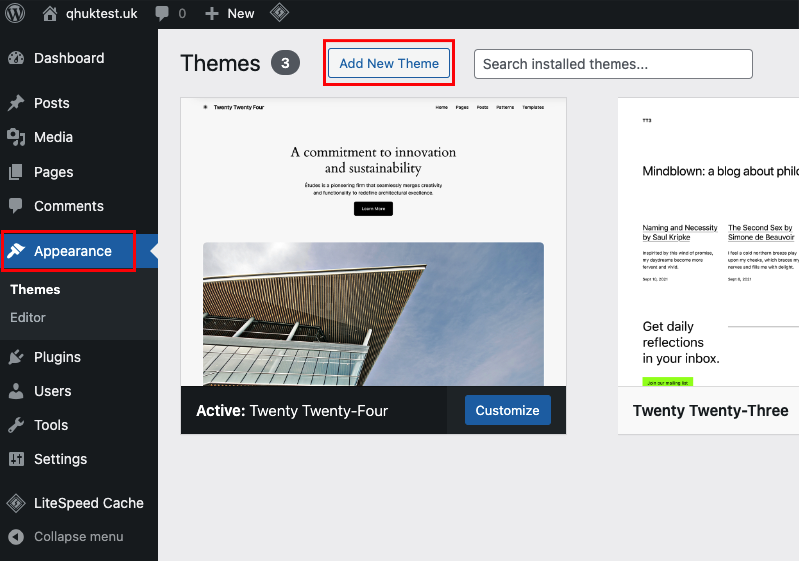
- Navigate to Appearance > Themes in your WordPress dashboard.
- Add New Theme
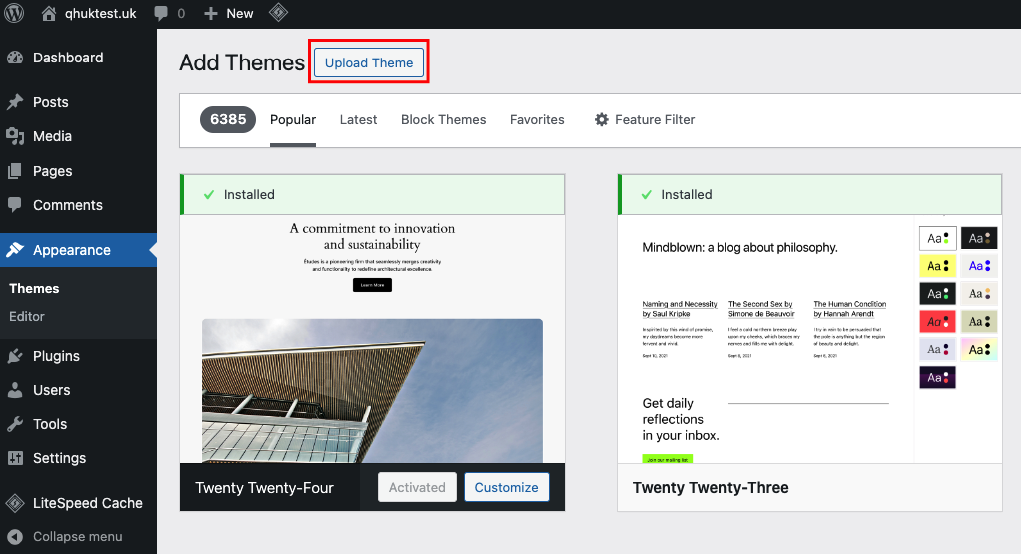
- Click the Add New button at the top, then click Upload Theme.
- Upload the Theme
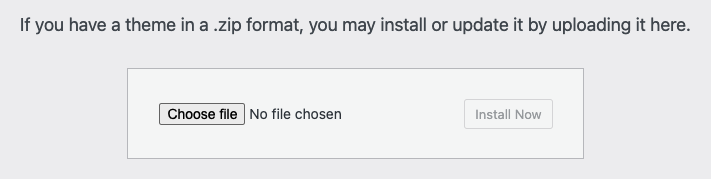
- Choose the .zip file from your computer and click Install Now.
- Activate the Theme
- After installation, click Activate to apply the new theme.
Method 3: Installing via FTP
For advanced users, themes can also be installed manually using an FTP client:
- Unzip Your Theme File
- Extract your theme’s .zip file on your computer. You should have a folder with the theme’s name.
- Connect via FTP
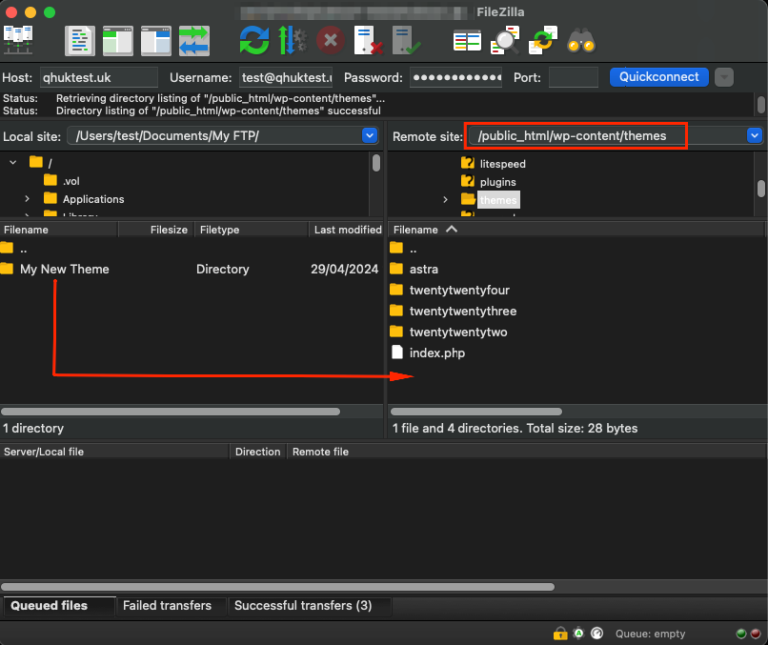
- Use an FTP client (like FileZilla) to connect to your hosting server. You will need your FTP username and password, which can be obtained from your hosting panel.
- Navigate to Themes Directory
- Go to the directory wp-content/themes/ within your WordPress installation on the server.
- Upload Your Theme
- Upload the extracted theme folder (not the .zip file) to the themes directory on your server.
- Activate the Theme
- Log in to your WordPress dashboard, go to Appearance > Themes, find your newly uploaded theme, and click Activate.
Customising the theme
After installing and activating your theme, you might want to customise it to suit your preferences. You can do this under Appearance > Customise in your WordPress dashboard. Here, you can modify various aspects of your theme such as colours, font sizes, and layout settings to better fit your site’s brand and content.
If you encounter issues or have questions, consider consulting the theme’s documentation or contacting the theme’s support service.












