This guide will walk you through the basic settings for LiteSpeed Cache
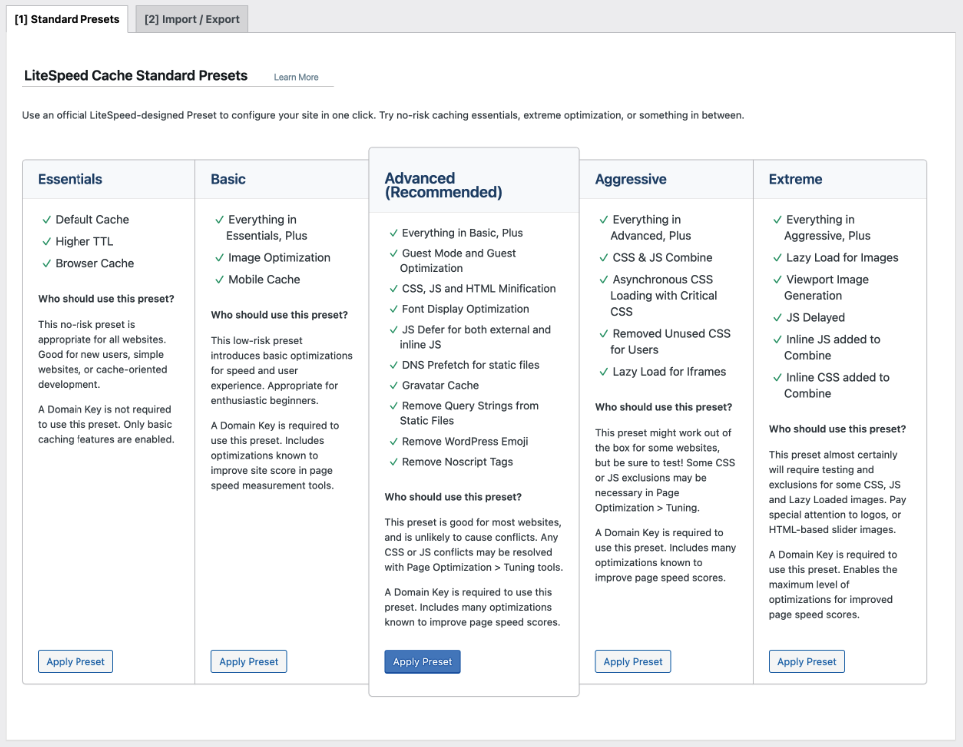
Presets
While you’re getting started with LiteSpeed cache, it’s best to stick with the recommended preset settings:
General
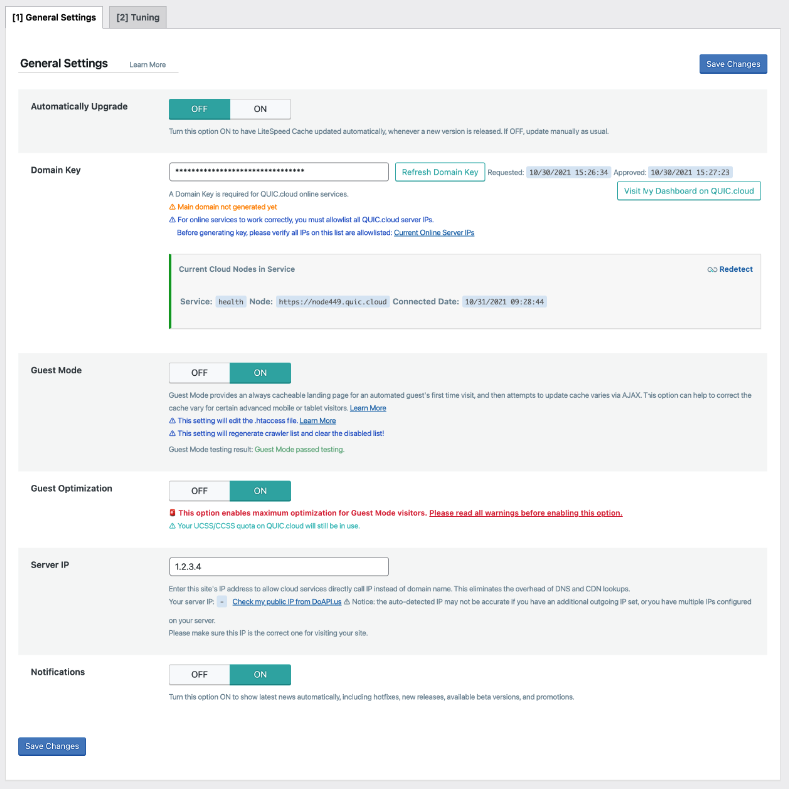
Basic settings
- Automatically Upgrade: Off – Manually updating plugins is considered more secure.
- Domain Key: Obtain a domain key, input it here, and then establish a connection with QUIC.cloud.
- Guest Mode: Option – Boosts initial load times and PageSpeed scores for new visitors at the expense of increased resource and storage use, notably with “mobile cache” (essential for guest mode) and “WebP conversion.” More on Guest Mode and optimisation is available here.
- Guest Optimization: Option – Use only if Guest Mode is on. Optimisations for first-time visitors will be aggressive, potentially boosting both load times and performance scores.
- Server IP: You can get the server IP like this:
curl -4 icanhazip.com - Notifications: On – Turn this option ON to show the latest news automatically, including hotfixes, new releases, available beta versions, and promotions.
Cache
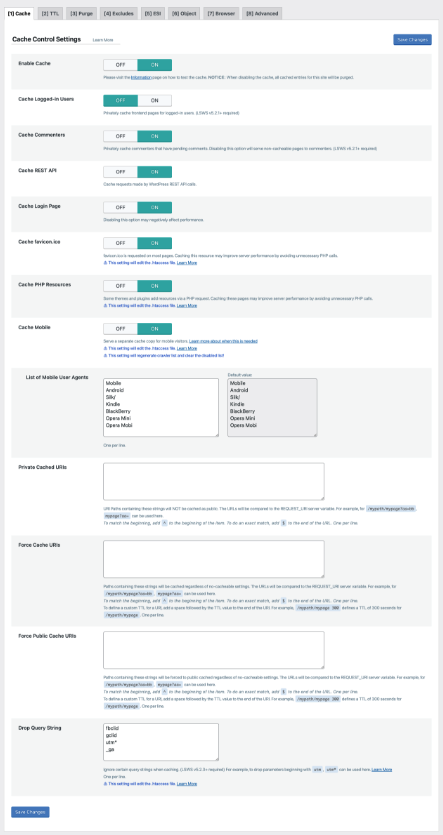
LiteSpeed Cache Settings
- Enable Cache: On – Enable the LiteSpeed Cache.
- Cache Logged-in Users: Off – Activate only for membership sites or similar platforms where user-specific caching is required for logged-in users; otherwise, it uses additional resources.
- Cache Commenters: Off – Generates a distinct cache for users with pending comments, yet it requires more resources, particularly if your blog receives numerous comments.
- Cache Rest API: On – Widely used across various themes, plugins, and the WordPress Block Editor.
- Cache Login Page: On – Conserves server resources as the login page is often targeted. Avoid altering the login URL; LiteSpeed and QUIC.cloud are optimised for the default login page.
- Cache favicon.ico: On – Stores the favicon (the small logo image displayed in the browser tab) in the cache.
- Cache PHP Resources: On – Caches static PHP files, such as CSS and JavaScript, used by your theme. Disable this only if your site uses dynamic CSS and JavaScript within PHP, which is uncommon.
- Cache Mobile: Option – Activate only alongside Guest Mode and Guest Optimization, other features like UCSS, CCSS, AMP, or when deploying mobile-specific content. This setting increases resource consumption.
- Drop Query String: Marketing efforts and tracking URLs frequently use query strings, bypassing cache by default. The standard list typically suffices, but add any additional ones as needed.
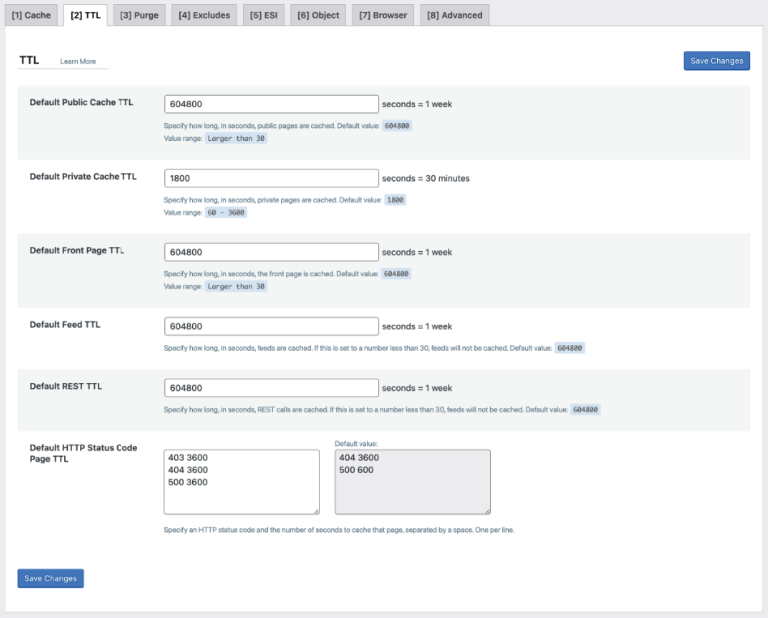
TTL
Time To Live (TTL) refers to how long to keep a cached resource. During this period, the resource is loaded from the local cache. Once the TTL expires, the cache will fetch and recache the resource.
A short TTL ensures visitors see updated content for frequently changed sites but uses more resources. A long TTL saves resources but delays content updates in the cache, possibly keeping visitors from seeing new content promptly.
The default settings generally work well.
Purge
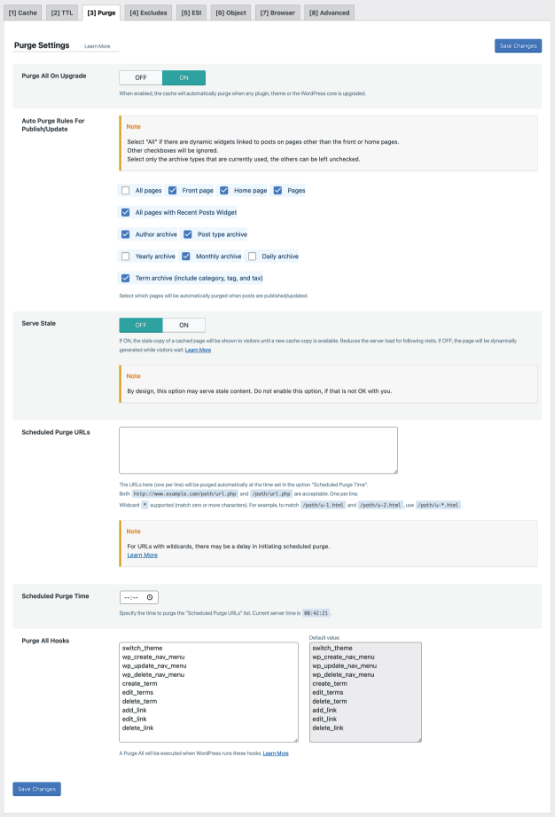
Purging involves actively deleting a resource from the cache before its scheduled expiration time.
- Purge All On Upgrade: On – Clears the cache upon updates to WordPress core, themes, or plugins, ensuring your site displays correctly. LiteSpeed also advises keeping this feature enabled.
- Auto Purge Rules For Publish/Update: Default settings are adequate. When publishing a post, it’s necessary to purge your blogroll and related content to ensure everything updates accordingly.
- Serve Stale: Off – When enabled, this feature serves the most recently purged (stale) version of a page if a new cached version hasn’t been generated yet, though activating it requires additional resources.
- Scheduled Purge URLs: There’s no need to specify URLs here unless you require certain pages to be purged at specific times, like during low-traffic periods, at which point you would also set a scheduled purge time.
- Purge All Hooks: Default settings are typically suitable. The system will purge everything when specific hooks are executed. LiteSpeed suggests that adding the
comment_posthook can be beneficial to ensure all content is purged whenever a comment is posted.
Excludes
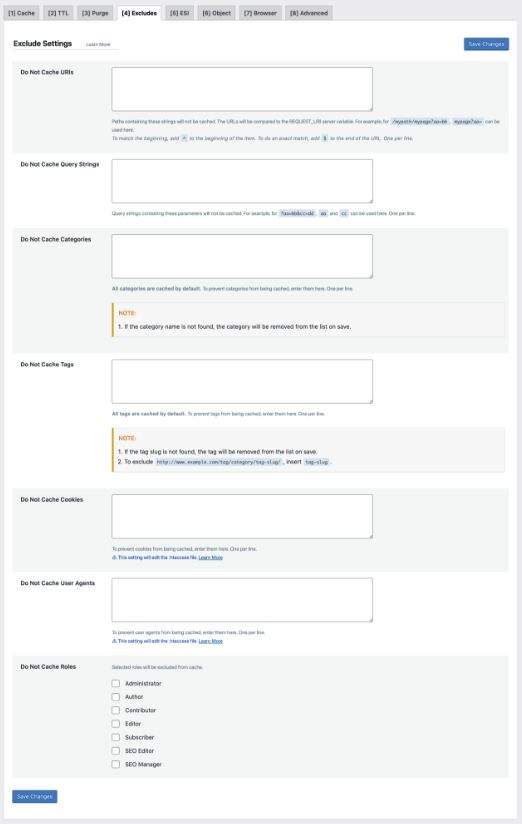
Exclude items from the cache
For most sites, no action is required here. You’re already managing cache behaviour through other LiteSpeed Cache settings, so there’s typically no need to exclude items from the cache unless there’s a specific reason to do so.
ESI
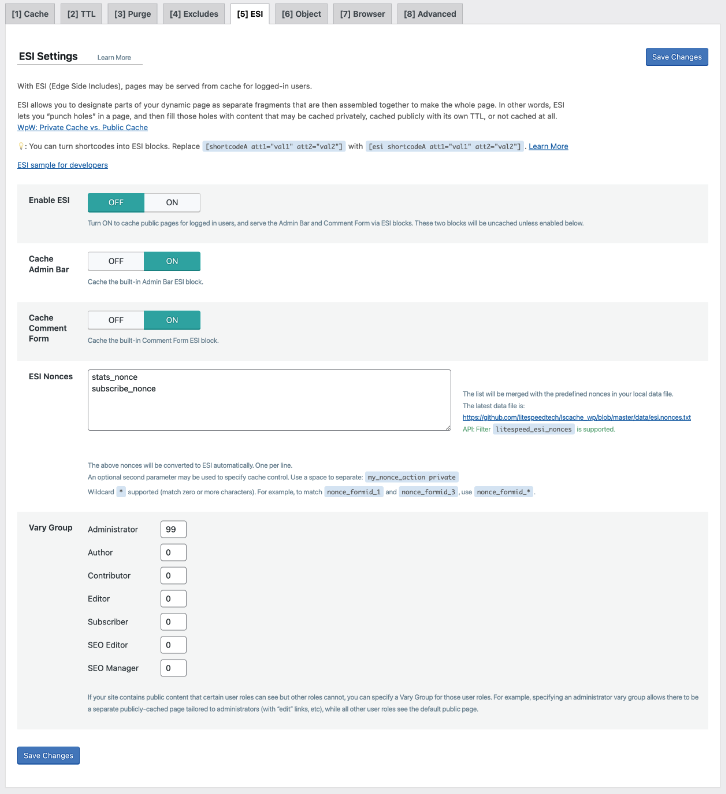
Edge Side Includes (ESI) can punch holes in cached pages where information changes.
- Enable ESI: Off – This feature manages the caching of specific elements on your dynamic pages, allowing for public or private caching, custom Time To Live (TTL), and more. However, it introduces complexity. LiteSpeed recommends that it’s simpler for a server to deliver entire pages without adjusting these settings. If the ESI feature is disabled, there’s no need to modify settings for the admin bar, comment form, Nonces, or Vary Group. The author admits to not having used the ESI feature and therefore refrains from providing detailed advice on it.
Object
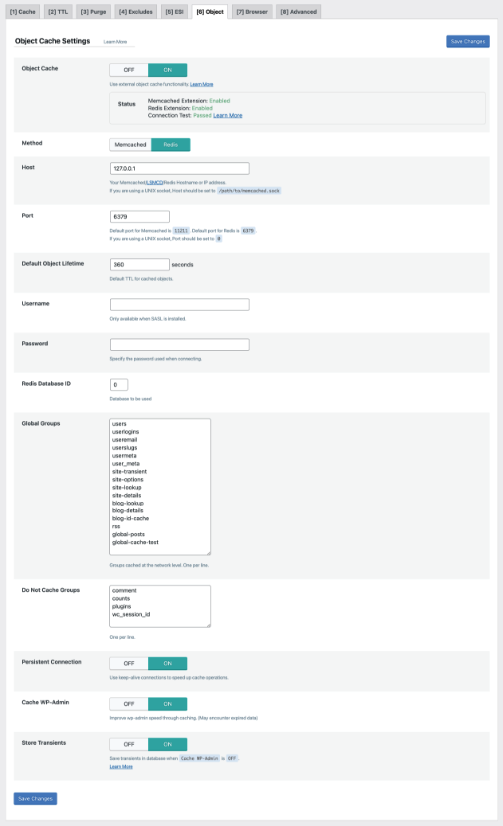
Object caching saves database query results for faster future retrieval without needing repeated database queries.
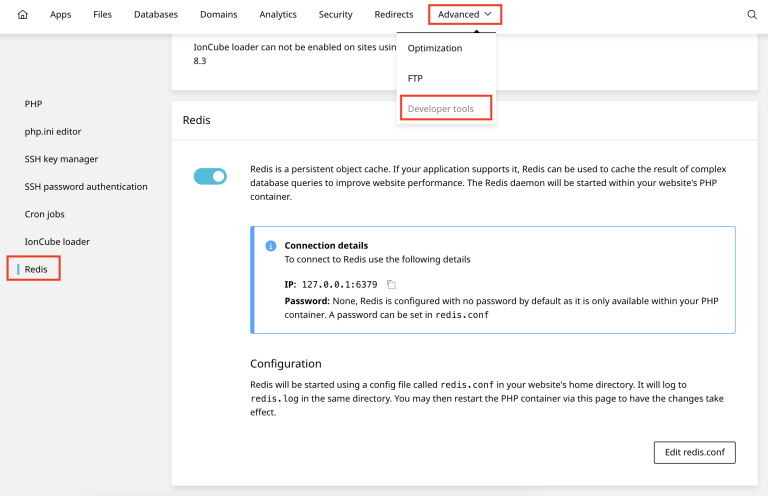
Redis is considered more robust than Memcached, particularly for dynamic sites like WooCommerce, and can enhance the speed of your admin area. However, Redis support varies by hosting provider, with some offering Memcached support or no object caching options at all. It’s important to research whether your host supports object caching and to follow their specific guidelines if available. Instructions for setting up Redis with SIRSTEVEHQ
Browser
Browser cache stores web content on a user’s device, enabling faster loading of previously visited pages by reducing the need to redownload resources.
- Browser Cache: On – This should always be enabled.
- Browser Cache TTL: 31557600 – Google recommends setting the cache policy for static assets to 1 year (~31,557,600 seconds) to guide browsers on the duration for storing cache. However, dynamic websites or those using WooCommerce might prefer a shorter duration, like 43,800 seconds (1 month).
Advanced
- Login Cookie: Keep the default settings (necessary only for environments with multiple WordPress installations to manage cache based on who is logged into each site, not applicable to multisite setups).
- Improve HTTP/HTTPS Compatibility: Off – Activate only if you’re using both HTTP and HTTPS and encountering cache-related problems. Consider enforcing SSL as an alternative solution.
- Instant Click: On – Enabling this feature allows pages to preload in the background when users hover over links, ensuring instant loading upon click. However, it may consume additional resources.
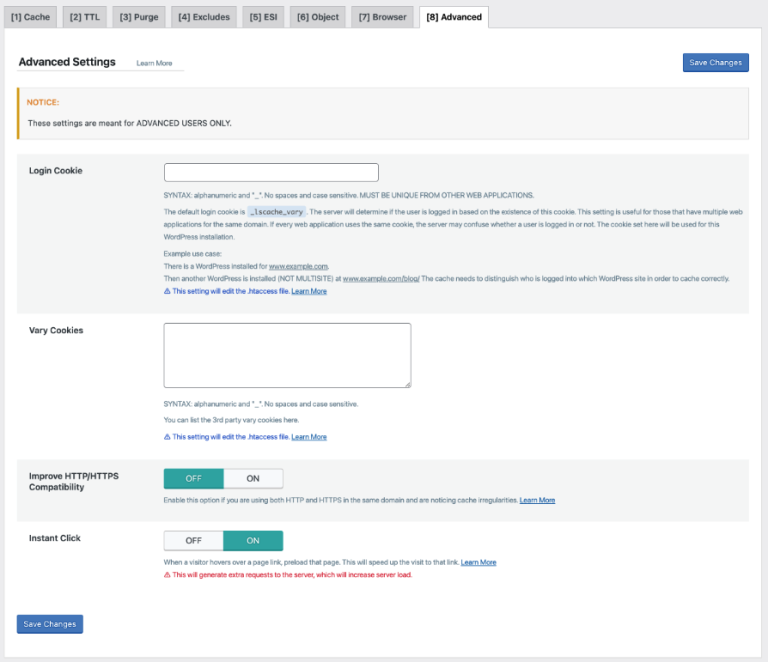
Image Optimization
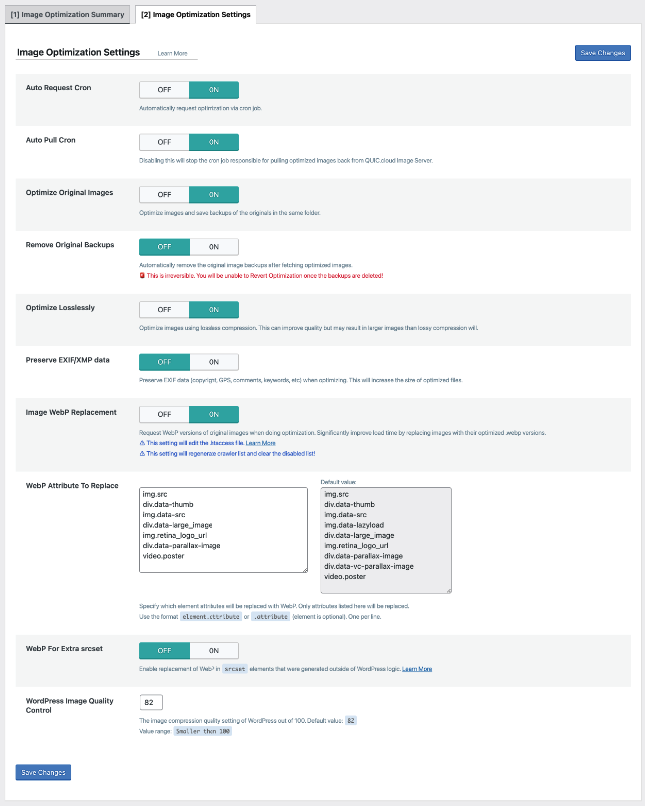
Adjust the image optimisation settings according to your preferences, then proceed to submit an optimisation request.
- Auto Request Cron – On – Triggers a request to optimise newly uploaded images.
- Auto Pull Cron – On – If the previous setting is enabled, this one should also be activated.
- Optimize Original Images – On – It’s advisable to enable this setting.
- Remove Original Backups – Off – Do not remove unless you are satisfied with the quality.
- Optimize Losslessly – On – Lossless compression preferred, but feel free to experiment.
- Preserve EXIF/XMP Data – Off – Removing EXIF data reduces image sizes.
- Create WebP Versions – On – Generate WebP images for serving in next-gen formats.
- Image WebP Replacement – On – Activate this option if the previous one is enabled.
- WebP Attribute To Replace – Define the element attributes to be replaced by WebP.
- WebP For Extra srcset – On – Ensures that images in custom code are served as WebP.
- WordPress Image Quality Control – 85 – The default quality is set at 82%.
Page Optimization
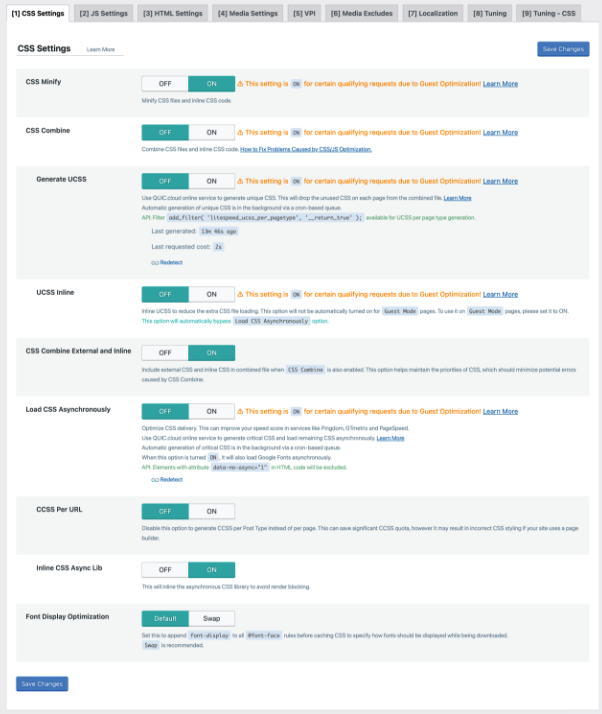
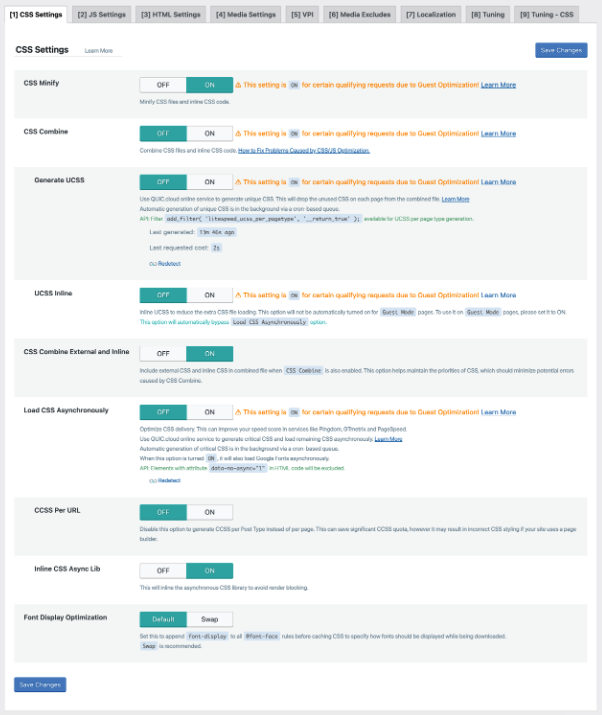
CSS Settings
- CSS Minify – On – Minimizes CSS by removing unnecessary characters.
- CSS Combine – Option – Results may vary depending on your website, so be sure to test and evaluate your own outcomes.
- Generate UCSS – Off – Activate only if CSS combine is enabled. UCSS aids in eliminating unused CSS. However, extensive CSS often originates from themes/plugins, which can be assessed using the Chrome Dev Tools coverage report. If UCSS is enabled, “cache mobile” should also be activated. UCSS relies on QUIC.cloud, so ensure QUIC is utilised if UCSS is enabled.
- UCSS Inline – Off – This setting should remain disabled. Even if UCSS is enabled, it’s preferable to load it in a separate file rather than inline, as explained by Vikas. Loading it separately allows for caching and prevents an increase in HTML size. Enabling this setting might improve PageSpeed Insights scores but could result in slower loading times for actual visitors. This is analogous to why removing unused CSS is faster in FlyingPress, which loads it in a separate file, compared to WP Rocket, which loads it inline.
- CSS Combine External and Inline – Off – Enable this option only if “combine CSS” is also activated. It merges external/inline CSS files, which frequently helps prevent website issues.
- Load CSS Asynchronously – Test – Enabling this feature may lead to FOUC (Flash of Unstyled Content) or layout shift issues. However, it’s worth testing to gauge its impact on your site’s speed.
- CCSS Per URL – Off – Disable this option if the previous setting is off, particularly if you’re utilising a page builder.
- Inline CSS Async Lib – Off – CSS will become render-blocking, but this will help you avoid FOUC (Flash of Unstyled Content) issues.
- Font Display Optimization – default. Setting this to “Swap” may also lead to FOUC issues. However, if you encounter “ensure text remains visible during webfont load” in PageSpeed Insights, you can experiment with the “Swap” option.
JS Settings
- JS Minify – On – Removes unnecessary characters from JavaScript.
- JS Combine – Off – Do not combine with HTTP/2 or large JS files.
- JS Combine External and Inline – Off – Activate only if JS combine is enabled.
- Load JS Deferred – Option – Delay will likely yield optimal results, while deferred is also effective but may cause issues with your website. Keeping it off is the safest option. If the defer option causes problems, exclude problematic files under “JS Deferred Excludes” in the Tuning settings. It’s advisable to test these options yourself to determine the best fit for your site.
HTML Settings
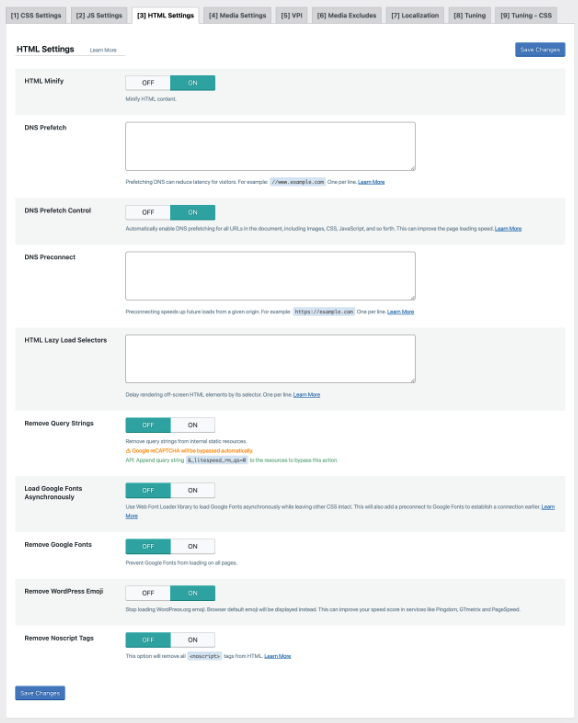
- HTML Minify – On – Removes unnecessary characters from HTML.
- DNS Prefetch – Review any third-party code and identify all third-party domains loading on your site, excluding CDN URLs and fonts.gstatic.com, as they should use pre-connect instead of prefetch.
- DNS Prefetch Control – On – Keep it enabled, but no action is needed if you manually add them.
- HTML Lazy Load Selectors – Similar to lazy loading images, lazy loading can be applied to any below-the-fold element, such as #comments and #footer, as well as WooCommerce-related products and Elementor sections loading near the bottom of the page. Follow the steps outlined in this video, which shares the same process for LSC. View your site, right-click any element you want to lazy load, inspect it, right-click the highlighted code, copy it, select “copy selector,” and paste it into this field.
- Remove Query Strings – Off – Outdated and shouldn’t significantly impact load times.
- Load Google Fonts Asynchronously – Off – Test carefully and review your GTmetrix/Pingdom Waterfall “fonts” tab to observe the variance in font load times.
- Remove Google Fonts – Off – Activate this option only if you’re hosting fonts locally and want to ensure that no third-party fonts are being loaded on your website, as they shouldn’t be.
- Remove WordPress Emoji – On – Enable this option to improve load times by removing emojis.
- Remove Noscript Tags – Off – Keep script tags to ensure better compatibility with older browsers, ensuring that your website’s JavaScript loads correctly.
Media Settings
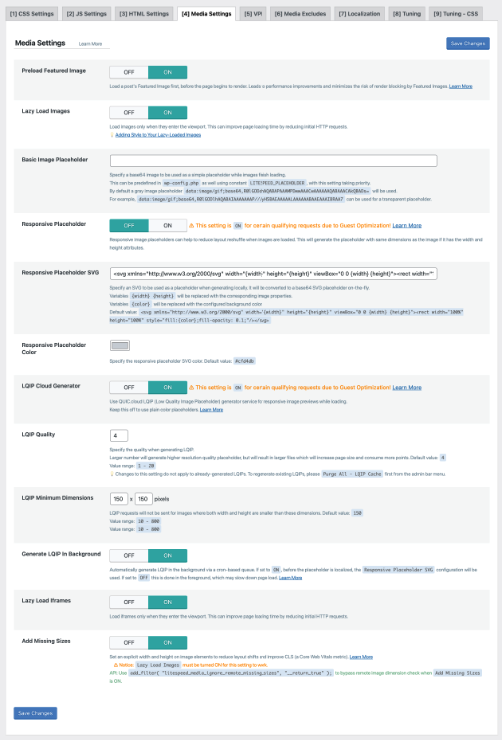
- Lazy Load Images – On – Turn this feature on, and you can also incorporate a fade-in effect for smoother scrolling.
- Basic Image Placeholder – Utilise an image placeholder during the loading process.
- Responsive Placeholder – Option – Enable this option if you’re using a basic image placeholder, as it reduces Cumulative Layout Shift (CLS).
- Responsive Placeholder SVG – Define the SVG to be used as the responsive placeholder.
- Responsive Placeholder Color – The default gray color used by LiteSpeed Cache should suffice.
- LQIP Cloud Generator – On – A lower-quality image, generated by QUIC.cloud, will serve as the placeholder until the higher-quality image is loaded. It’s recommended to conduct your own testing to verify its effectiveness.
- LQIP Quality – If the previous setting is enabled, this option specifies the lower quality image.
- LQIP Minimum Dimensions – 150×150 pixels is suitable. This setting only applies when the LQIP cloud generator is activated, and LQIP will only be utilized when images exceed this size.
- Generate LQIP In Background – On – LiteSpeed suggests that disabling this feature may slow down page load times.
- Lazy Load Iframes – On – Lazy loading videos, maps, and other iframes enhances speed.
- Add Missing Sizes – On – Adds missing image dimensions to set explicit widths and heights.
VPI
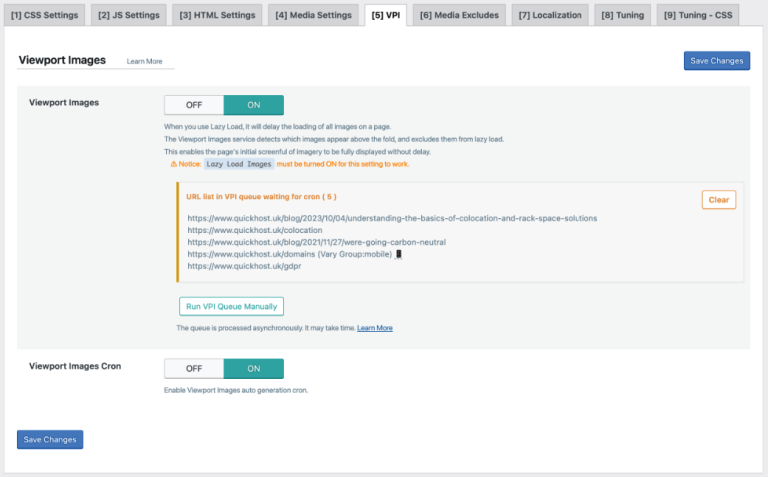
Viewport images are images that are currently visible within the user’s browser viewport, i.e., the portion of the webpage that is currently visible on the screen without scrolling. These images are typically loaded first to ensure a faster initial page load experience for the user. Lazy loading techniques are often used to load images outside the viewport only when they are about to come into view, reducing unnecessary resource consumption and improving performance.
- Viewport Images – On – QUIC.cloud automatically detects images loading above the fold and excludes them from lazy loading to improve Largest Contentful Paint (LCP). Lazy loading images must be enabled for this feature to work effectively.
- Viewport Images Cron – On – They are generated in the background through a cron-based queue system.
Media Excludes
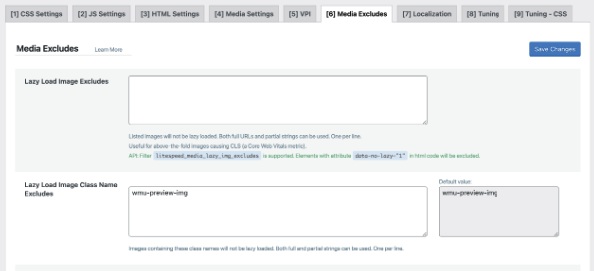
Although the Viewport Images setting aims to exclude viewport images from lazy loading for improved Largest Contentful Paint (LCP), you can manually exclude them for assurance. Since page builders load background images in CSS, they are not lazy-loaded by default, necessitating the use of the data-no-lazy attribute.
- Logo – Provide the image URL you’d like to include.
- Sidebar images – Provide either the image URL or the class name of the image you’d like to include.
- Featured images – Provide the class name (i.e., class=”attachment-full size-full”).
- Background images – Add the “data-no-lazy” attribute to background images.
Localization
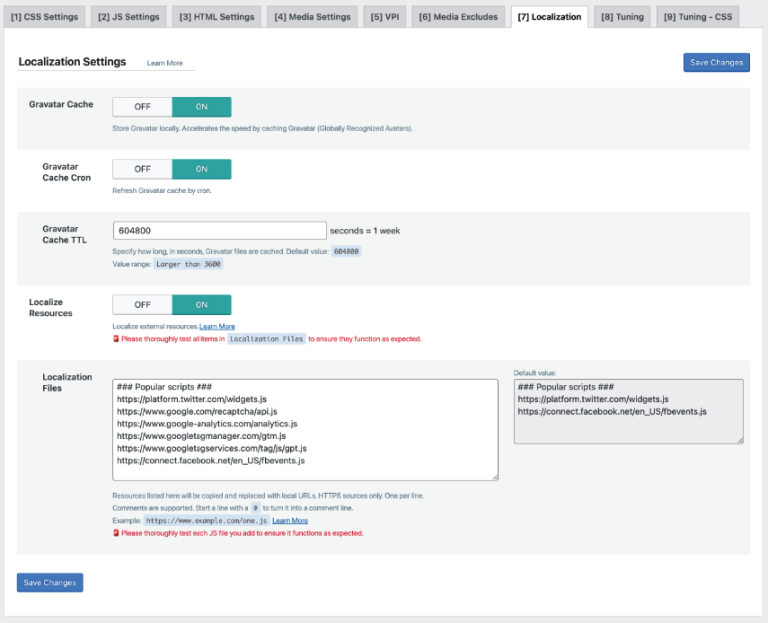
- Gravatar Cache – On – This is particularly useful when you have numerous comments with Gravatars.
- Gravatar Cache Cron – On – This feature becomes especially handy when there are abundant comments featuring Gravatars.
- Gravatar Cache TTL – The default setting of 604800 seconds (1 week) should suffice.
- Localize Resources – On – A great feature for localizing external JS files. Please add them below.
- Localization Files – Refer to your third-party code report to identify JavaScript files currently loading, and consider delaying them. Common examples include Google Analytics, Tag Manager, and reCAPTCHA. Below is a list of popular scripts, including those commonly delayed. Instead of delaying Google Fonts, it’s recommended to host them locally. However, delaying ads may impact revenue, so proceed with caution. Review common issues for more information.
CDN’s
- https://ajax.aspnetcdn.com
- https://ajax.cloudflare.com/
- https://ajax.googleapis.com/ajax/
- https://cdn.jsdelivr.net/
- https://cdnjs.com/
- https://cdnjs.cloudflare.com/
- https://code.jquery.com/
- https://maxcdn.bootstrapcdn.com/
- https://netdna.bootstrapcdn.com/
- https://oss.maxcdn.com/
- https://stackpath.bootstrapcdn.com/
Popular Scripts
- https://maps.google.com/maps/api/js
- https://maps.googleapis.com/maps/api/js
- https://pagead2.googlesyndication.com/pagead/js
- https://platform-api.sharethis.com/js/
- https://platform.twitter.com/widgets.js
- https://s7.addthis.com/js/
- https://stats.wp.com/
- https://connect.facebook.net/en_US/fbevents.js
- https://connect.facebook.net/signals/config/
- https://www.google-analytics.com/analytics.js
- https://www.google.com/recaptcha/api.js
- https://www.googletagmanager.com/gtag/js
- https://www.googletagmanager.com/gtm.js
- https://www.googletagservices.com/tag/js/gpt.js
- https://ws.sharethis.com/button/
Tuning – CSS
Most settings are intended for excluding specific items from optimization, such as CSS, JS, URLs, deferred JS, Guest Mode JS, and roles. You typically only need to do this if a specific setting causes issues with your site. For instance, if minifying or combining CSS/JS breaks your site, identify the problematic file in your source code and then add it to the exclusion list. The same concept applies to most other settings.
Database
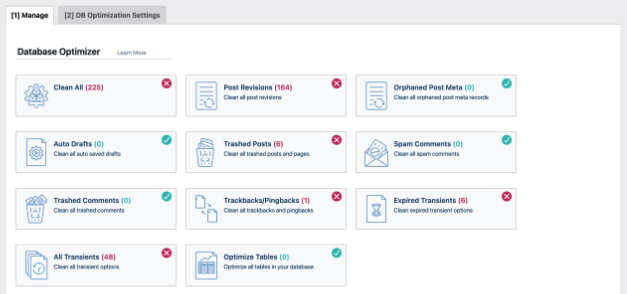
Manage
In the Manage tab, it’s advisable to delete everything except post revisions and auto drafts, as these serve as backups of posts that may be needed in the future. Additionally, you can optimise tables.
DB Optimization Settings
- Revisions Max Number – 10 “Revisions Max Number” specifies the maximum number of revisions that WordPress will store for each post. Once the specified number is exceeded, older revisions will be automatically deleted to maintain the set limit.
- Revisions Max Age – 0 “Revisions Max Age” refers to the maximum age, or duration, for which post revisions are retained in the WordPress database. It determines how long revisions of posts are kept before they are automatically deleted.
Crawler
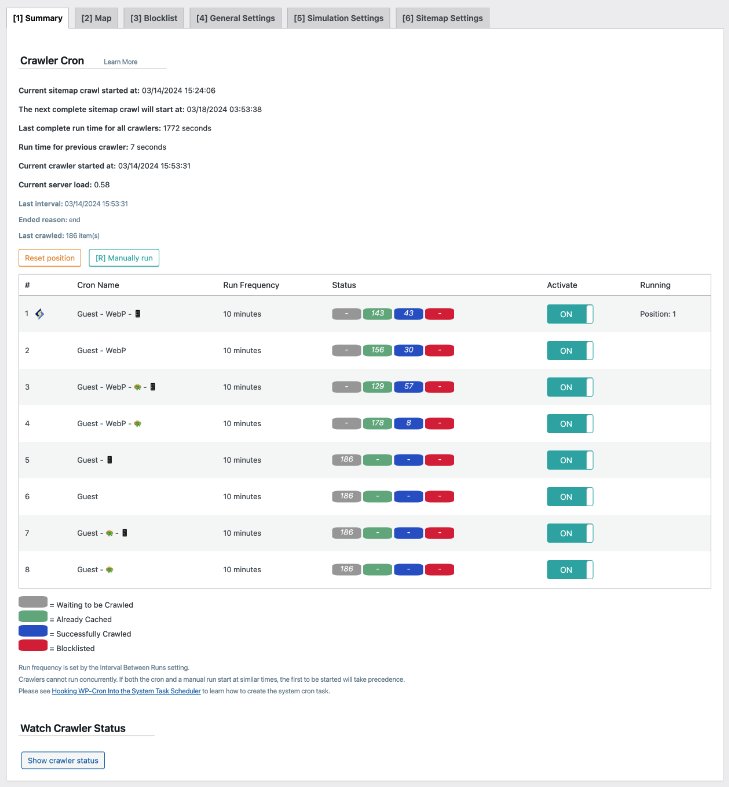
This feature crawls your site to identify pages with expired cache and automatically refreshes them. However, it consumes resources, which is why it’s typically controlled at a server level and not allowed by most hosts, especially shared hosting providers. Therefore, for users on shared hosting, no action is required as it’s usually managed at the server level. If you manage your own server or use SIRSTEVEHQ web hosting, enabling the crawler is recommended. Additionally, submit your sitemap in the Sitemap settings, and leave all other settings as default.
Toolbox
The majority of Toolbox settings are self-explanatory, including purging, import/export, .htaccess editing, reports, debug, logs, beta testing, and more.
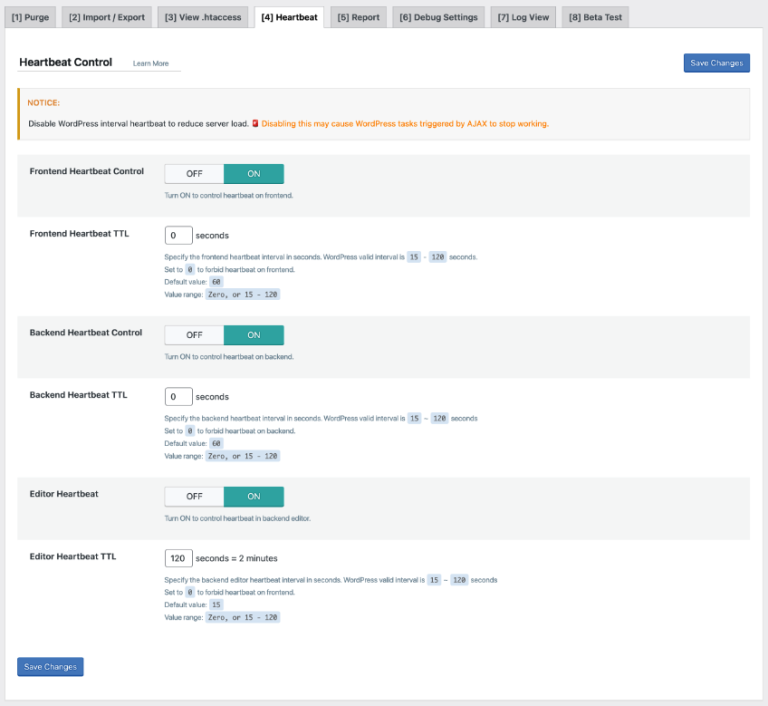
Heartbeat
Heartbeat in WordPress is a technology that enables real-time communication between the browser and the server. It operates by sending periodic requests from the browser to the server to check for updates, such as new comments, plugin updates, or other changes. This communication allows WordPress to provide features like autosave, post locking, and live updates in the admin area. However, excessive heartbeat requests can sometimes cause performance issues, especially on busy sites or servers with limited resources. Therefore, controlling heartbeat settings can help optimize the balance between functionality and performance.
- Frontend Heartbeat Control – On – Manage heartbeat functionality on the frontend.
- Frontend Heartbeat TTL – 0 – You can typically disable it here, but it’s advisable to test it first.
- Backend Heartbeat Control – On – Regulate heartbeat functionality in the backend.
- Backend Heartbeat TTL – 0 – You can generally deactivate it here, but it’s recommended to test it beforehand.
- Editor Heartbeat – On – Manage heartbeat functionality in the post editor.
- Editor Heartbeat TTL – 120 – You likely want features such as autosaves, but consider increasing the interval.