If you’re using LiteSpeed Cache on your WordPress website, it’s important to clear the cache when making changes to ensure visitors see the latest version of your site. Follow these steps to clear the LiteSpeed cache either through the WordPress dashboard or using WP-CLI.
Method 1: Clearing LiteSpeed Cache via WordPress Dashboard
Step 1: Log in to WordPress
Log in to your WordPress admin dashboard by navigating to yourdomain.com/wp-admin and entering your username and password.
Step 2: Access the LiteSpeed Cache Plugin
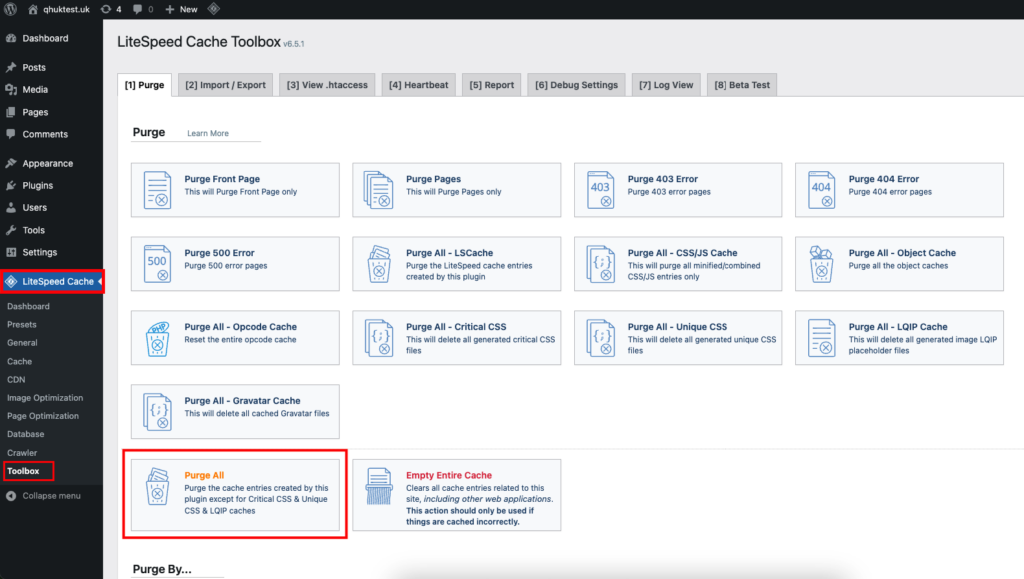
Once logged in, look for the LiteSpeed Cache menu item in the left-hand sidebar.
Step 3: Clear the Cache
Click the Toolbox menu and then Purge All.
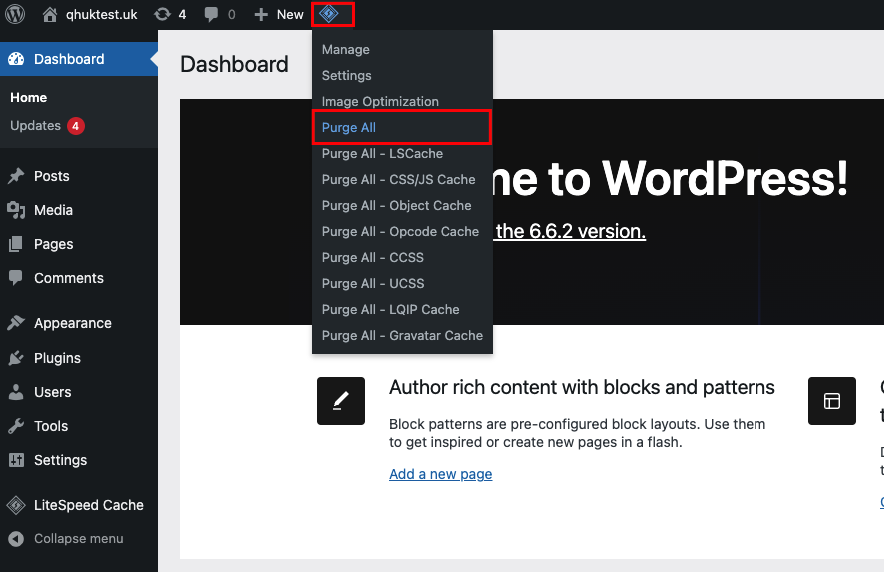
Alternatively, you can:
- Click LiteSpeed Cache logo at the top of the page.
- Click Purge All to clear all cached content from your site.
Step 4: Confirm the Cache is Cleared
After purging the cache, refresh your website or any specific pages you want to check. The cache will be rebuilt automatically, showing the most recent version of your website.
Method 2: Clearing LiteSpeed Cache via WP-CLI
If you have WP-CLI installed, you can also clear the LiteSpeed cache from the command line. This is useful for advanced users or for clearing the cache across multiple sites quickly.
Step 1: Access Your Server via SSH
Use an SSH client to access your server. Run the following command to log in:
ssh username@yourserver.comStep 2: Navigate to Your WordPress Directory
Change to the directory where your WordPress site is installed. For example:
cd /path/to/your/wordpressStep 3: Clear LiteSpeed Cache
Once inside the WordPress directory, run the following WP-CLI command to clear the LiteSpeed cache:
wp litespeed-purge allThis command will purge all LiteSpeed cache for your site.
Step 4: Verify the Cache is Cleared
After running the command, visit your website and refresh the pages to ensure the cache has been purged and you are seeing the latest updates.












