SFTP can be used to establish a connection to your hosting packages and make any necessary changes. The following guide will explain how to connect via SFTP.
Using SFTP to connect to Shared Hosting Packages
- First, navigate to the service overview page for the package you want to access via SFTP.
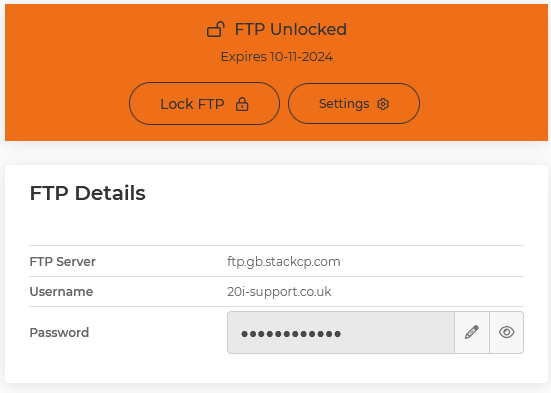
- Next, you need to unlock FTP on the hosting package, this can be done universally, or via IP.
- Open your chosen FTP Client, We would recommend using FileZilla.
- Enter the FTP credentials to connect to the package, it's important to use Port 22 for SFTP.

- Click Connect, if the details entered are correct you should then be connected to the package via SFTP.
How to connect via SFTP to your Cloud Server?
A different process is needed when connecting to Managed servers via SFTP. The main difference is rather than connecting via a username and password you will need to use an SSH key-pair to connect to the server. This is because to connect to a Cloud Server via SFTP you need to utilise an SSH connection.
The first step is to set up your SSH key-pair, if you haven't done this before then we have a guide on how to do this, available here.
Once you have your key-pair configured it's time to open the client you will be using to connect.
- To configure the SFTP connection within Filezilla, you need to go to File> Site Manager.
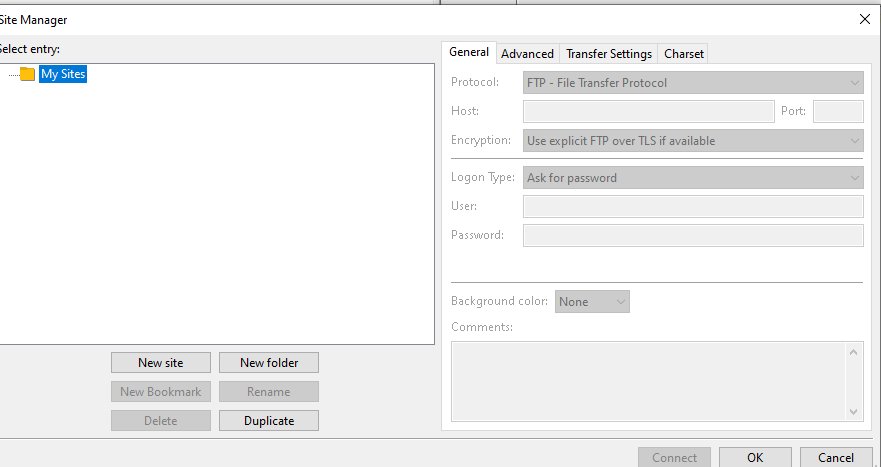
- Within the site manager, you need to click New site,
- Next change the protocol to SFTP - SSH File Transfer Protocol.
- You then need to change the Logon type to key file
- The next step is to enter the hostname, which is the SSH hostname
- Then you need to enter the port If you have a SIRSTEVEHQ Managed Cloud Server, or a Google Cloud server then the port you need to use is port 22. However, if you have an AWS server you need to use port 2222.
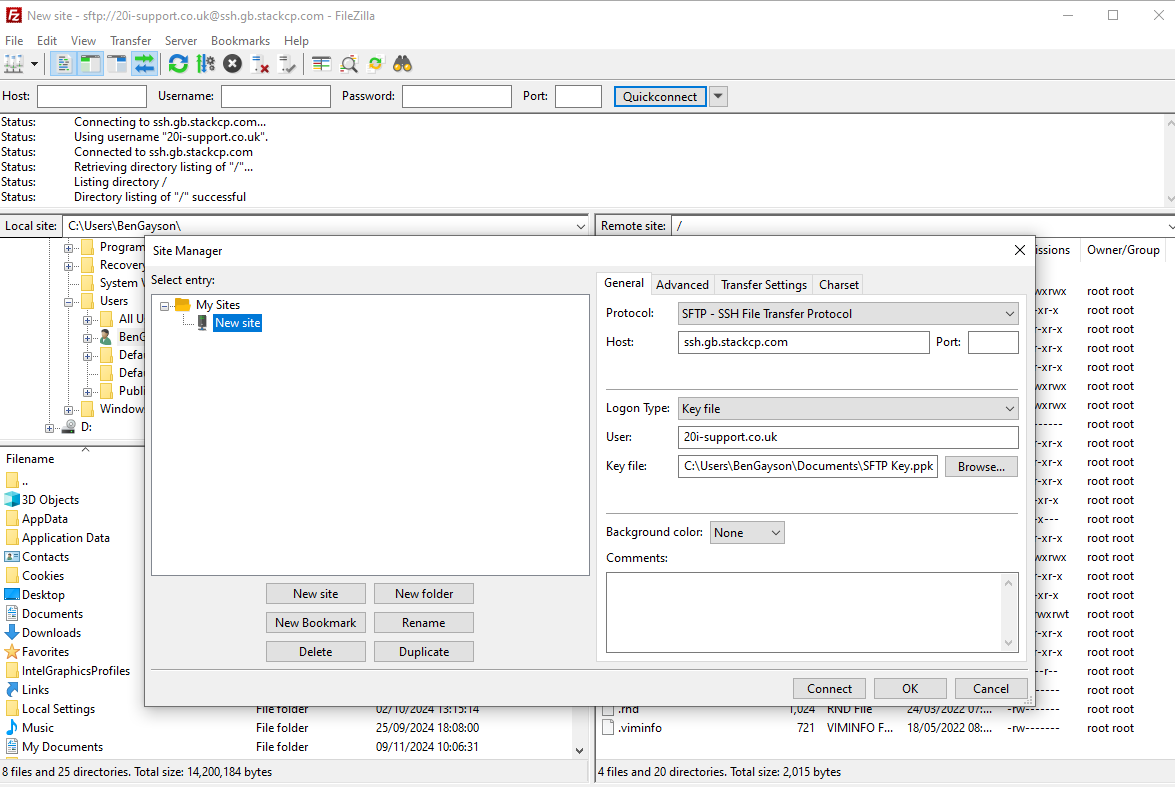
- Next, you need to click browse next to the key file and then add the key file you have created.
- Finally, click connect. If the steps have been completed successfully you should now have an open SFTP connection.

If you have any questions or need any assistance with the above feel free to contact our support team who can then assist you further.












