You log in to your WordPress dashboard one morning and notice something you have probably seen many times before.
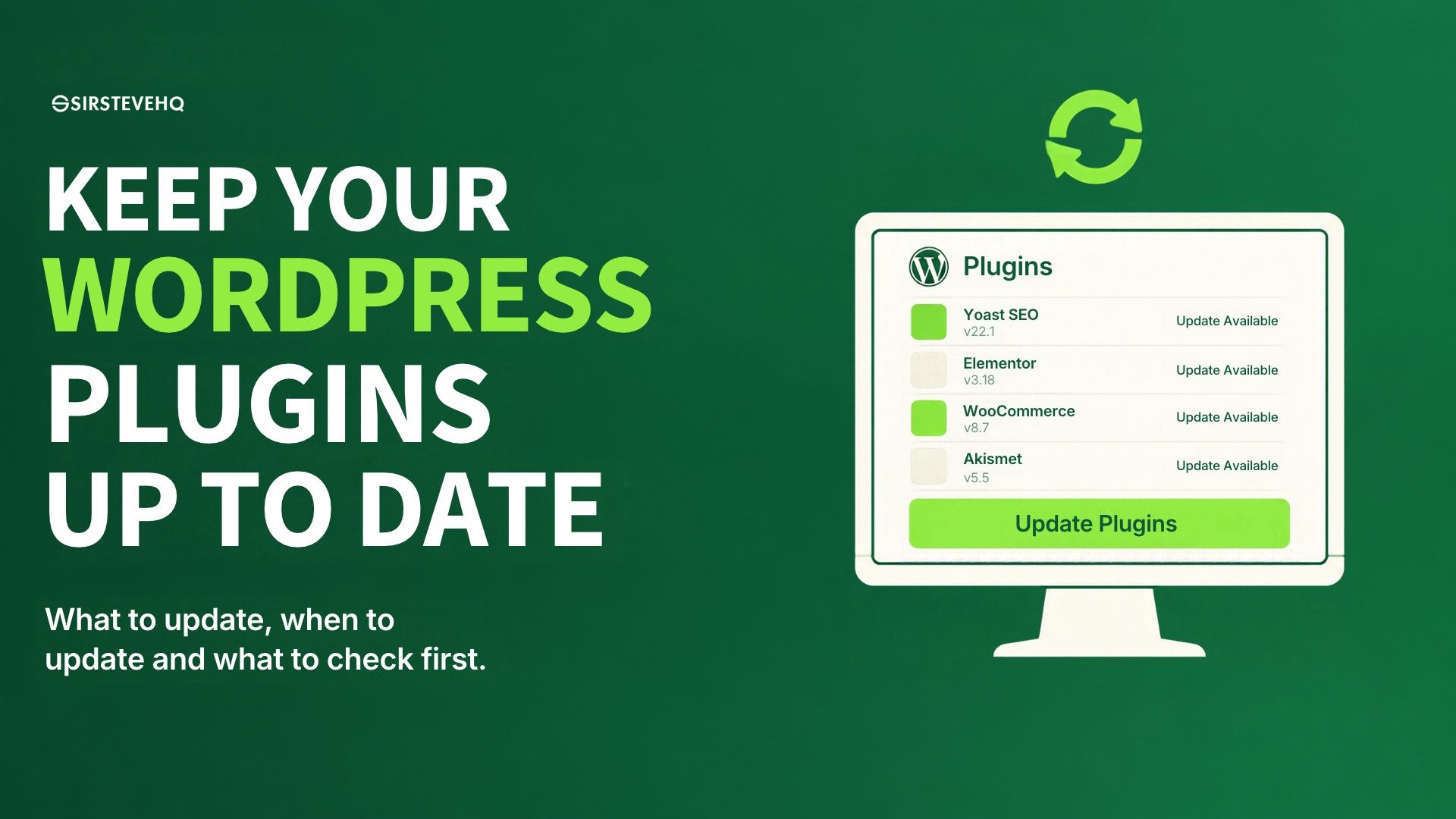
There are seven plugin updates waiting.
Your website is working perfectly. Customers can browse your pages, your contact form is receiving enquiries, and everything appears normal. But those update notifications are sitting in your dashboard, reminding you that some of your website software is no longer running the latest available versions.
You have two choices. You can click "Update All" and hope everything continues working, or you can leave the notifications alone because you do not want to risk breaking a website that is already performing well.
Many WordPress website owners find themselves in this situation.
Some update everything immediately without checking what is changing. Others postpone updates for weeks or months because they are afraid of compatibility problems.
Neither approach is ideal.
WordPress plugins are an important part of what makes the platform flexible, but they also introduce maintenance responsibilities. An update can fix a security vulnerability, improve performance, introduce useful functionality or resolve a compatibility issue. It can also introduce unexpected problems if the new version conflicts with another component of your website.
So, should you update every WordPress plugin immediately?
The short answer is that you should keep your plugins up to date, but you should have a sensible update process rather than blindly clicking every update notification.
Let's examine what that means for your website.
Why WordPress Plugins Need Regular Updates
A WordPress plugin is an extension that adds functionality to your website.
You might install a plugin to create contact forms, improve SEO, manage website security, build landing pages, optimise images, accept payments or manage an online store.
These plugins are developed and maintained by different developers or companies. As WordPress evolves, the plugins installed on your website may also need changes to remain compatible, secure and functional.
An update can contain several types of improvements.
Security fixes: Developers may release updates to address vulnerabilities that could expose websites to unauthorised access, data theft or other attacks.
Compatibility improvements: An update may make a plugin work properly with newer versions of WordPress, PHP or other software.
Bug fixes: Developers may resolve errors that cause a plugin to behave unexpectedly.
New features: An update may introduce additional functionality or improve existing tools.
Performance improvements: Some updates reduce unnecessary processing, improve resource usage or make certain operations more efficient.
This is why plugin updates should not be treated as optional notifications that can be ignored indefinitely.
WordPress itself recommends keeping plugins updated to benefit from security and other improvements.
However, the fact that an update is available does not mean you should install it without considering your website's current condition.
1. Security Updates Should Be Treated as a Priority
Of all the reasons to update WordPress plugins, security is one of the most important.
Imagine that your website uses a plugin for managing customer enquiries. A security vulnerability is discovered in the plugin, and its developer releases a new version to fix the problem.
If you continue using the vulnerable version, your website may remain exposed to the issue.
Depending on the vulnerability, an attacker could potentially exploit it to access information, modify website content, execute unauthorised actions or compromise the website.
Not every plugin vulnerability creates the same level of risk. Some require specific conditions or user permissions, while others may be more serious.
Nevertheless, once a vulnerability becomes publicly known, websites that continue running affected versions can become attractive targets.
This is particularly important for businesses that collect customer information, process enquiries or operate online stores.
If a plugin developer releases an update specifically to address a serious security vulnerability affecting your installed version, you should treat that update as urgent.
Do not postpone it simply because the website appears to be working normally.
A website can function perfectly while still containing a security weakness that customers cannot see.
You should also obtain updates from trusted sources. For plugins distributed through WordPress.org, use the official WordPress dashboard or the plugin's official distribution channel. For premium plugins, use the developer's legitimate update mechanism.
Avoid downloading modified or supposedly premium versions of plugins from unknown websites. These files can contain malicious code.
WordPress provides security guidance in its official documentation on hardening WordPress.
2. Not Every Update Has the Same Level of Urgency
One reason website owners become confused about updates is that WordPress displays update notifications in a similar way, even when the changes are very different.
An update fixing a serious security vulnerability is not the same as an update introducing a minor visual improvement.
Before updating a plugin, examine its release information.
For plugins listed in the WordPress directory, you can usually click the version details link to see what has changed.
Pay attention to:
- Security fixes.
- Compatibility changes.
- Bug fixes.
- New features.
- Minimum required WordPress or PHP versions.
- Known issues mentioned by the developer.
For example, imagine that your website uses a payment integration plugin.
The developer releases a new version that fixes an issue affecting payment processing. This deserves more immediate attention than an update that only changes a minor administrative interface element.
This does not mean you should ignore ordinary updates. It means you should understand what you are installing and prioritise accordingly.
If the release notes are unclear or the plugin supports a critical part of your business, consider checking the developer's support information before proceeding.
3. How Plugin Updates Can Break Your Website
Now, let's look at the concern that causes many people to delay updates.
Can updating a WordPress plugin actually break your website?
Yes, it can.
Although plugin developers test their releases, no update can be guaranteed to work perfectly with every possible combination of WordPress themes, plugins, server configurations and PHP versions.
WordPress websites are often built using multiple components from different developers.
For example, an eCommerce website might use:
- WooCommerce for online shopping.
- A page builder for designing pages.
- A payment gateway plugin.
- A security plugin.
- An SEO plugin.
- A caching plugin.
- A shipping or delivery integration.
These components interact with one another.
An update to one plugin may introduce changes that conflict with another plugin or the active theme.
The result could be anything from a minor display problem to a completely inaccessible website.
Consider a business that updates its page builder. After the update, some website sections no longer display correctly because the active theme or another extension depends on older functionality.
The website may still load, but important pages look broken.
In another situation, a payment plugin update could cause checkout problems, preventing customers from completing purchases.
These problems do not mean plugin updates are inherently dangerous. They demonstrate why backups, compatibility checks and testing matter.
4. Check Plugin Compatibility Before Updating
Before installing an update, take a moment to check whether the plugin is compatible with your current WordPress environment.
Start by examining the plugin's information.
If the plugin is available through the official WordPress directory, you can check its compatibility details from the Plugins section or its listing.
Look for information about:
WordPress compatibility: Does the new version support the version of WordPress installed on your website?
PHP requirements: Does the plugin require a newer PHP version than your hosting account currently uses?
Recent maintenance: Is the plugin actively maintained, or has it gone a long time without meaningful updates?
Developer information: Are there release notes, support discussions or announcements about known problems?
Other dependencies: Does the plugin require another plugin, theme or service to function correctly?
One important detail is that an "untested" compatibility label does not automatically mean a plugin is broken. It means compatibility has not been confirmed for that particular version combination.
You should use the available information to assess risk rather than treating every compatibility warning as proof of a problem.
For websites that rely on several important plugins, it is also sensible to avoid updating multiple critical components simultaneously without testing.
If something breaks after updating five plugins at once, identifying the cause becomes more difficult.
5. Always Have a Recent Backup Before Updating
This is one of the most important habits every WordPress website owner should develop.
Before making significant changes to your website, ensure that you have a recent, usable backup.
A proper WordPress backup should account for both:
Website files: These include WordPress core files, themes, plugins, uploaded media and other website files.
Database: This contains important website information such as posts, pages, settings, user information and other stored data.
Having only your website files without the database may not be sufficient to restore the website to its previous condition.
Imagine that you update a plugin and the website immediately begins displaying errors.
If you have a recent backup, you may be able to restore the website to its previous working state while investigating the issue.
Without a backup, recovering from the problem could be significantly more difficult.
However, do not assume that every backup is automatically usable.
You should know:
- When the last backup was created.
- Whether it includes both files and databases.
- Where the backup is stored.
- How to restore it.
- Whether the backup can actually be accessed.
For business websites, it is sensible to maintain backups independently of the update process rather than creating one only when something goes wrong.
WordPress also recommends backing up a website before updating it. Its official plugin management documentationprovides guidance on updating plugins and preparing backups.
6. Consider Using a Staging Website Before Updating Important Plugins
A staging website is a separate copy of your live website where you can test changes before applying them to the actual website.
This is particularly useful if your website is important to your business.
Imagine that you operate an online store with regular customer orders.
You need to update several plugins, including your page builder, payment integration and eCommerce extensions.
Instead of experimenting directly on the live website, you can create a staging copy and test the updates there first.
You can check whether:
- The homepage displays correctly.
- Product pages still work.
- Customers can add products to their carts.
- Checkout functions properly.
- Payment integrations work as expected.
- Contact forms still submit successfully.
- The website remains responsive on mobile devices.
If everything works correctly, you can plan the updates on your live website.
If something breaks, you have an opportunity to investigate without immediately affecting customers.
Staging is especially valuable for websites with complicated configurations, online stores, membership systems and business-critical applications.
However, remember that staging websites are not automatically identical to live environments in every respect. External integrations, payment systems, email delivery and live customer data may behave differently.
You should also avoid treating a staging copy as a substitute for a proper backup.
For WordPress users, SIRSTEVEHQ WordPress Hosting provides staging and cloning capabilities that can support a safer website development and testing workflow.
7. Should You Enable Automatic WordPress Plugin Updates?
WordPress allows website administrators to enable automatic updates for individual plugins.
This means that instead of manually checking for updates every time, WordPress can install available updates for selected plugins in the background.
For a website owner who manages several plugins, this can reduce maintenance work and help keep software current.
However, automatic updates require some thought.
Imagine that your website uses a plugin that controls an important part of your checkout process.
If an automatic update introduces a compatibility problem, the issue could affect customers before you have an opportunity to inspect the changes.
This does not mean automatic updates should always be disabled. It means that the decision should depend on the plugin, the importance of the website and your ability to detect and recover from problems.
A practical approach is to divide plugins into different groups.
| Plugin type |
Suggested approach |
| Security-related plugins |
Prioritise security updates and monitor them closely |
| Simple, low-risk plugins |
Consider automatic updates if backups are reliable |
| Payment and checkout plugins |
Test updates carefully before applying them to the live website |
| Page builders and major design plugins |
Review release notes and test important pages |
| Custom or business-critical plugins |
Check compatibility and test before updating |
You do not have to manage every plugin in exactly the same way.
WordPress introduced individual plugin auto-update controls in version 5.5. You can manage them from Plugins → Installed Plugins.
According to WordPress documentation, automatic plugin and theme updates are normally scheduled twice daily. WordPress can also send email notifications about successful and failed update attempts.
You can learn more in the official guide to plugin and theme auto-updates.
8. What Should You Do If a Plugin Update Breaks Your Website?
Even with careful planning, something can go wrong.
If your website develops problems immediately after a plugin update, avoid making several additional changes without understanding the cause.
Start by identifying what changed.
Did the issue begin immediately after updating a particular plugin? Does the error affect the entire website or only specific pages? Can you still access the WordPress dashboard?
Your recovery process depends on the nature of the problem.
Step one: Identify the affected plugin.
If you updated one plugin immediately before the problem started, it is a reasonable place to begin investigating.
Step two: Check the error message.
WordPress may display an error indicating which plugin or file is causing the problem. Server error logs may also provide useful information.
Step three: Deactivate the affected plugin if necessary.
If you can access the WordPress dashboard, try deactivating the suspected plugin and checking whether the website becomes functional again.
If the dashboard is inaccessible, you may need to use your hosting file manager or another supported method to disable the plugin.
Only do this if you understand the potential consequences, particularly if the plugin controls important business functionality.
Step four: Restore a working backup if required.
If the update has caused significant damage and you have a suitable backup, restoring the previous working version may be the safest recovery option.
Step five: Investigate before reinstalling the update.
Check the plugin's release notes, compatibility requirements and developer support information. Do not repeatedly install the same update without understanding why it failed.
If the website is business-critical, involve a WordPress developer or your hosting provider's technical support team where appropriate.
The objective is to restore the website safely, identify the cause and prevent the same problem from happening again.
9. Do Not Forget to Update WordPress Themes and Core Software
Plugin maintenance is only one part of keeping WordPress secure.
Your WordPress installation also includes its core software and themes.
These components receive updates for security, compatibility, performance and functionality.
An outdated theme can introduce compatibility problems or leave vulnerabilities unresolved. An outdated WordPress core installation can also expose your website to known security issues.
You should therefore have a maintenance routine that covers:
- WordPress core.
- Installed plugins.
- Active themes.
- PHP compatibility.
- Website backups.
- Security monitoring.
Also review inactive plugins and themes.
If you no longer use a plugin, deactivate and remove it where appropriate. Simply leaving unused extensions installed creates unnecessary maintenance work and may leave software on your website that still requires attention.
Do not remove a plugin without first checking whether your website depends on its functionality or stored data.
The goal is to keep your WordPress installation maintained without introducing unnecessary risk.
10. Build a WordPress Update Routine That Works for Your Business
The best way to manage updates is to make them part of your regular website maintenance rather than something you remember only when the dashboard displays a large number of notifications.
Your routine does not have to be complicated.
For example, a small business website might use the following approach:
Regularly check available updates.
Review the WordPress dashboard and identify plugins, themes and core updates that need attention.
Prioritise security-related updates.
If a developer releases a fix for a serious vulnerability affecting your installed version, treat it as a priority.
Check release information.
Read the changelog and look for compatibility requirements or known issues.
Confirm your backups.
Make sure a recent backup is available before carrying out significant updates.
Test important functionality.
After updating, check the pages and features that matter most to your business.
Monitor the website.
Look for unexpected errors, broken layouts, failed forms or problems with customer transactions.
Remove unnecessary plugins.
Review your installed extensions periodically and remove those that are no longer required.
For a simple portfolio website, this process may take only a short time. A large online store or membership website may require a more formal maintenance procedure.
The important thing is to establish a routine that matches the complexity of your website.
How Your WordPress Hosting Environment Fits Into Website Maintenance
Your hosting environment plays an important role in maintaining a WordPress website.
Plugin updates are performed within your WordPress installation, but the process depends on the underlying server environment.
PHP compatibility, file permissions, available resources, database functionality and server configuration can all affect whether updates complete successfully.
For example, an outdated PHP version may not satisfy the requirements of a newer plugin release. In another situation, insufficient available storage could prevent an update from completing properly.
This is why website maintenance should not be separated from hosting considerations.
At SIRSTEVEHQ, our WordPress Hosting is designed for WordPress websites and provides tools such as staging and cloning to support website management.
Businesses that need a different hosting environment can also explore our Cloud Hosting options.
However, moving to a different hosting plan does not eliminate the need to maintain WordPress plugins, themes and core software. Updates and compatibility checks remain the website owner's responsibility unless a specific maintenance arrangement says otherwise.
Choose an environment that supports your website's technical requirements, and establish a maintenance process that keeps the software running safely.
Final Thoughts: Keep Your WordPress Website Updated, But Do It Properly
WordPress plugin updates are not something to fear, but they are also not something to install blindly.
Leaving plugins outdated for extended periods can expose your website to security vulnerabilities and compatibility problems. At the same time, installing updates without backups or testing can introduce unexpected errors.
The solution is not to stop updating. It is to manage updates intelligently.
Understand what an update changes, prioritise security fixes, check compatibility, maintain reliable backups and use staging environments when working on important websites.
Most importantly, remember that your website is part of your business infrastructure.
If customers depend on it to find information, submit enquiries, make payments or access services, maintaining it should be treated as an ongoing business responsibility.
A WordPress website does not become secure simply because it was installed correctly. It needs regular attention.
Keep your plugins updated, protect your backups and never make major changes to a business-critical website without a recovery plan.
















Comments (0)
No comments yet. Be the first to comment!