Get 30% off your WordPress Hosting with code WPSAVE10. Launch Faster. Save More!
  • 00 Days
  • 00 Hours
  • 00 Minutes
  • 00 Seconds

How can I clone a site with Timeline Backups? - SIRSTEVEHQ CP

Timeline Backups allow you to restore data between hosting packages, making them an ideal tool to assist with 'cloning' websites in your account.

For example, if you wanted to clone example.com into a package called example-clone.com:

  • Order a new hosting plan from us with a domain name such as example-clone.com, preferably on our Cloud Hosting or WordPress Hosting package. Ensure that you have already purchased the Timeline Backup for your current hosting package.
  • Head to the Timeline Backups Page
  • Click View snapshots next to example.com 
  • Select a snapshot time
  • Set the target package to be example-clone.com
  • Start the restore by pressing the Restore Snapshot button
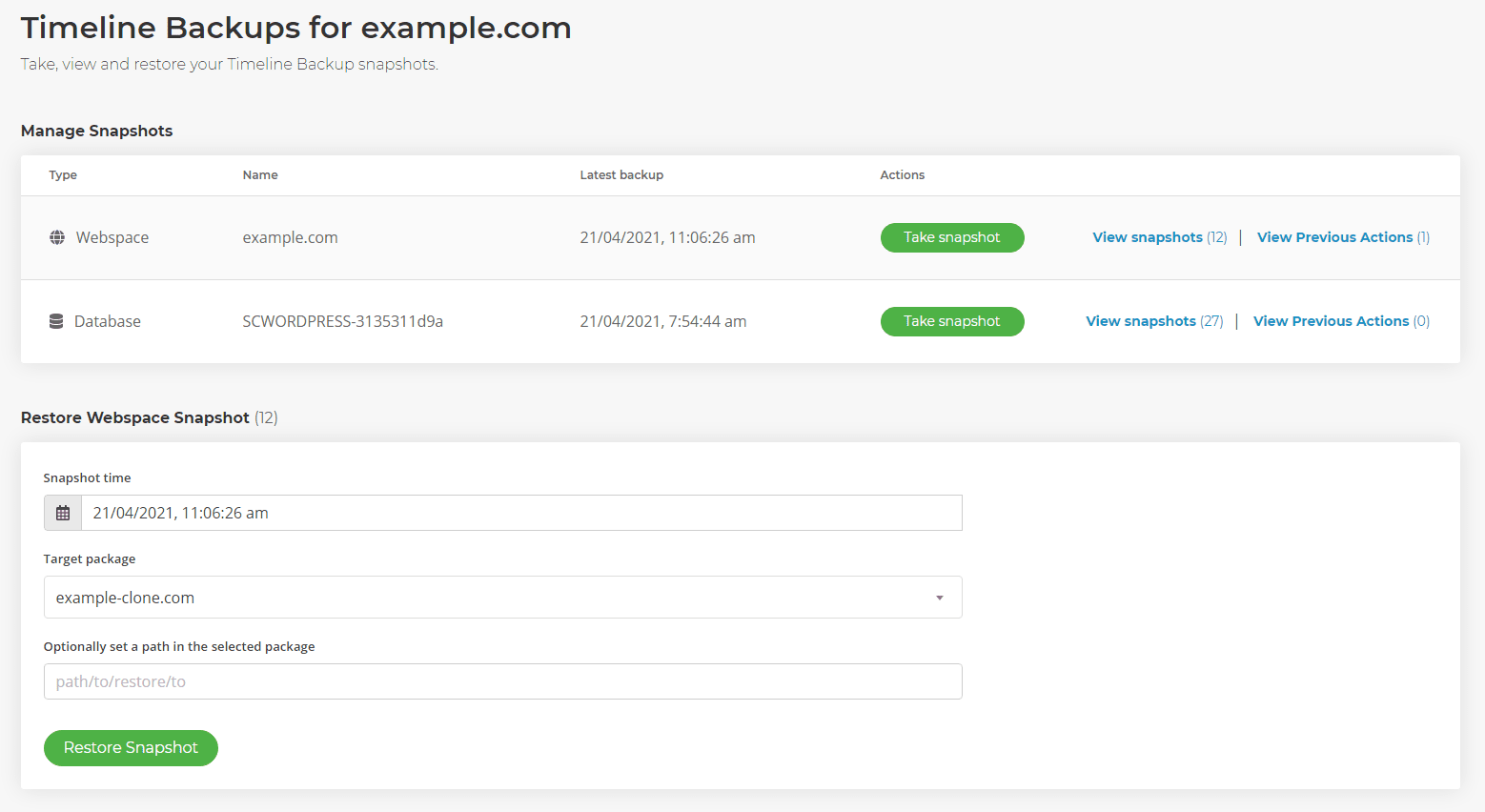
Website cloning via timeline backups

The control panel will show you when the restore is in progress. Navigating away from the page will not cancel the restore and you can view on any previous jobs by heading back into the Manage Snapshots area for example.com and clicking View Jobs.

  • 0 Users Found This Useful
Was this answer helpful?

Related Articles

How can I identify a SIRSTEVEHQ CP phishing email?

Recently, we’ve noticed an increase in the number of phishing emails targeting our customers....

How do I set up Automatic Timeline Backups? - SIRSTEVEHQ CP

With our Timeline Backups product, automatic snapshots of your website files and databases are...

What is HTTP Keep-Alive? - SIRSTEVEHQ CP

HTTP Keep-Alive, also known as HTTP persistent connection, is a mechanism used to maintain an...

Should I transfer my site to the WordPress platform? - SIRSTEVEHQ CP

Yes - absolutely, to get the best performance from a WordPress site it's best to transfer it to...

Is there any downtime during a platform transfer? - SIRSTEVEHQ CP

There is potential for downtime during a platform transfer. For a normal website, you could...










