Your machine's local hosts file allows you to override DNS for a particular domain or subdomain name.
This is a great way to test the site ahead of changing real DNS: you're able to test the website at SIRSTEVEHQ CP while the rest of the internet continues to use DNS to point to the existing website.
The way to modify this file and the location of it differs by the operating system.
To modify your hosts file, you can add two entries to the file that contains the IP address that you want the site to resolve to. Adding the following two lines, for example, would point www.domain.com and domain.com to the IP 1.2.3.4:
1.2.3.4 domain.com www.domain.com
Modify hosts file on Windows:
- Press Start and Search for Notepad
- In the search results, right-click Notepad and select Run as administrator. (this bit's important!)
- Use File -> Open and navigate to the following file:
c:\Windows\System32\Drivers\etc\hosts - Make the changes (see below)
For Mac OS 10.0 to 10.6:
- Open Applications > Utilities > Terminal
- Type sudo nano /etc/hosts
- Enter the administrator password
- Make the changes (below)
To save changes in nano, press Control+x and then y when prompted.
Modify hosts file for Mac OS X 10.6 through 12:
- Open Applications > Utilities > Terminal
- Type sudo nano /private/etc/hosts
- Enter the administrator password
- Make the changes (below)
- Type dscacheutil -flushcache in to Terminal and press enter.
To save changes in nano, press Control-x and then "y" when prompted.
How to modify hosts file for Linux:
- Use your favourite editor to open
/etc/hosts(i.e sudo vim /etc/hosts) - Make the changes (below)
Making The Change
The hosts file takes arguments of the format:
XX.XX.XX.XX domain.com www.domain.com
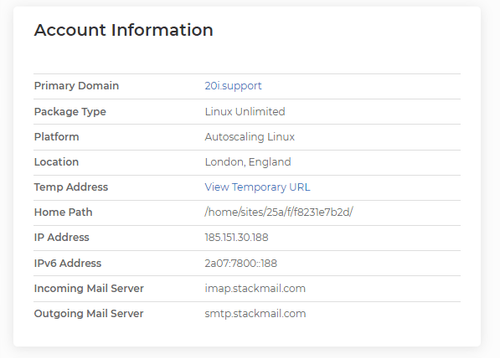
The IP address for the website is displayed down the right-hand side of the hosting package overview page in SIRSTEVEHQ CP. To get to this page, head to SIRSTEVEHQ CP, find the hosting package and select Options > Manage. Once on the overview page, the IP address can be found under the Account Information heading. They'll usually start with '185.151.3x.xxx':
185.151.3x.xxx domain.com www.domain.com
After you add this line and save the file, your system begins resolving to the specified IP address.
If you also have subdomains that you'd like to resolve to your SIRSTEVEHQ CP hosting package, you can add them like this:
185.151.3x.xxx domain.com www.domain.com sub.domain.com
After testing is finished please remove these entries so you start using "real DNS" once again.
It's important to ensure that when making this change you have entries for both your domain and all relevant subparts. For example, if you just add an entry for "domain.tld", then "www.domain.tld" will point the original server. The same goes for any subdomains












