Introduction
In this tutorial, we will show you how to improve the impression you make during email communication. Whether your emails are for personal or business use, including a personalized and unique signature helps create instant recognition. Being able to send and receive emails on your phone is extremely convenient. This tutorial will explain how to create an email signature directly in your Android email application.
Getting Started
Please note that this tutorial assumes you have already completed the Android email setup. If you have not done so, please review our tutorial on How to Set Up an Email on Android.
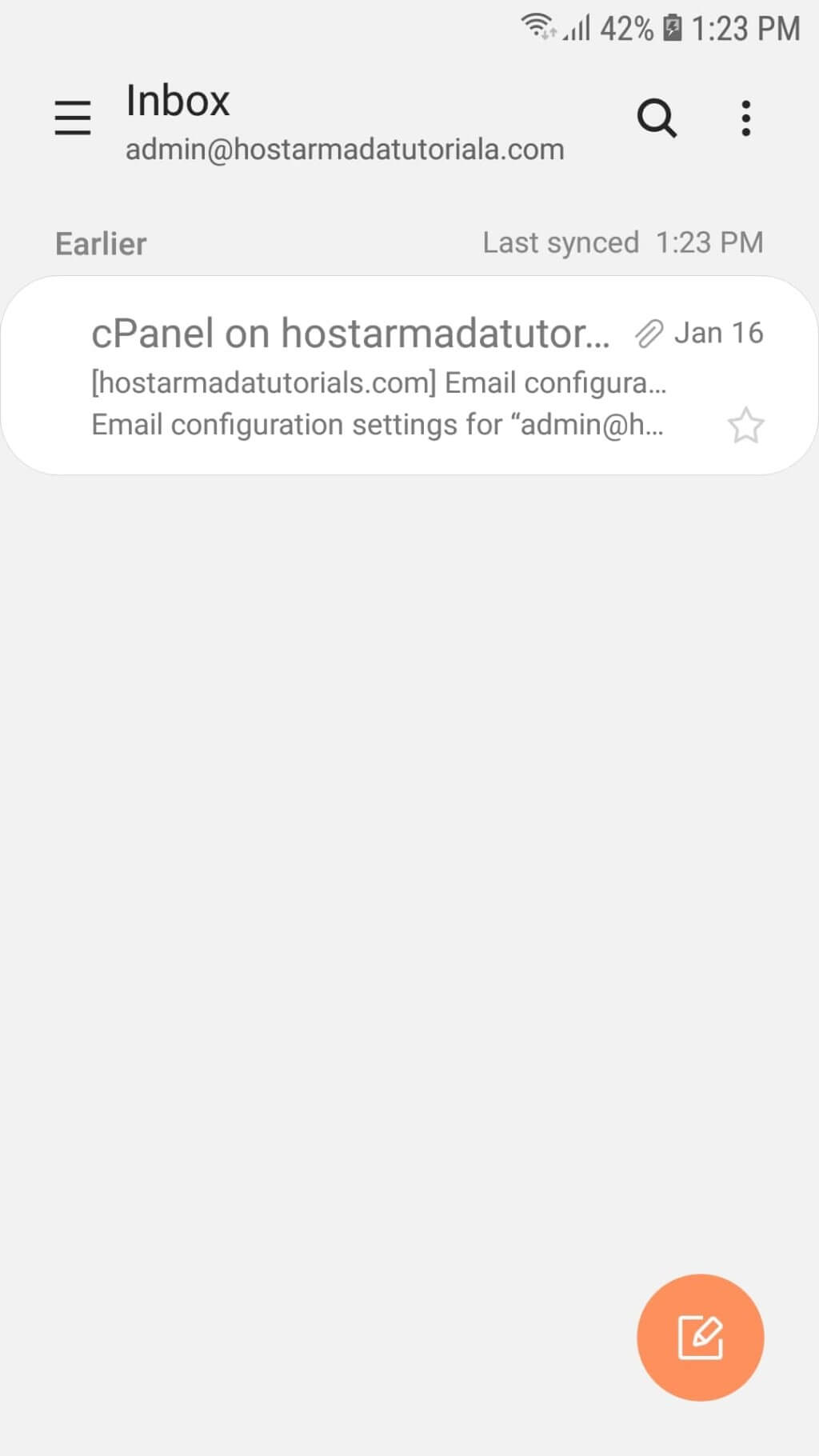
To begin, open the email application on your Android device. Then click on the triple bar icon located at the top-left corner of the screen.
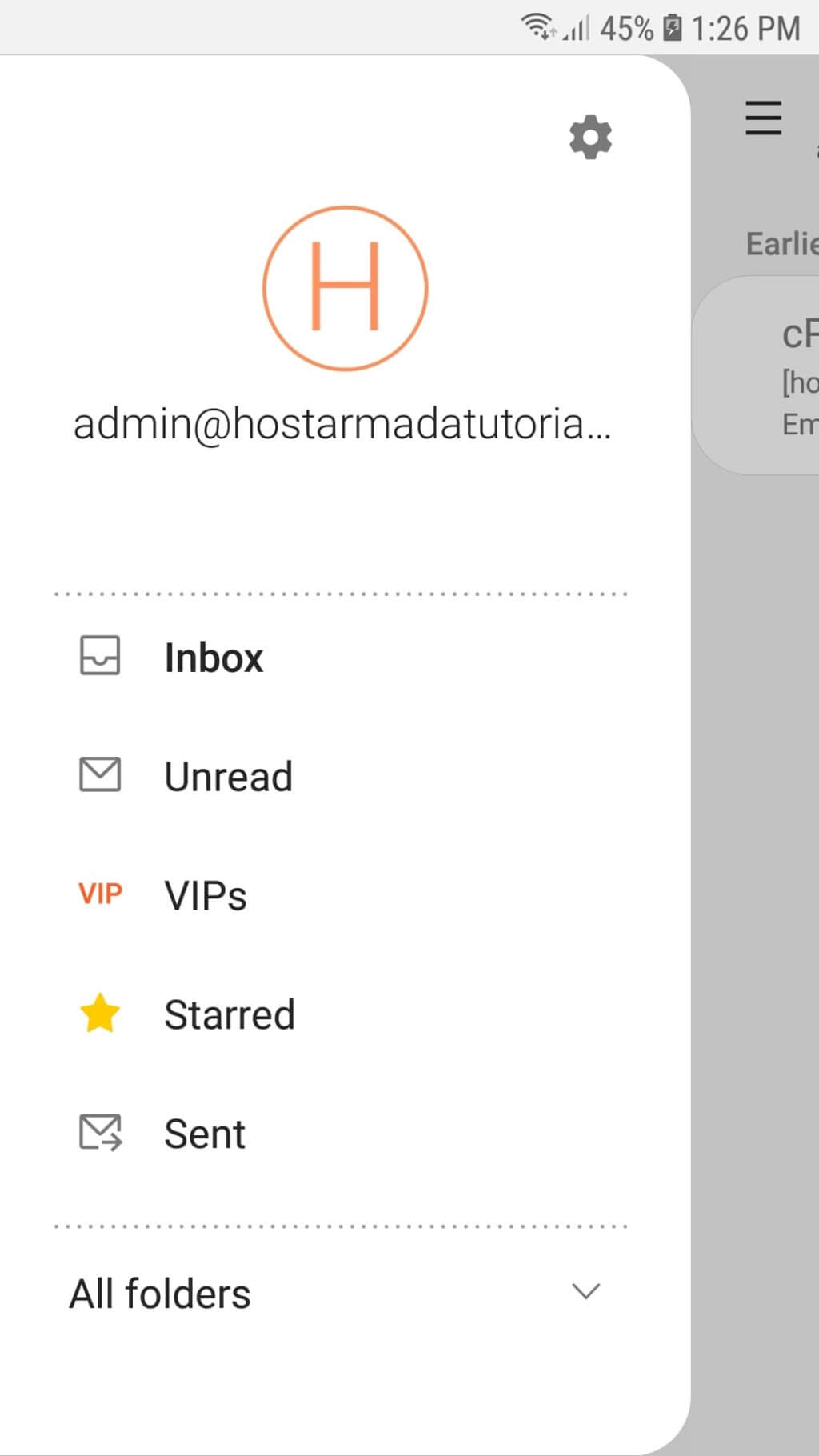
Once you do this, the Email App will display a menu containing the current email account and its mailboxes. Click on the Settings (gear) icon located at the top-right corner of the menu.
You will then be redirected to the Email settings section, where you will see a list of all email accounts currently configured on your device.
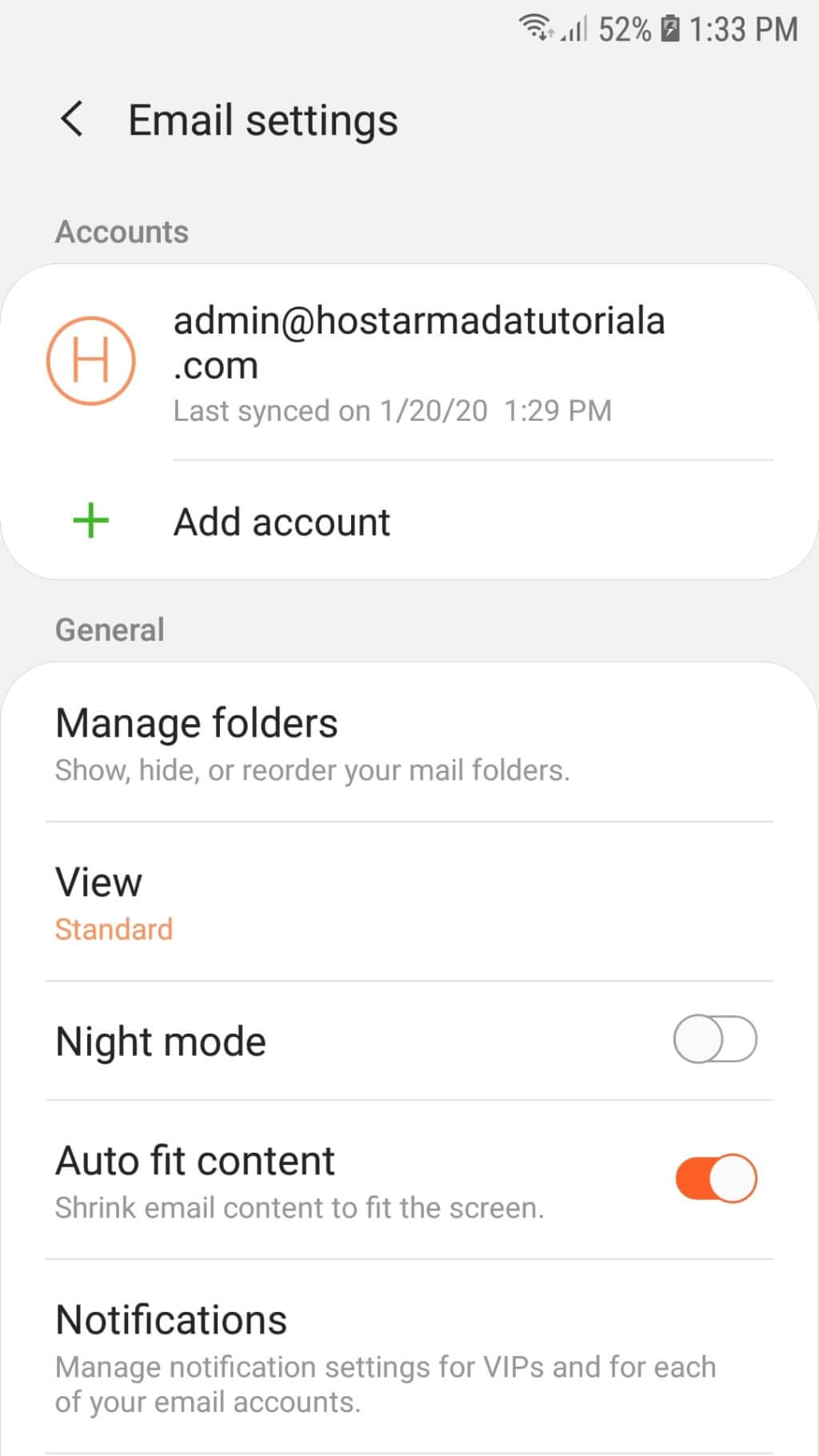
From the list of available email accounts, select the one for which you want to create a signature.
Setting Up an Email Signature in the Android Application
On the next screen, labeled with the selected email address, you will find several settings related to that email account.
Locate the Signature option under the Account settings section. You will notice that a default signature is already enabled. In our example, it is “Sent from my Samsung Galaxy smartphone”. The text may vary depending on your device. Default signatures are usually neither personal nor professional.
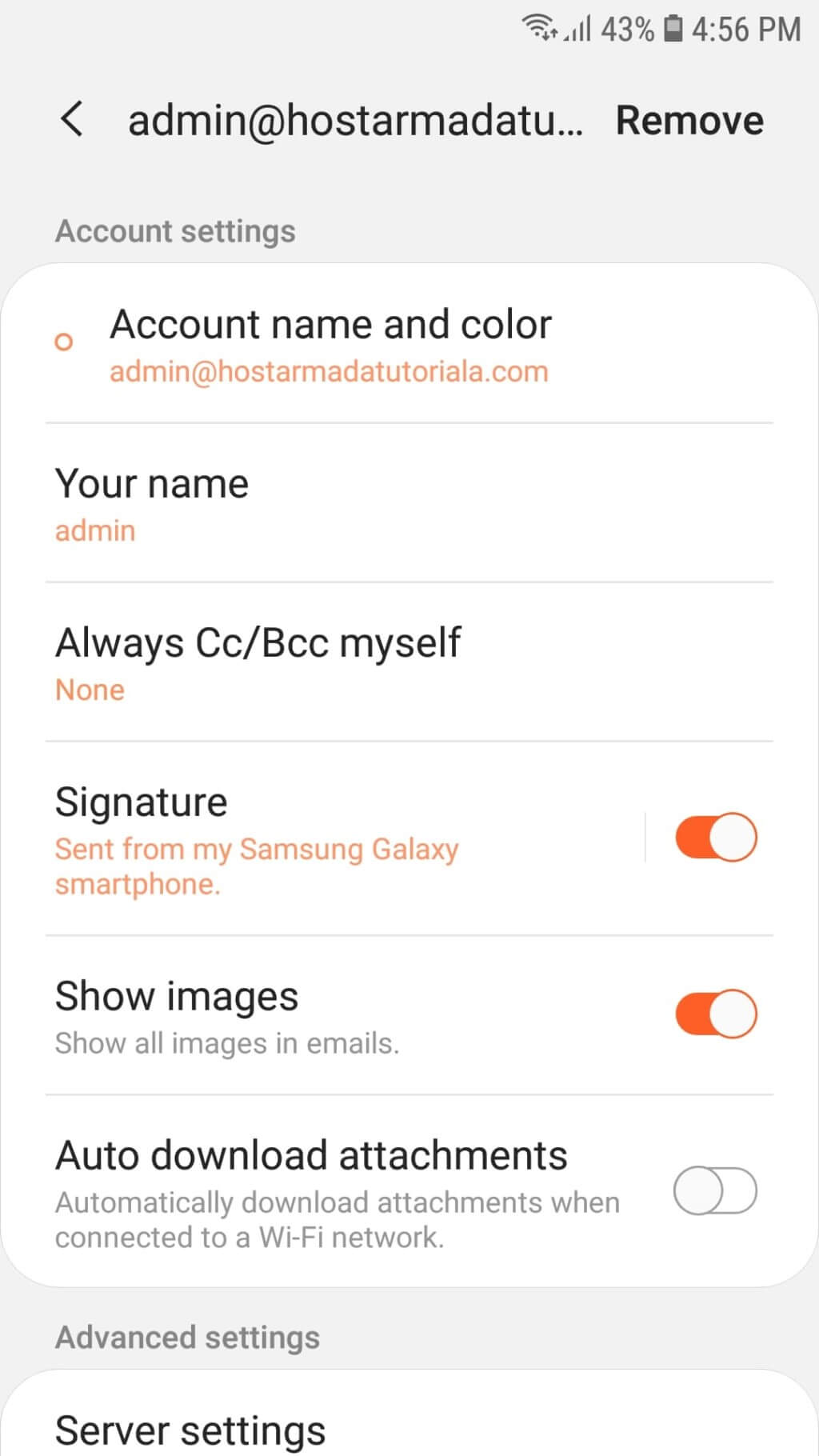
To change it, click directly on the Signature text. The switch next to it allows you to enable or disable the signature, so ensure it remains enabled.
On the next screen, delete the default text and enter the signature you want to use. You may also use the toolbar below to customize your signature by adding images, if needed.
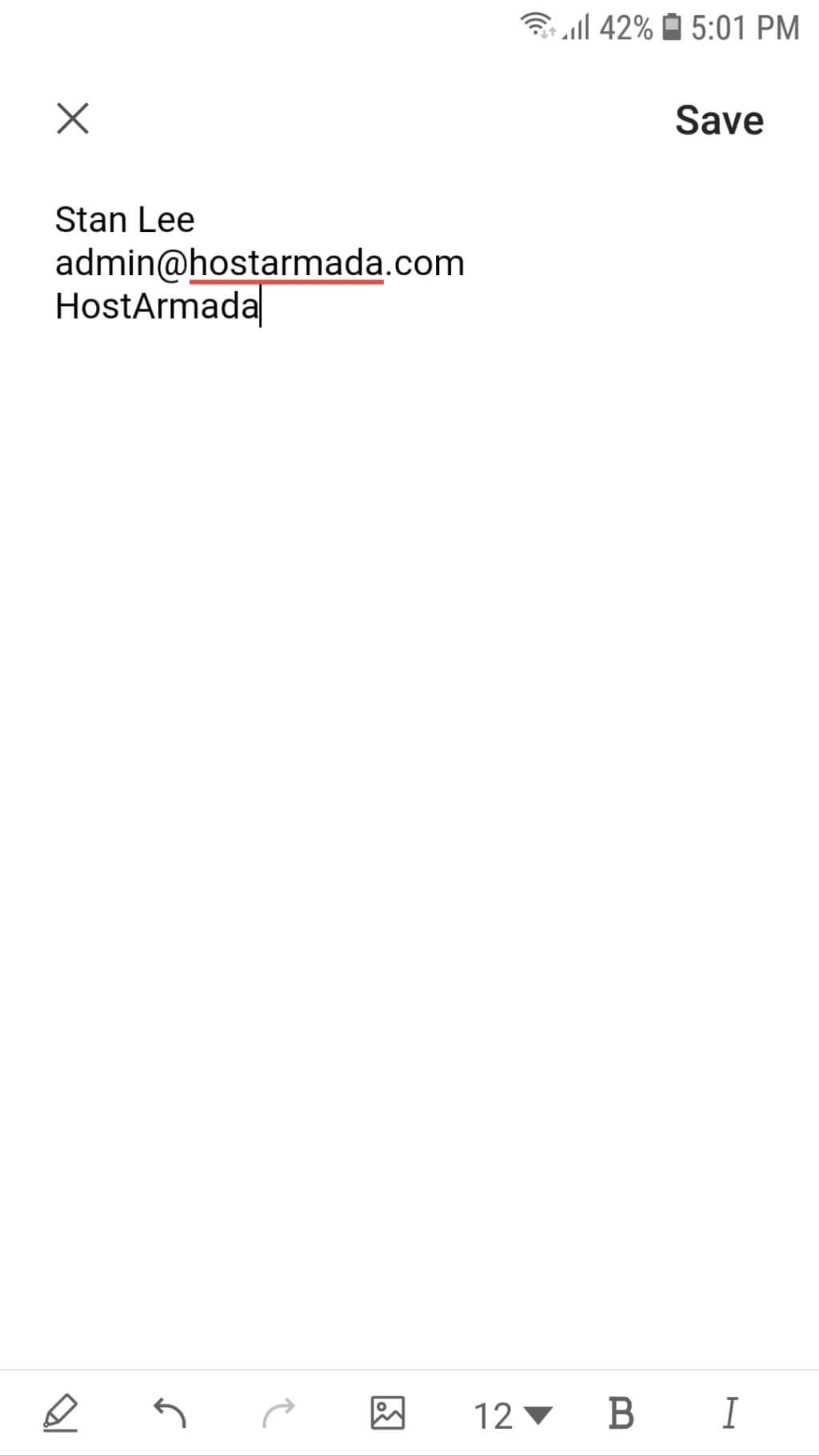
When you are finished, click the Save button to confirm your changes.
That’s it! We recommend sending a test email to confirm that your new email signature appears as expected. If everything looks good, you are all set.
Well done! You have successfully created a personal email signature on your Android device. We hope this tutorial was easy to follow. If you have any further questions, please feel free to contact our Support Team.












