Introduction
So far, in our Ezoic Tutorial series, we have discussed what Ezoic is, How does Ezoic work, and how to go through the Ezoic registration process and Ezoic initial setup. Now that we know the fundamentals, we can discuss how you can add more websites to your Ezoic dashboard or remove the ones you are no longer using.
The process is straightforward, and once you have gone through the setup, you can comfortably add or remove as many websites as you please.
Without further ado, let's get started.
Getting Started
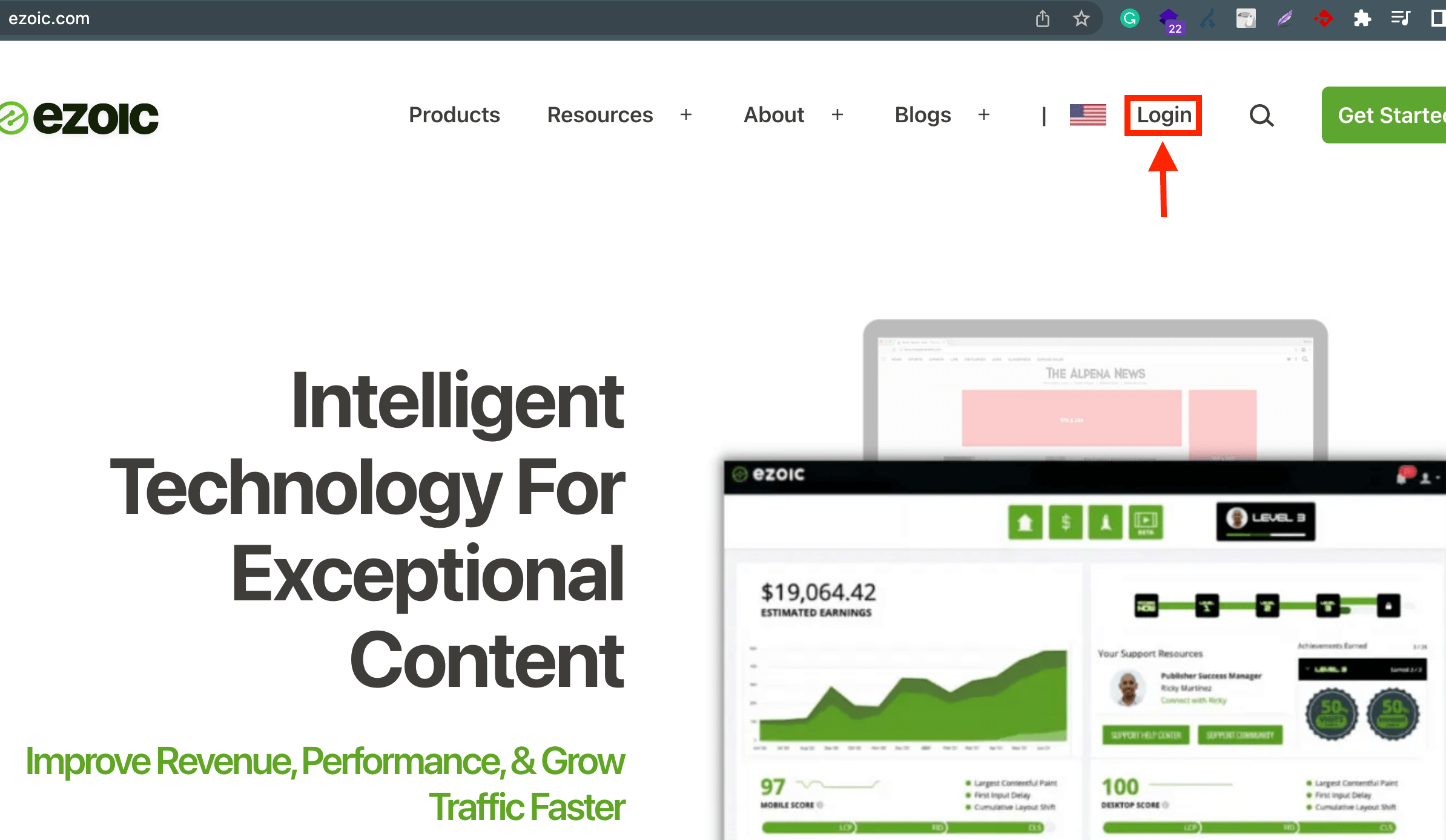
First, please log inside your Ezoic dashboard. To do that, please go to the Ezoic website and press the "Login" button in the top right corner.
Once inside your Ezoic account, please point your attention to the top left corner of the dashboard.
Adding Websites
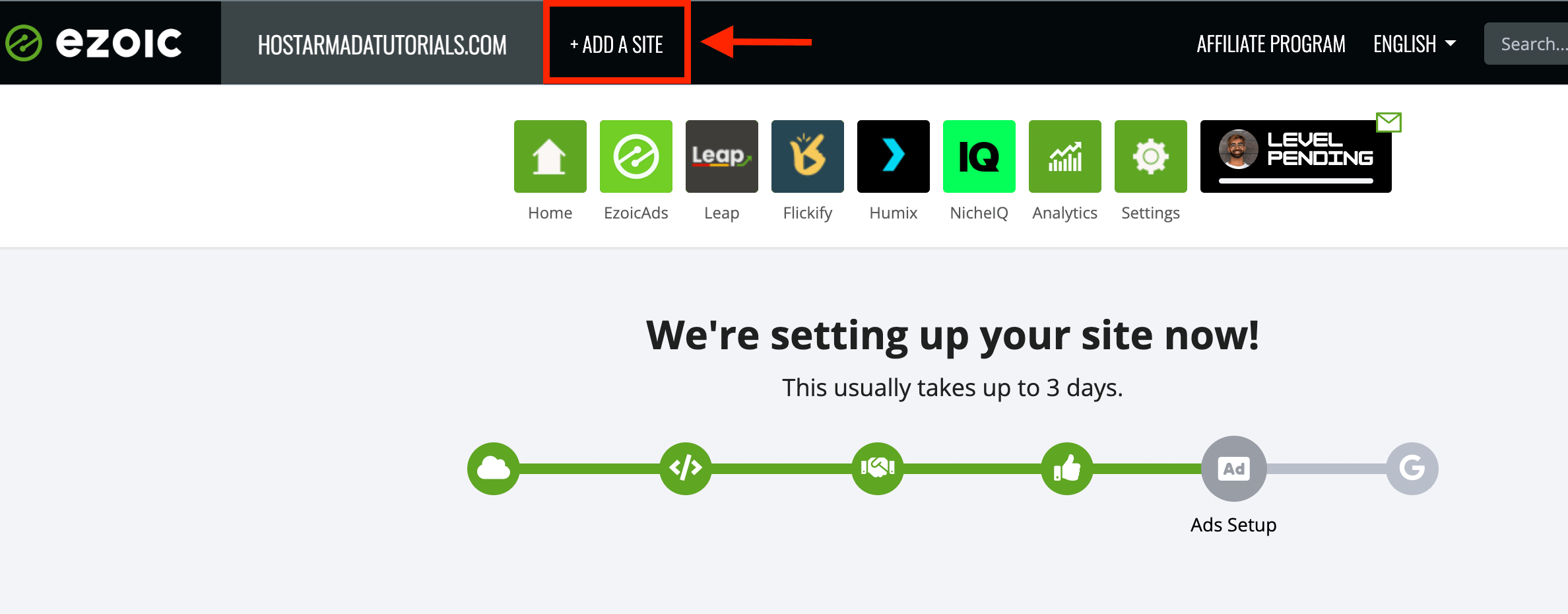
There you will see the Ezoic logo, followed by your current domain name, and on the right side of the domain itself, you will see a "+ Add a Site" button. Please click on it.
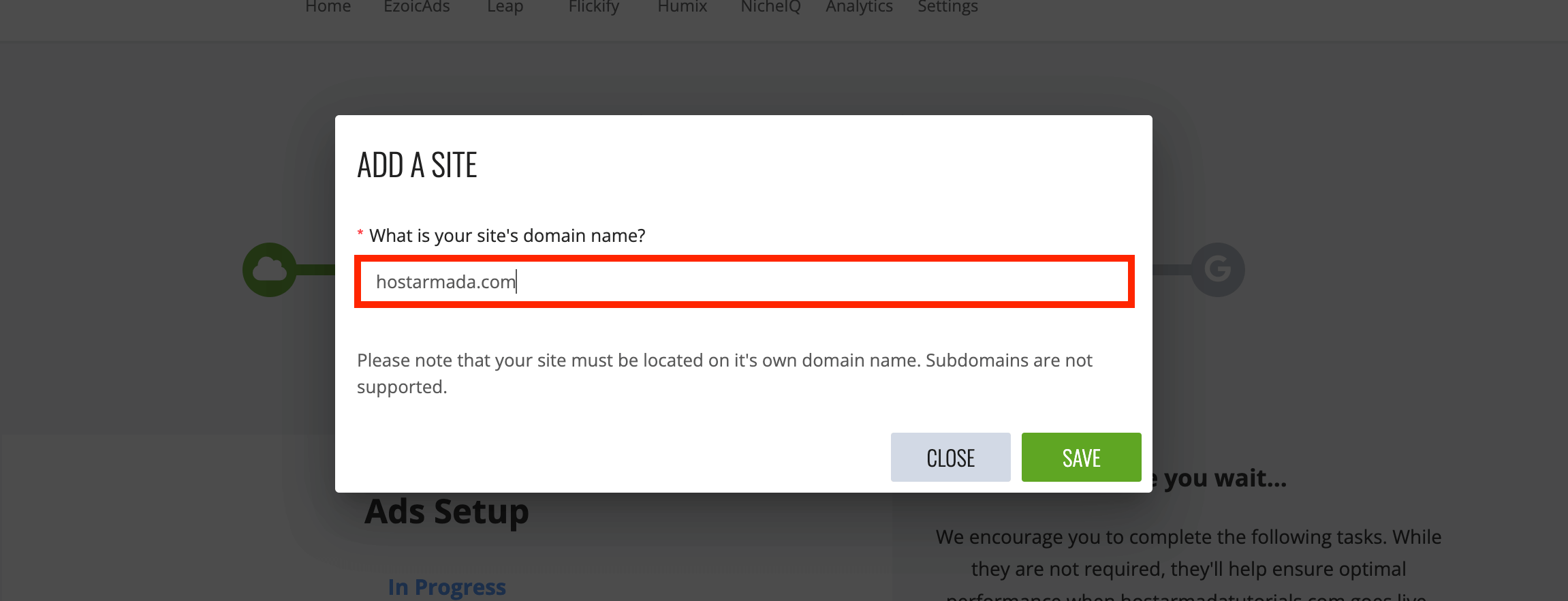
Doing so will open a popup window with a text field where you must type in your new domain name. After doing so, please click the "Save" button at the bottom right corner of the popup window.
After a brief loading screen, the page will refresh, and you will be redirected to a very familiar page.
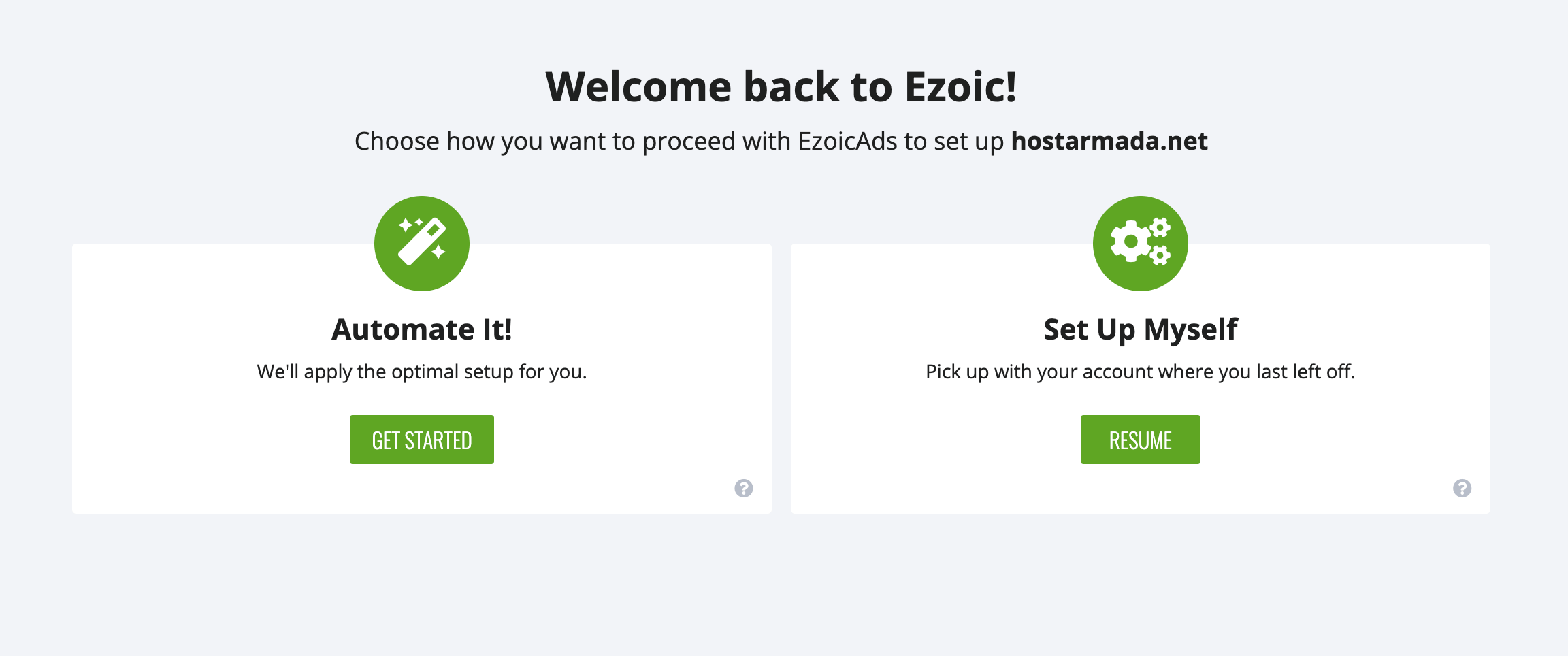
That's right! Adding a new domain name involves going through the same process you went through when setting up your first domain.
Removing Websites
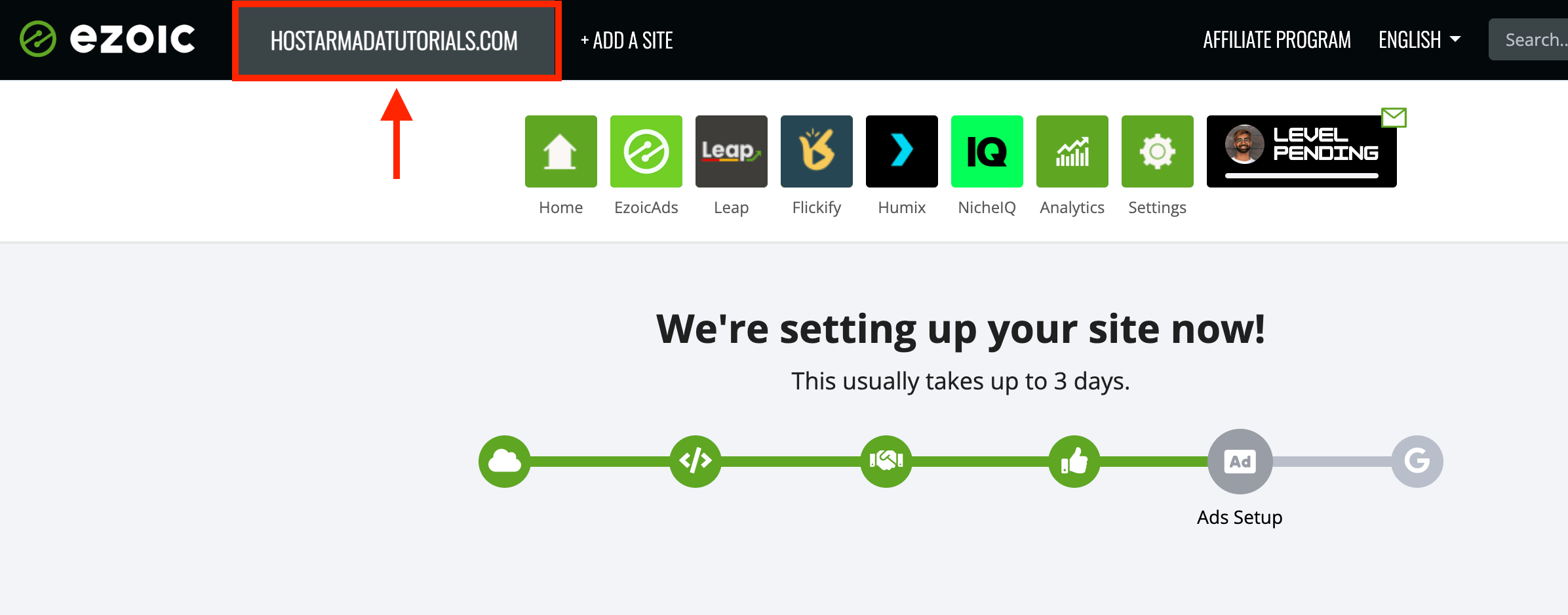
To remove a website from Ezoic, you need to be logged inside your Ezoic account. After you are logged in, please click on the currently selected domain name, located at the top left corner on the right side of the Ezoic logo.
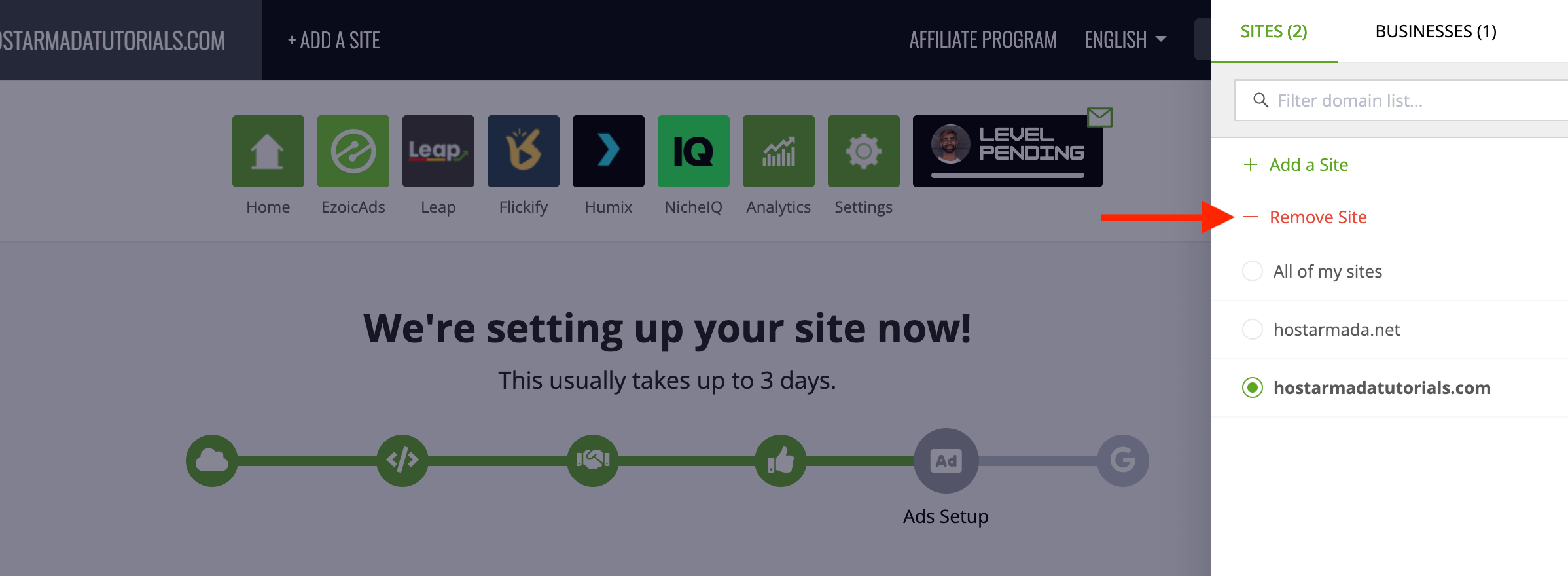
Upon doing so, a side menu will reveal itself on the right side, where you will see a list of all your domains, a text field on the top that will allow you to filter them, and beneath the "+ Add a Site", and "- Remove Site" links. Please click on the "- Remove Site" link.
After performing the action above, a popup window will appear in the middle of the screen. To gain access to it, please close the side menu by clicking on the "X" icon at the top right corner of the side menu.
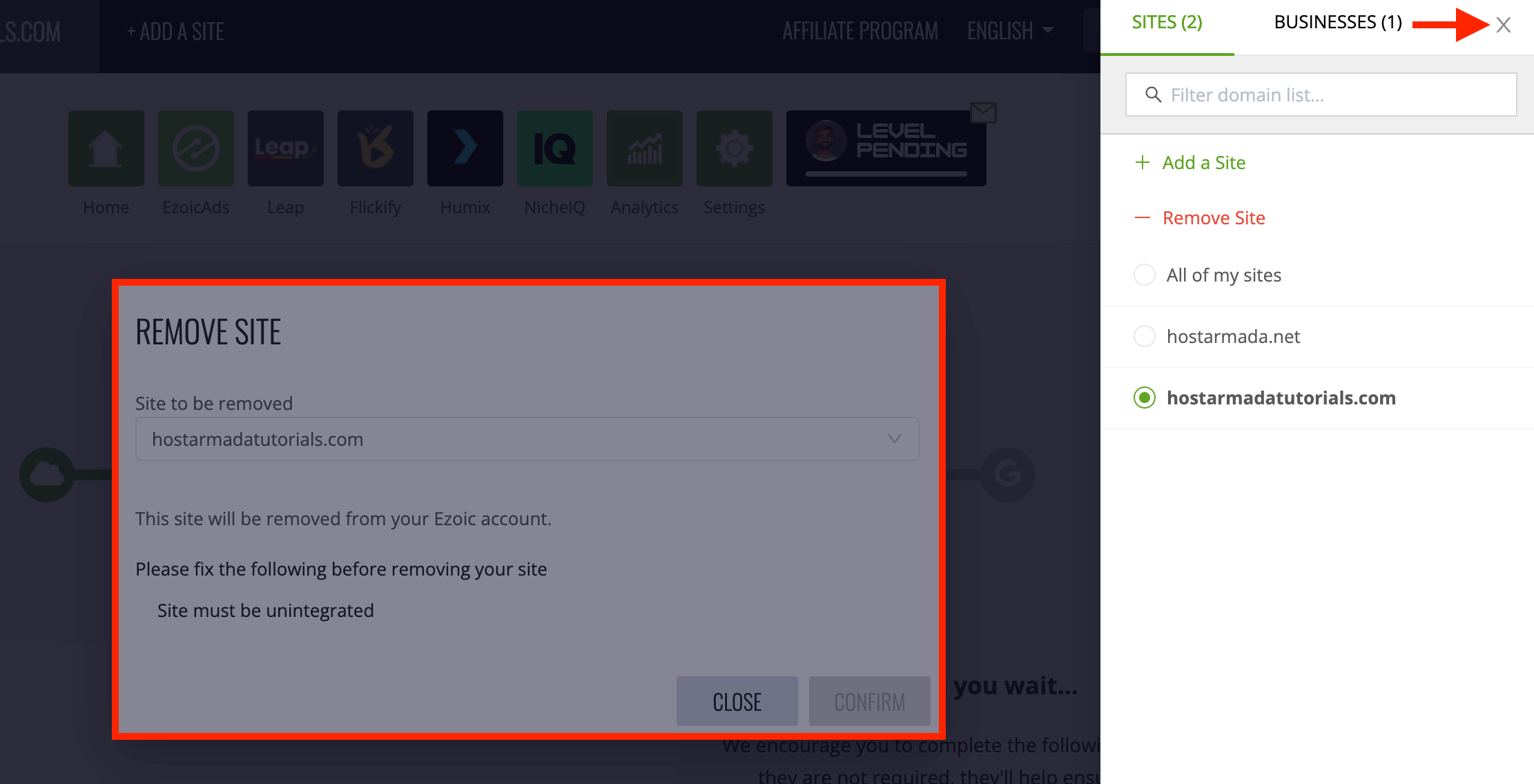
Doing so will close the side menu, and you can use the popup window in the middle of the screen. Please use the drop-down menu to select the domain you want to remove.
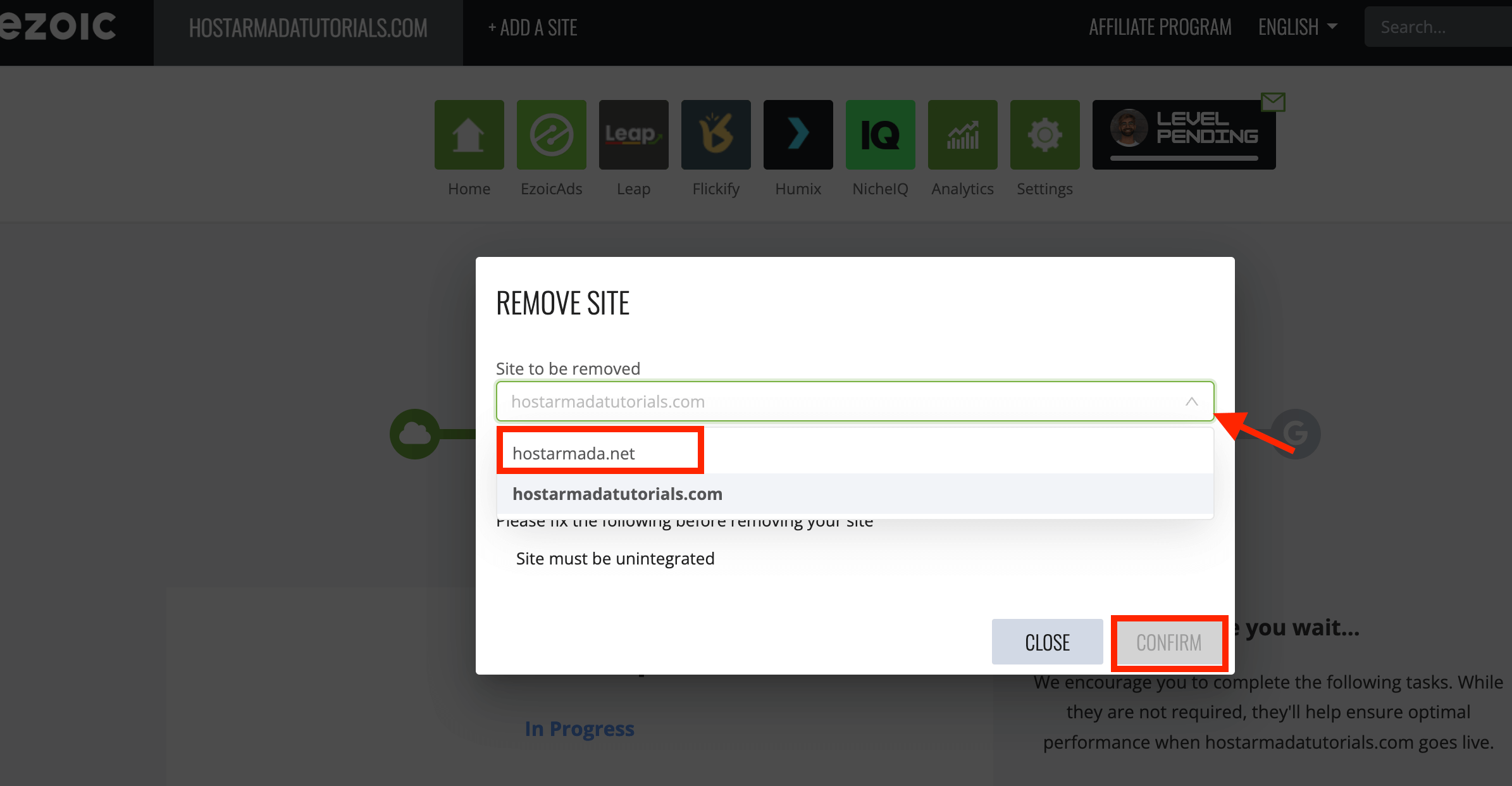
Once selected, please click on the "Confirm" button at the bottom right corner of the popup window to remove it.
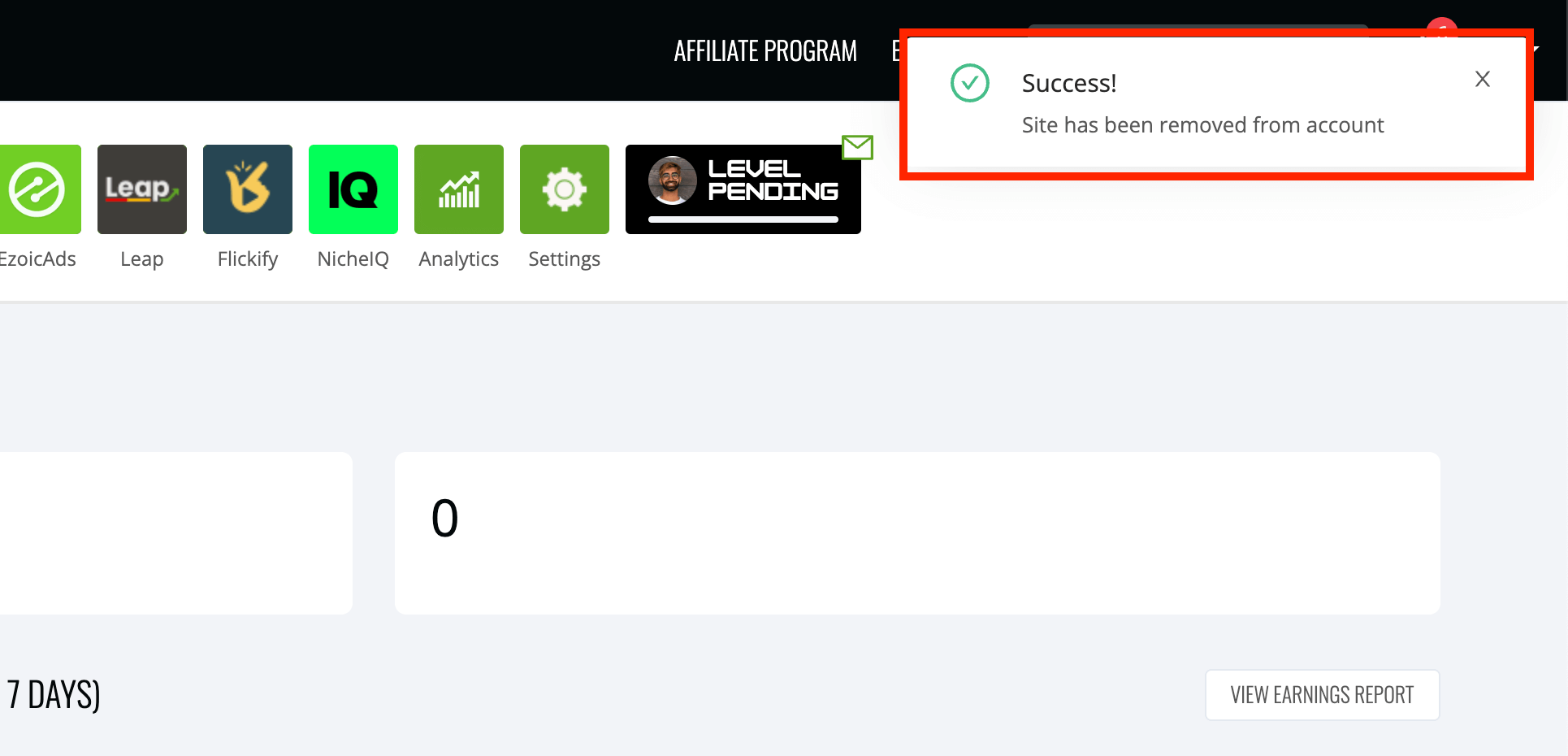
If the submitted removal request were successful, you would have seen a notification at the top right corner of the dashboard indicating that the site was removed from Ezoic!
Conclusion
We hope the tutorial was helpful, despite being so short and straightforward. In our next one, we will cover all the Ezoic Integration Methods, which one you should choose, and how you can easily set up everything!












