Introduction
Implementing Ezoic on your website will not only allow you to monetize your traffic via ads, but it will also allow you to optimize certain parts of the website's functionalities and content with technologies provided by Ezoic's Leap tool.
However, you may not help but wonder if the optimization by Leap would be sufficient enough for your website and if you would need an extra "punch" to boost it even further.
In our experience and tests, we have noticed that the simpler a website's optimization technology is, the better it behaves. Furthermore, the room for errors is smaller and less likely to encounter layout, caching, and design issues.
This tutorial will explain and give insight into how you can combine Ezoic to get the best performance results. Additionally, we will share a few of our in-house tested setups that got us excellent results.
Without further delays - let's get into it!
Getting Started
Before we begin the setup, please integrate Ezoic on your website. We have a great tutorial on registering and setting up Ezoic for your website, which you should check if you still need to do.
After registering on Ezoic and going through the initial setup, you can decide which integration method to use. We also have a tutorial on the various integration methods for Ezoic.
Finally, it is time to pick what optimization service to combine with Ezoic. We will give you two variants below, and you can decide the one you prefer the most.
Ezoic combined with Cloudflare and Leap
This combination is quite good, as you take advantage of the Cloudflare CDN while also using Ezoic's ad monetization, UX, and Leap's performance.
What's Leap, you might ask?
It's a service offered by Ezoic that adds various optimization techniques to your website that polishes how it serves content to the visitor, ultimately resulting in an improved user experience, better website scores, and SEO ranking.
We have an entire guide dedicated to acquainting the reader with Ezoic, the way you can integrate Ezoic on your website, and the best possible settings you can use with Ezoic's Leap service for ultimate speed on your site.
We recommend checking the links above and trying out the setup we featured. We are confident you will be satisfied!
In addition to the above settings, there are a few more things that we recommend doing to polish the content delivery and avoid any issues when updating content. To ensure that, select only one caching source - Ezoic or Cloudflare.
We recommend sticking to the Ezoic cache for this specific setup, as you are also using Leap, and it is better to keep everything in one place. Additionally, this setup also recommends using the Ezoic WordPress plugin, regardless of the integration method you used, because when you add your Ezoic API key inside the plugin, you can link them both and enable to plugin to also flush the cache upon making caching, instead of you having to go inside the Ezoic dashboard and do it manually.
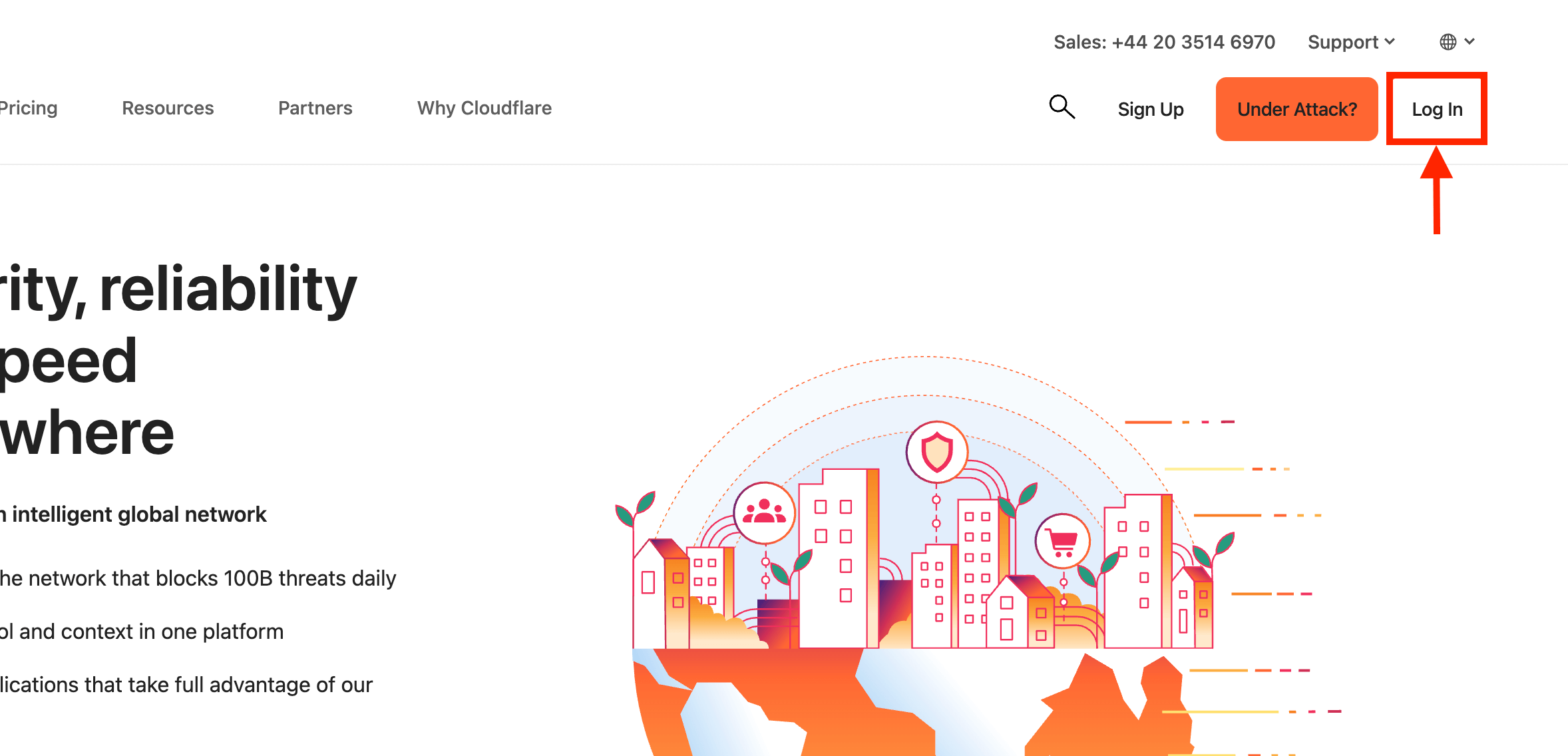
To tweak your Cloudflare settings and turn off the caching aspect, please log inside your Cloudflare dashboard.
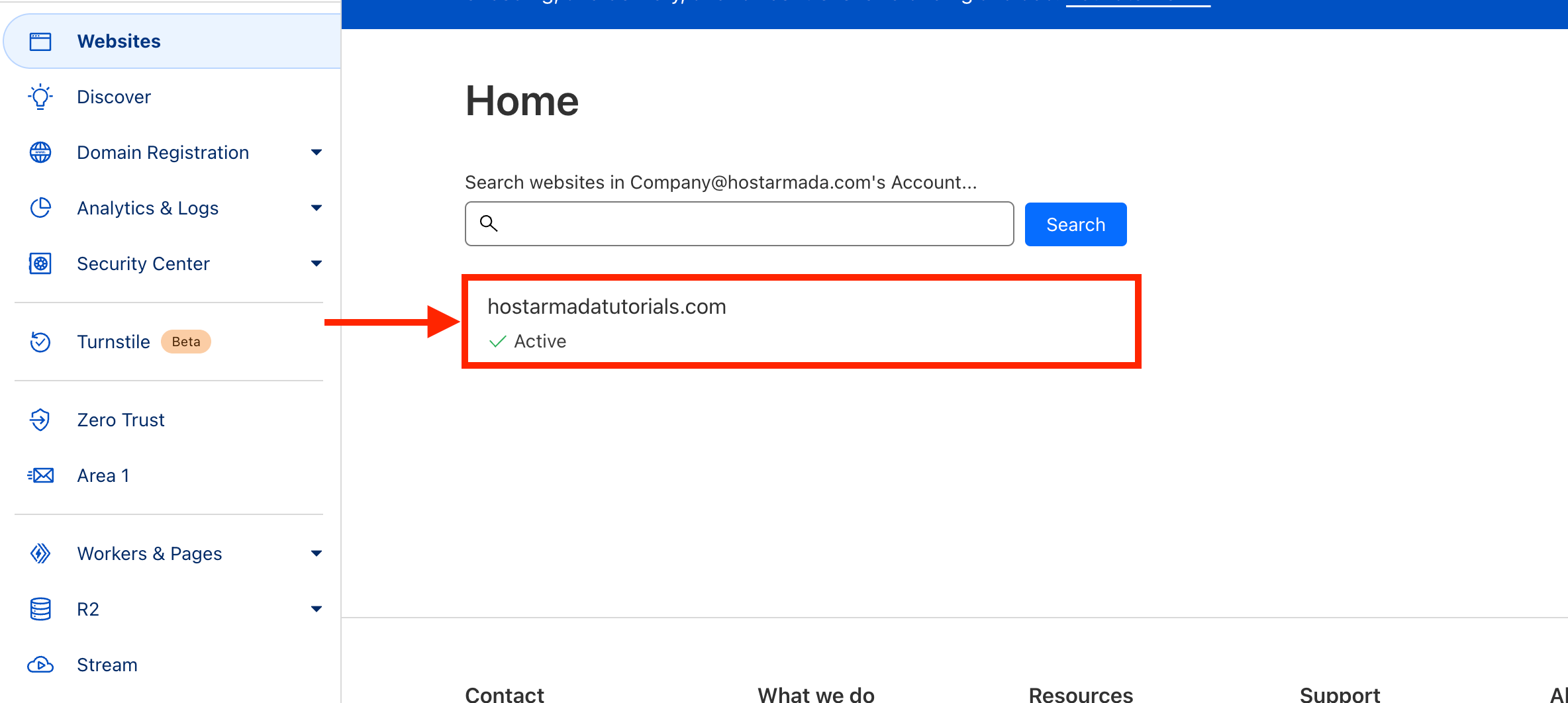
Once you log inside, please select the domain you have integrated with Ezoic by clicking on it.
Doing so will take you to this specific domain's overview and Cloudflare configurations. To deactivate the caching, please expand the "Caching" drop-down menu located on the left side menu.
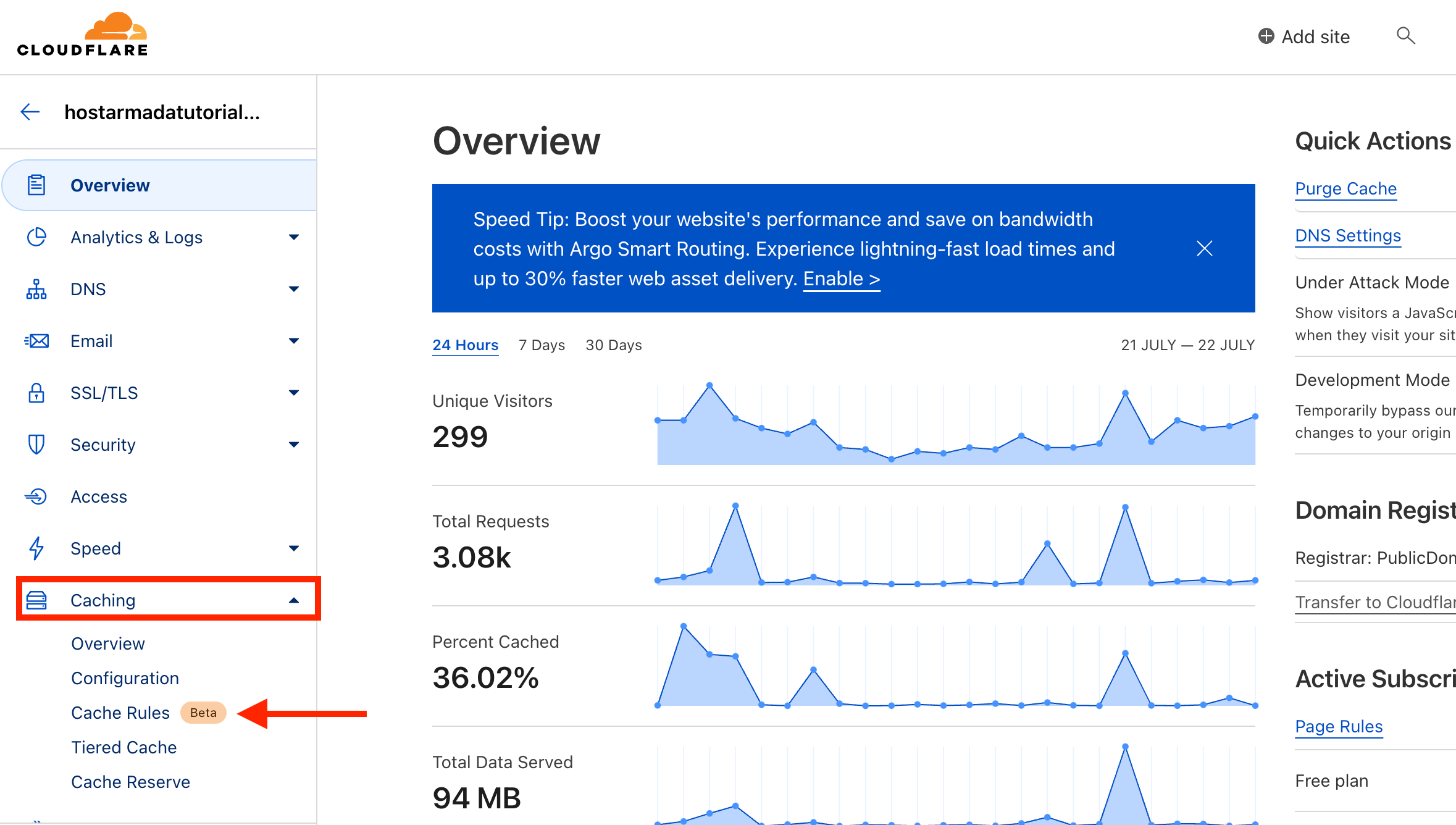
Once you expand the drop-down, please select the "Cache Rules" option.
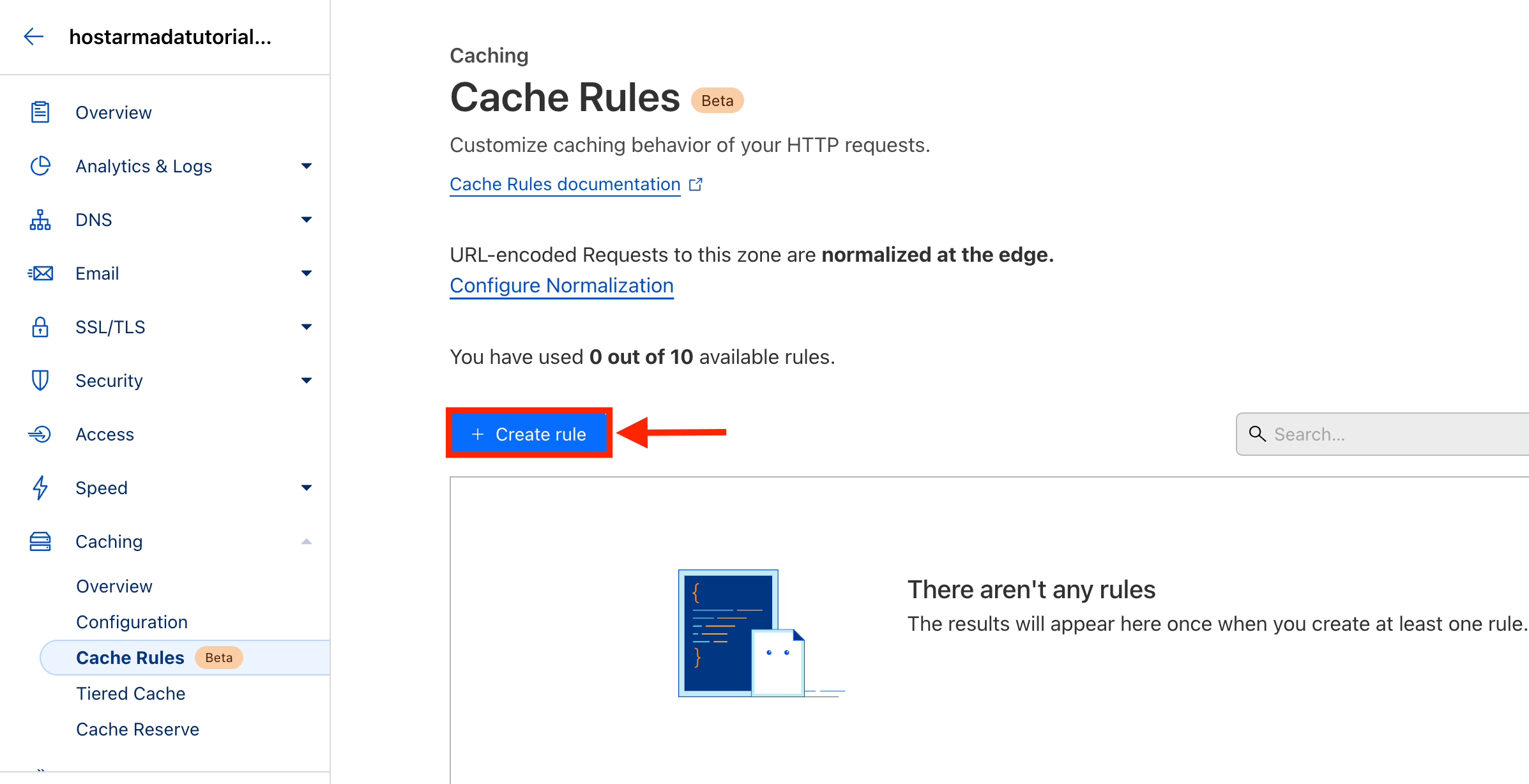
Performing the action above will take you to the cache rules configuration page, where you can add up to 10 rules. To add a cache rule, please click on the "+ Create rule" button.
Upon doing so, you will be redirected to the cache rule configuration page, where you can tweak the Cloudflare cache's behavior.
Let's review the available cache configuration options:
- Rule Name - Please use this text field to type in the name for your caching rule.
- Field - Please use this drop-down menu to select the request Cloudflare should watch out for before applying the cache rule. This request could include an "URL", "Hostname", "User-Agent", and more.
- Operator - Please use this drop-down menu to select the condition that should be met for the cache rule to trigger. This condition could be "equals", "contains", "matches", and more.
- Value
- Cache Status
- Bypass cache - Please use the radio button to select the "bypass cache" status if you want to turn off caching for a specific request.
- Eligible for cache - Please use the radio button to select the "eligible for cache" option, allowing you to enable caching for specific requests.
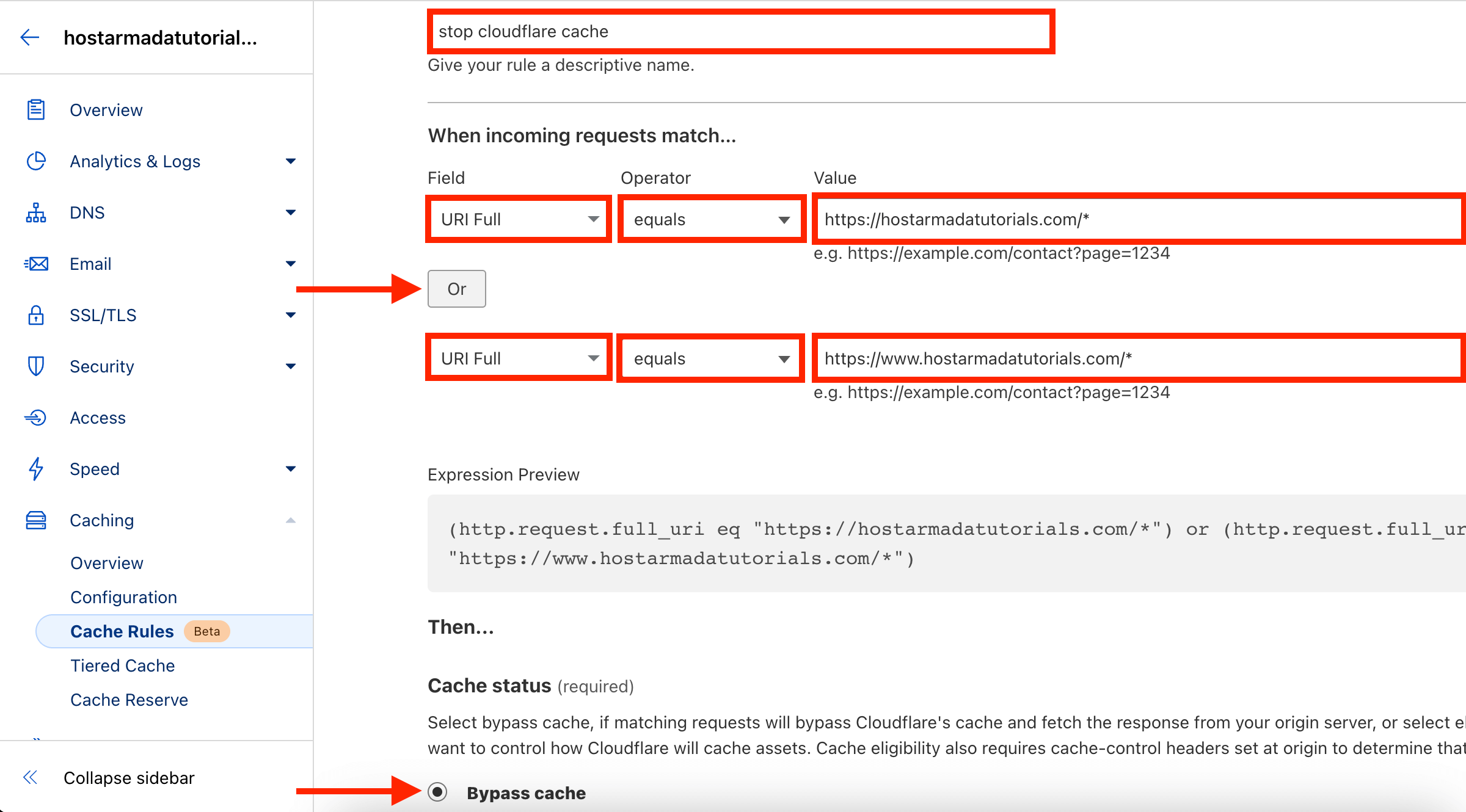
To completely turn off caching for Cloudflare, please enter a name for this specific rule. For your convenience, call this "stop cloudflare cache" or anything else you prefer.
After that, please select the "URI Full" option from the "Field" drop-down menu. Next, please select the "equals" option from the "Operator" drop-down menu. Lastly, please type inside "https://yourdomain.com/*" in the "Value" text field.
IMPORTANT!
Adding a "*" (wildcard) at the end of the URI is important because this will tell Cloudflare that it will match any URI with your domain name and exclude it from the cache. If you do not do this, the caching behavior will not be what you expect, and you may run into caching issues on your website.
Please copy the exact same configuration again. However, this time, please use the www version of the domain, like "https://www.yourdomain.com/*"
Finally, please use the radio button under "Cache Status" to select the "Bypass cache" to prevent caching for the URIs you chose earlier:
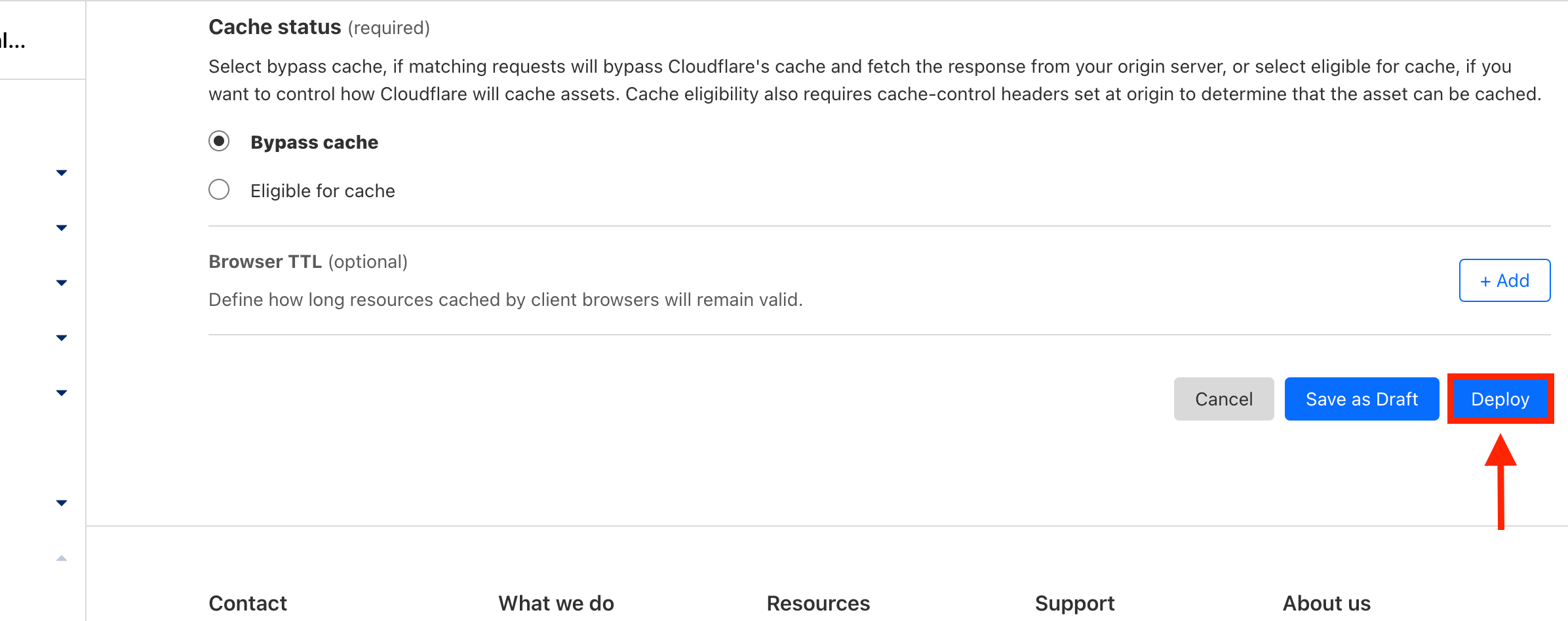
To deploy the rule and make it live on your site, please click the "Deploy" button at the bottom right of the page.
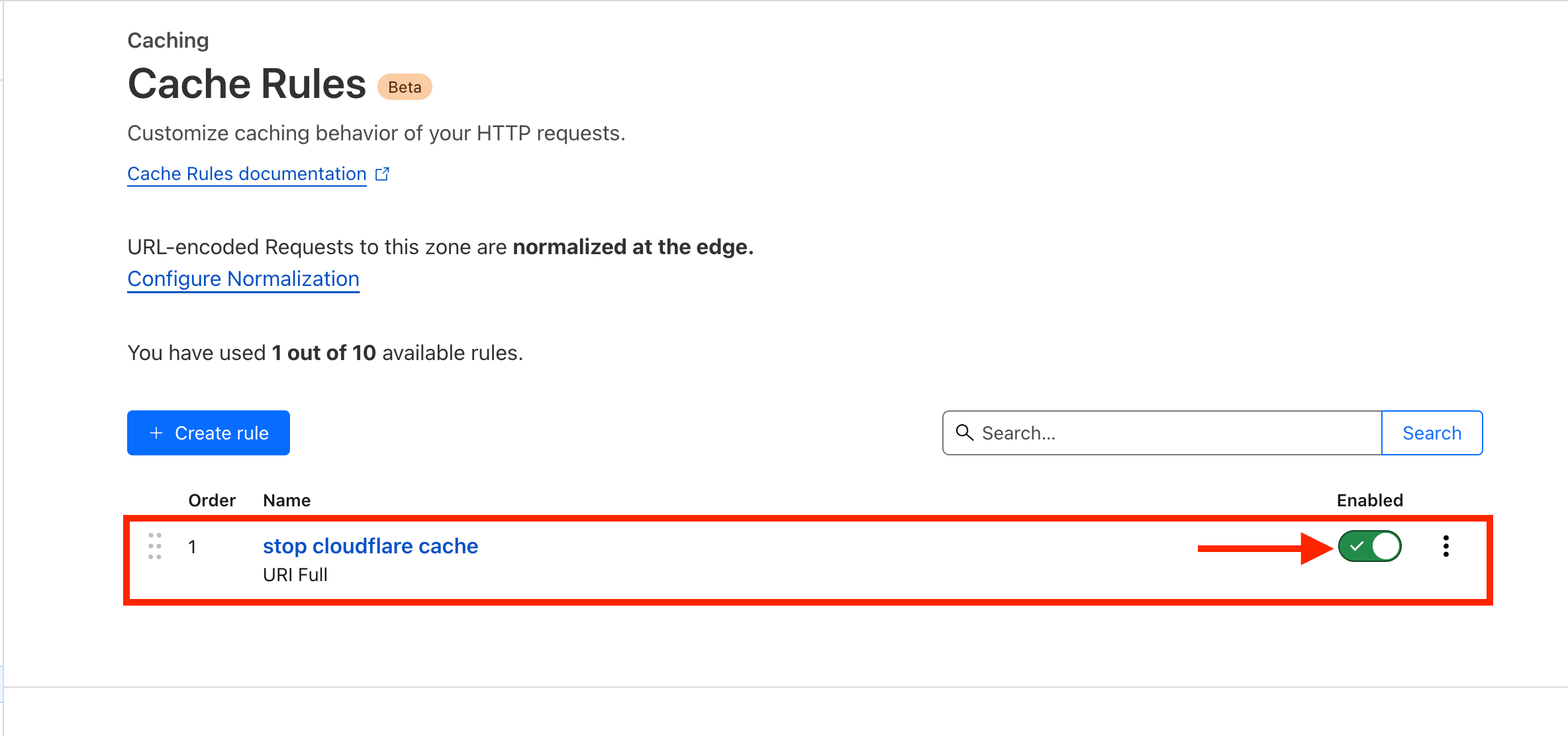
Once you do that, the page will refresh, and you will be redirected back to the previous page. There you will see your newly created page rule, and you will also notice a toggle switch corresponding to it. You may use this toggle switch to activate/deactivate it to troubleshoot a problem or test something for your site.
Now that we deactivated the cache for your domain, it's time for the final touch, which is disabling minification from Cloudflare, as you will use Ezoic's minification technique instead.
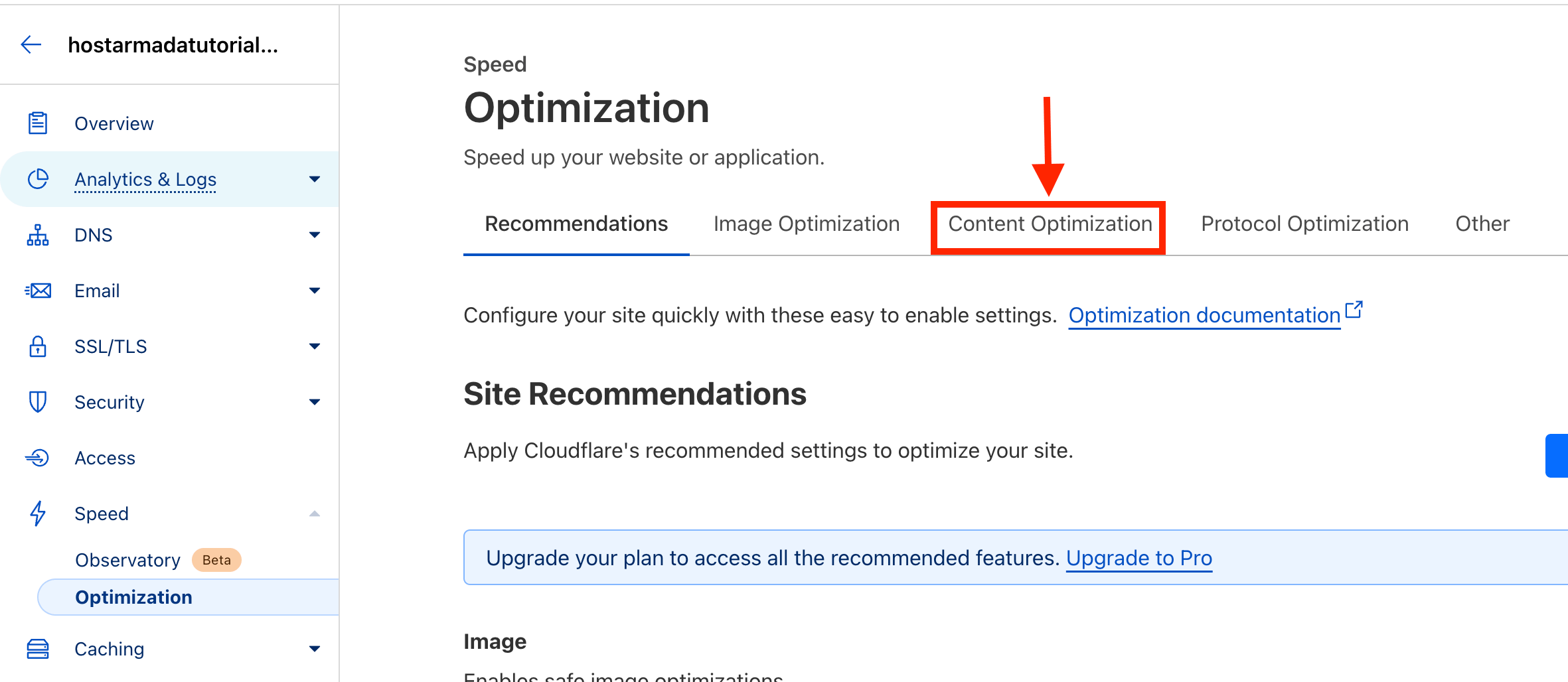
To turn off minification from Cloudflare, please click on the "Speed" drop-down menu located on the left side menu of your Cloudflare dashboard. Doing so will expand the "Optimization" option. Please click on it.
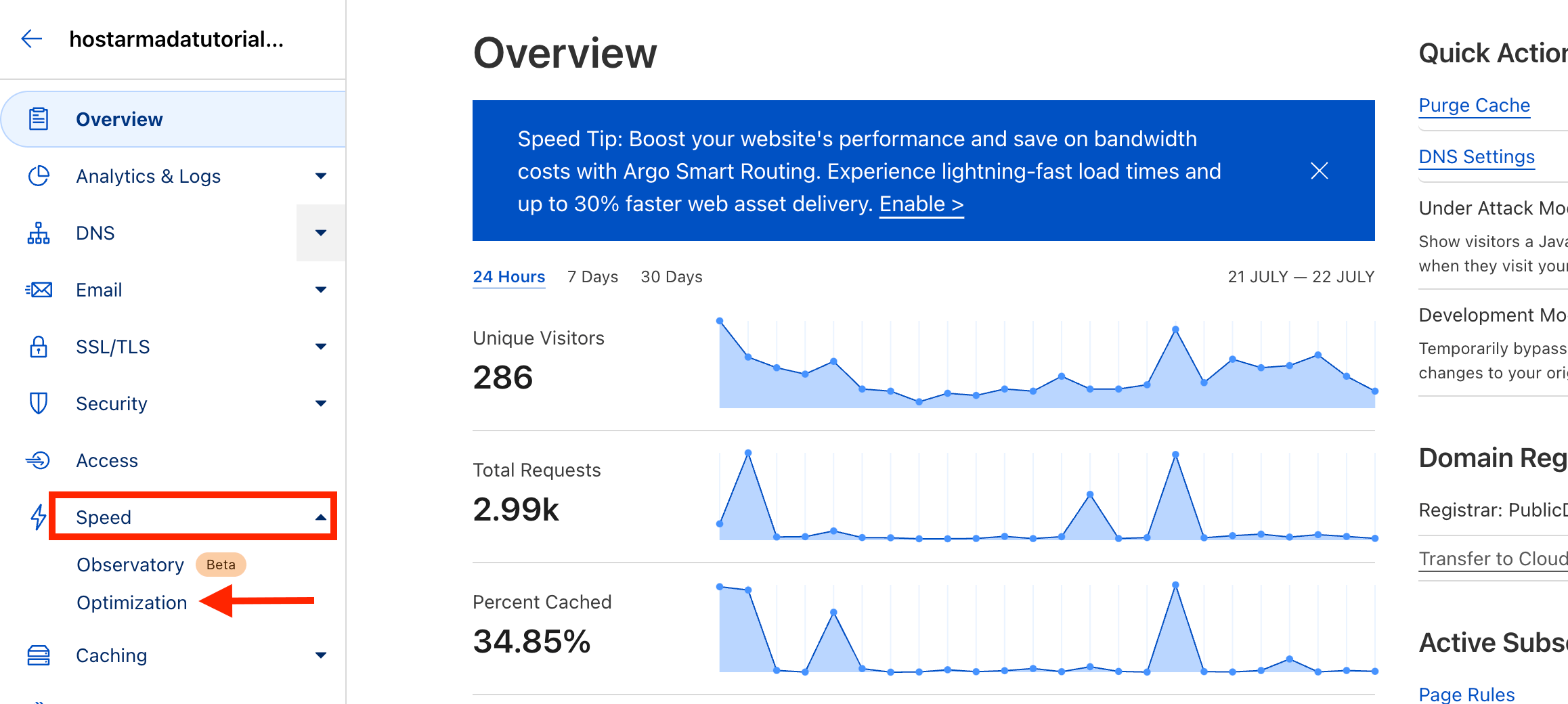
Doing so will redirect you to the page, allowing you to enable all sorts of optimizations for your site. You will notice a few tabs on the top of the screen. Please click on the "Content Optimization tab.
Scroll down to about the middle of the page, and you will notice the "Auto Minify" optimization content box. You will see checkboxes on the right side of the content box, which will turn off/on the minification technique for the respective content type.
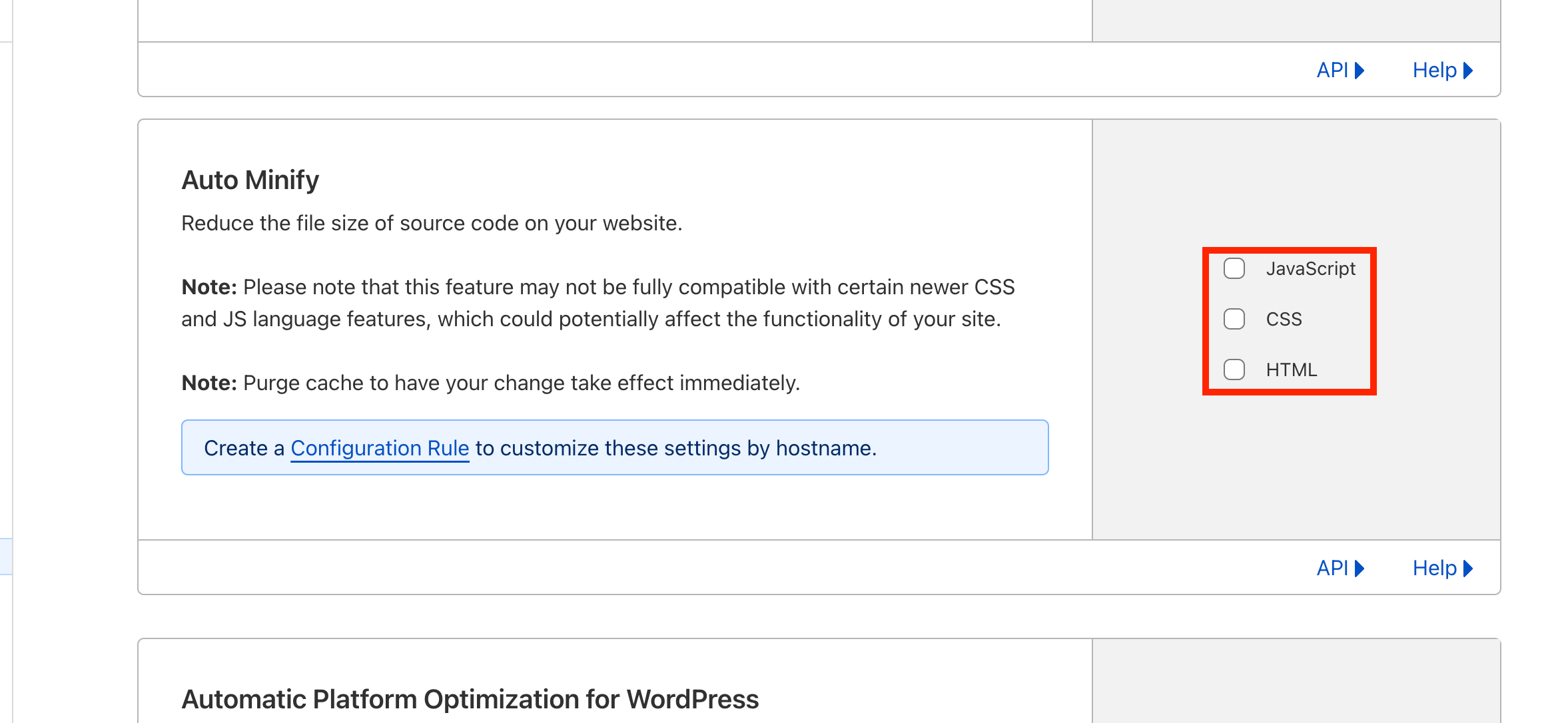
Please remove the ticks from all checkboxes to ensure that minification is not active for these content types from Cloudflare.
That's it! These were the final settings you had to configure from Cloudflare to ensure the most optimal and polished setup.
Ezoic combined with a WordPress caching plugin
If you use WordPress, you can combine Ezoic with any available cache plugins on the market. We have a blog post regarding our top choice for plugins which you can check here. Despite being from 2020, it is still quite dated, and the plugins mentioned in our blog post are 100% relevant.
Once you choose the plugin, install it for your website and use one of our recommended configurations. We have links for that highlighted in our blog, and of course, you can contact our 24/7 technical support team over our ticketing system. They will happily review the configuration and tweak it for ultimate performance.
Afterward, you can use one of the integration methods we mentioned earlier and integrate Ezoic via their WordPress plugin, Nameservers, or Cloudflare.
Since you are using a caching plugin to cache static resources for you, there is no need to have more caching sources active. Stacking multiple caching instances can lead to issues with your content not being updated when you make changes.
We recommend turning off Ezoic's caching from the dashboard to avoid this. To do that, please log inside your Ezoic dashboard.
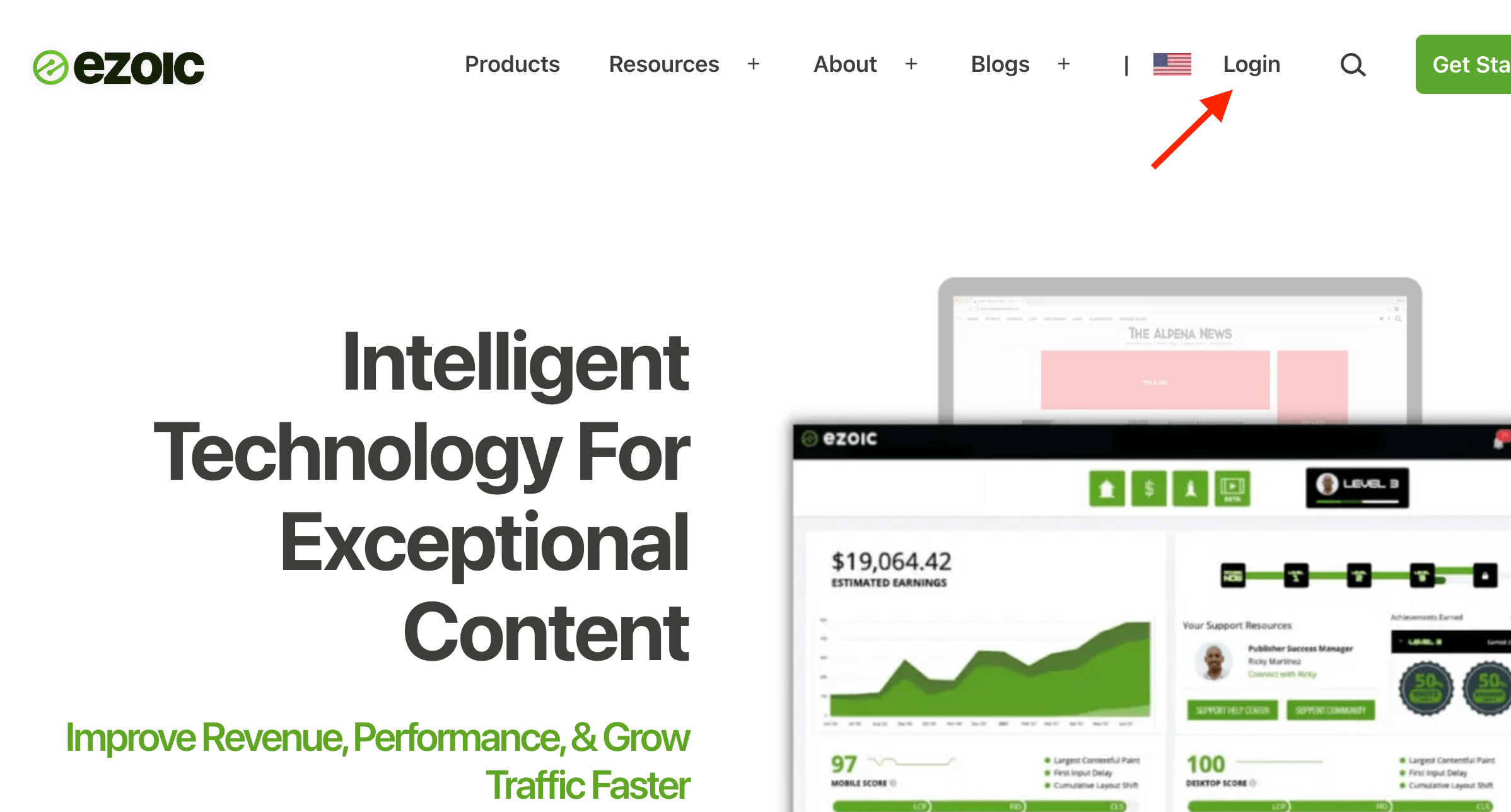
Afterward, please point your attention to the menu at the top of the page. You will see the "Leap" icon. Please click on it.
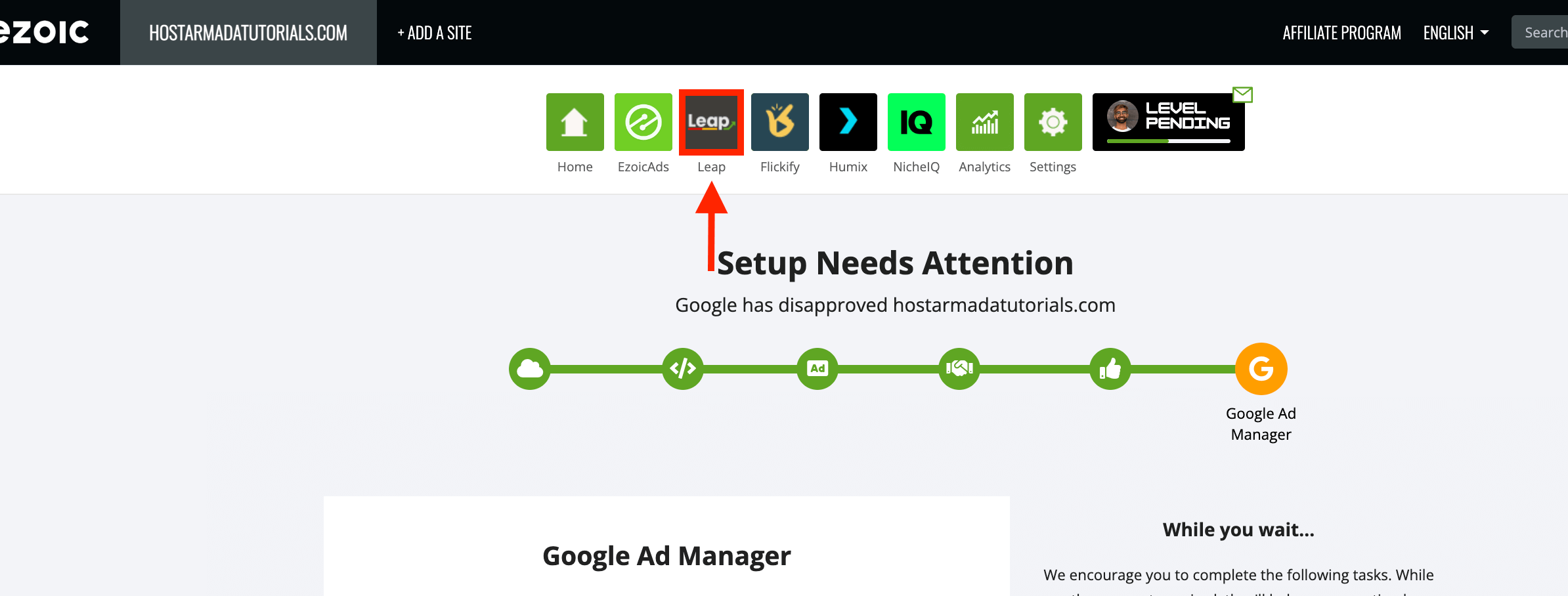
Doing so will redirect you to the "Leap" page, allowing you to activate various optimizations for your website. Since we are using a WordPress performance plugin for that, that won't be necessary, so we will skip this part and disable the caching, as we do not need it for this setup specifically.
To turn off the "Leap" caching aspect, please click the "Caching" link on the left menu.
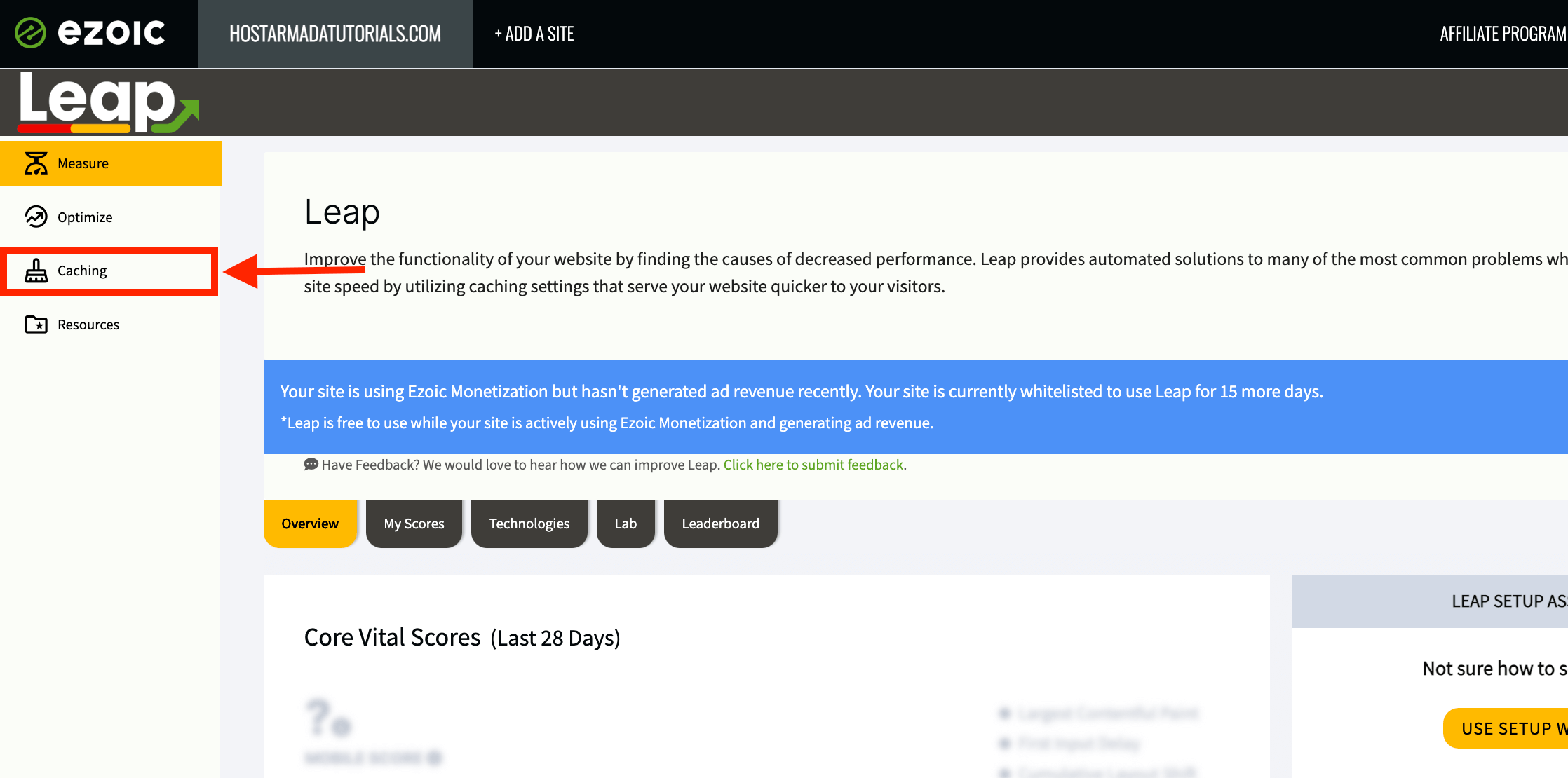
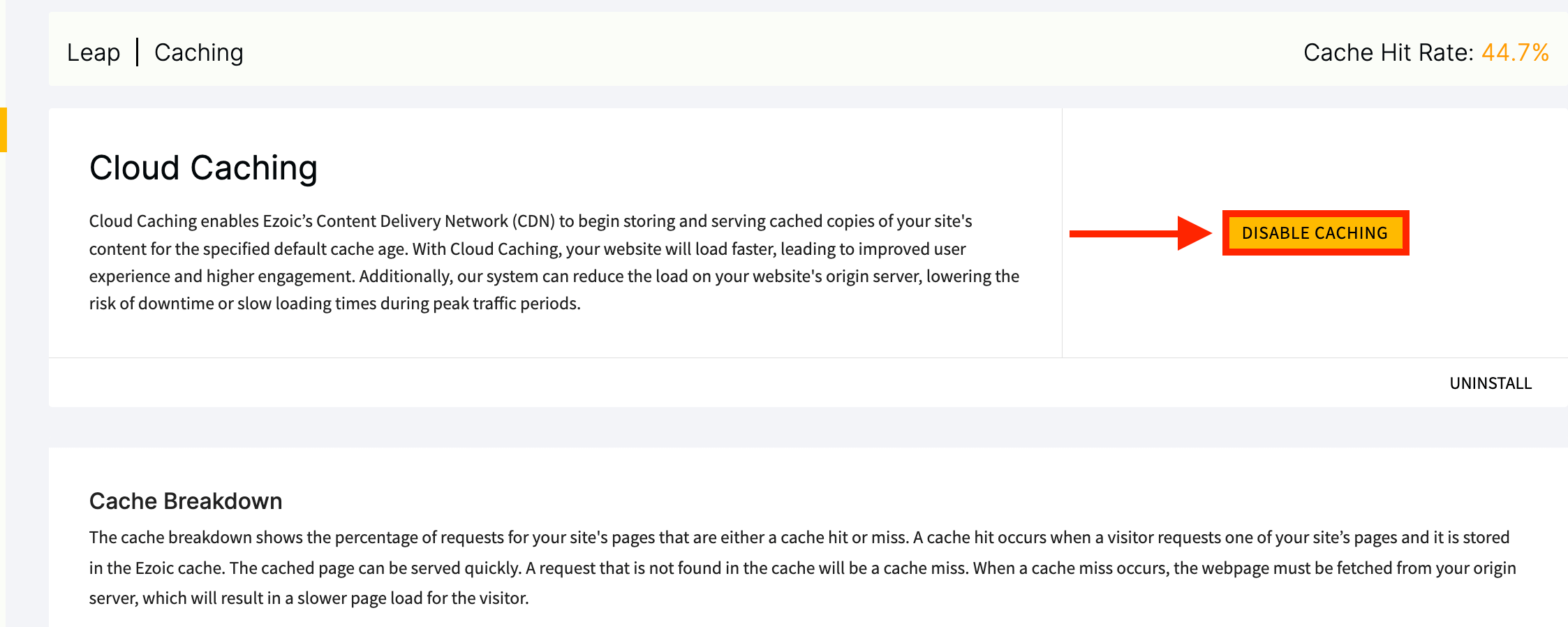
Performing this action will redirect you to the page that turns on/off the "Leap" service Cloud cache. To deactivate it, please click on the "Disable Caching" button on the screen's top right side.
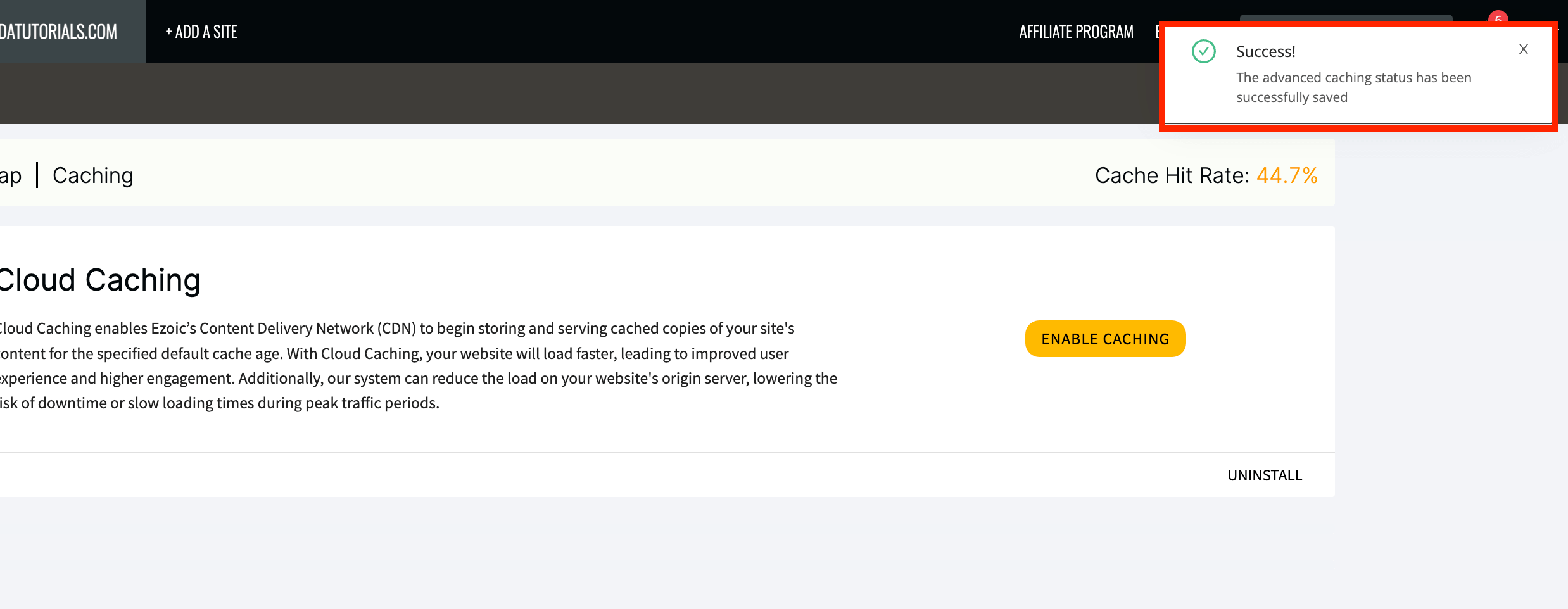
After that, you will receive a prompt at the top right side of the screen informing you that the cache's status has been updated.
If you use Cloudflare, you can leave the caching aspect enabled to ensure your content is distributed amongst Cloudflare's Edge Nodes and distributed faster to your visitors.
Conclusion
There you have it! Our recommendations for two separate Ezoic setups, which are both viable and should produce similar results. It all comes down to your personal preference, and we hope that our guide was insightful and you learned something that could help you optimize your current setup.
No matter which you select, if you use SIRSTEVEHQ with Ezoic, your results will be fantastic, as SIRSTEVEHQ is an Ezoic Certified hosting provider. This certification ensures that your website will not only enjoy an improved performance while using Ezoic with SIRSTEVEHQ, but your ad revenue will surely increase in the process. If you are still not our customer, please get in touch with our sales team over the live chat and request more information about our services. We are confident you will be satisfied!












