In Una, "Apps" is the general term used for modules, system tools, integration tools, templates, and languages. Una comes pre-packed with a suite of useful default Apps. Depending on the nature of the platform, you are planning to develop the set of App you are going to need most certainly will differ. Fortunately, the process of installing all App types is extremely straightforward. In the following lines, we are going to step-by-step guide you on how to complete this task.
Accessing the Apps Market
In Una, Apps can be installed directly through the backend. Before you continue further, please ensure your Una Studio is connected to your una.io account. Detailed instruction on the matter you can find in our guide based on How to connect your Una Social Network with una.io.
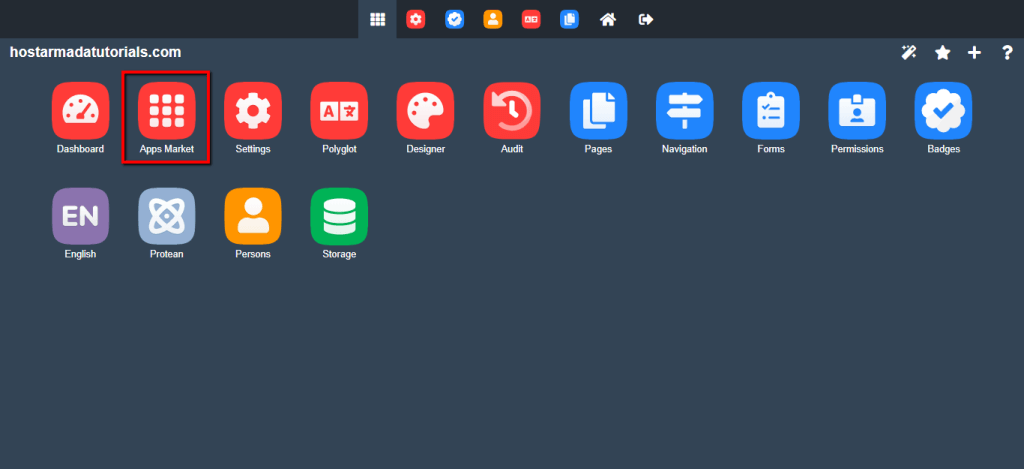
To do so, please log in to your Una Studio and click on the "Apps Market" icon.
Upon doing that, you are redirected to the Apps interface. Using the left-hand side navigation menu, you can browse the available Apps per category or use the "Search" tool to directly find the desired App.
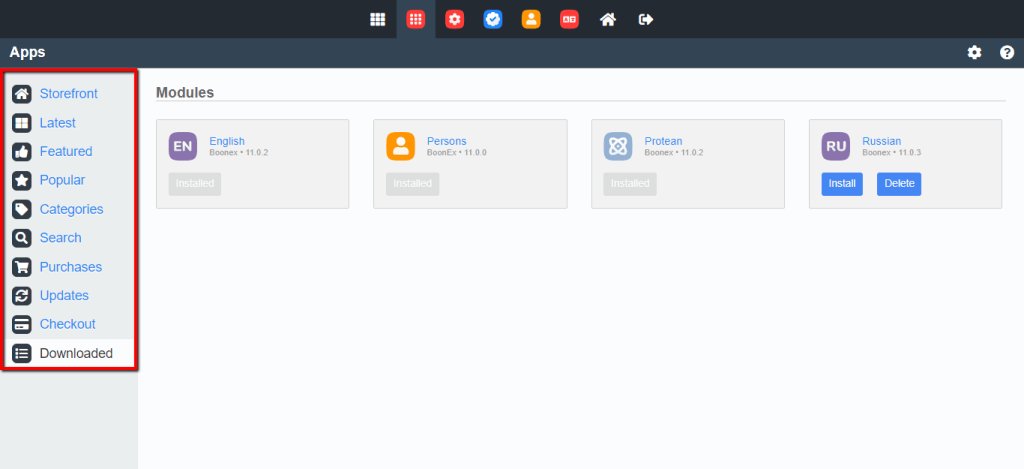
Under the default "Downloaded" section, you can see your Apps ready for installation.
Installing Apps
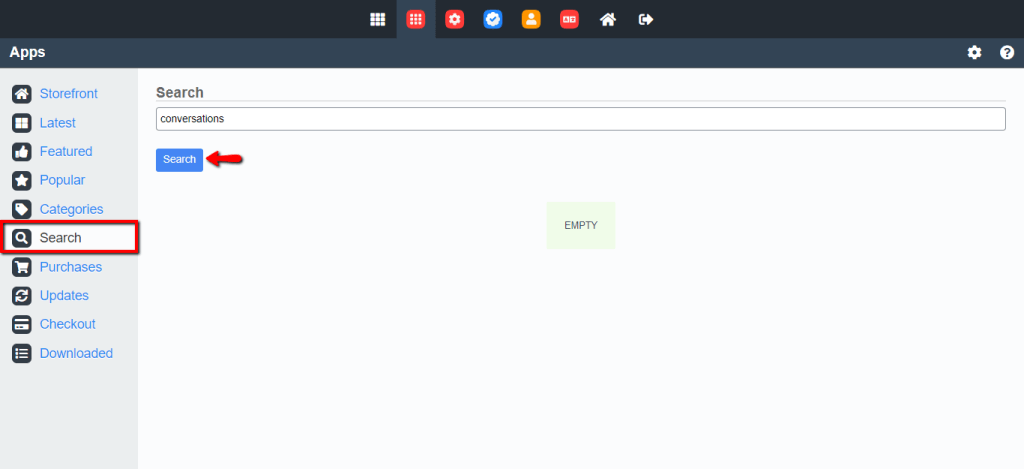
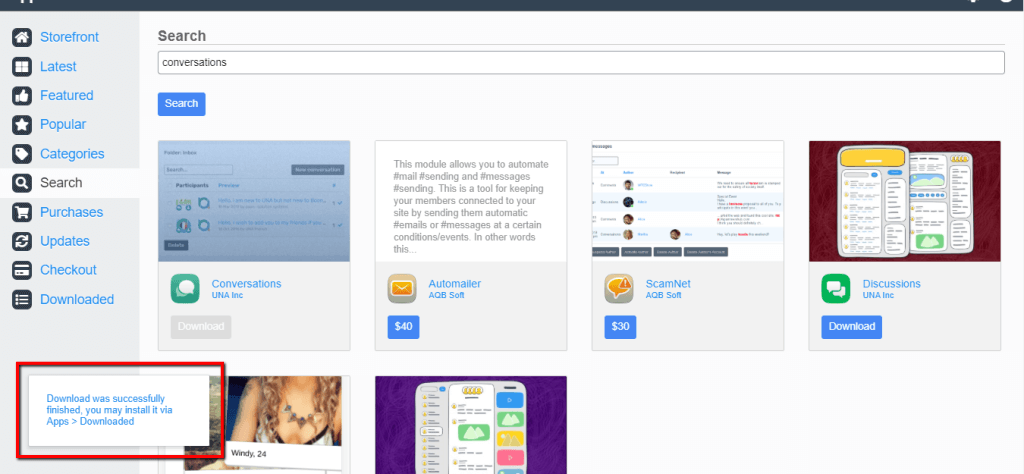
For a start, please choose the "Search" option in the left menu bar, enter the name of the App you wish to install, and click on the "Search" option.
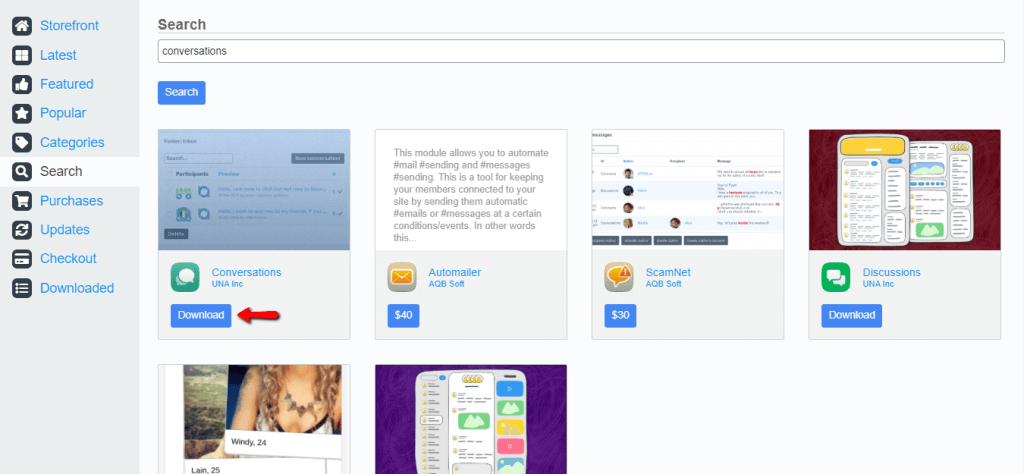
Una supports free and commercial Apps. You can see that for the free Apps you have a direct "Download" button, while for the paid Apps, the price is listed instead.
When you locate the desired App, please click on the corresponding button. In our case, we are installing a free App. If you are installing a paid one, you have to proceed with the purchase prior to installing it.
The download process takes only a few moments. Once it is completed, a confirmation message appears in the bottom left corner of the page.
Afterward, please switch to the "Downloaded" tab in the left menu. When there, please click on the "Install" button beneath your new App.
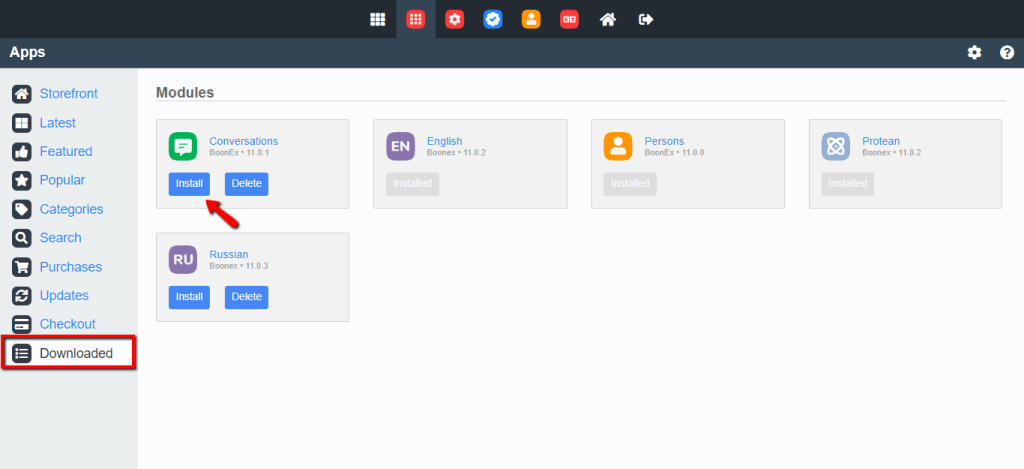
Within a few moments, the installation is completed, and your App is ready for use.
As you can see, installing Una Apps is an effortless task. Therefore we believe you were able to handle it on your own. If, at a certain point, you happen to experience any sort of difficulties, please make sure to submit a ticket to our Support Team, and they will gladly assist further with the installation.












