Templates determine the base structure, layouts, and design of your website. Considering the fact that visual appearance has a significant impact on your visitors and online recognition, you should carefully select your website template.
Una supports two types of templates - templates, including style customizer and templates, excluding such. The style customizer allows you to directly edit the CSS from your Una Studio, eliminating the need to modify files.
Installing templates in your Una website is as simple as installing any other app, and changing the template is even simpler. In this tutorial, we are going to back up this statement.
Accessing the Apps Market
In Una, templates can be installed directly through your Studio. Before you continue further, please ensure your Una Studio is connected to your una.io account. Detailed instruction on the matter you can find in our guide based on How to connect your Una Social Network with una.io.
When ready, please log in to your Una Studio and access the "Apps Market".
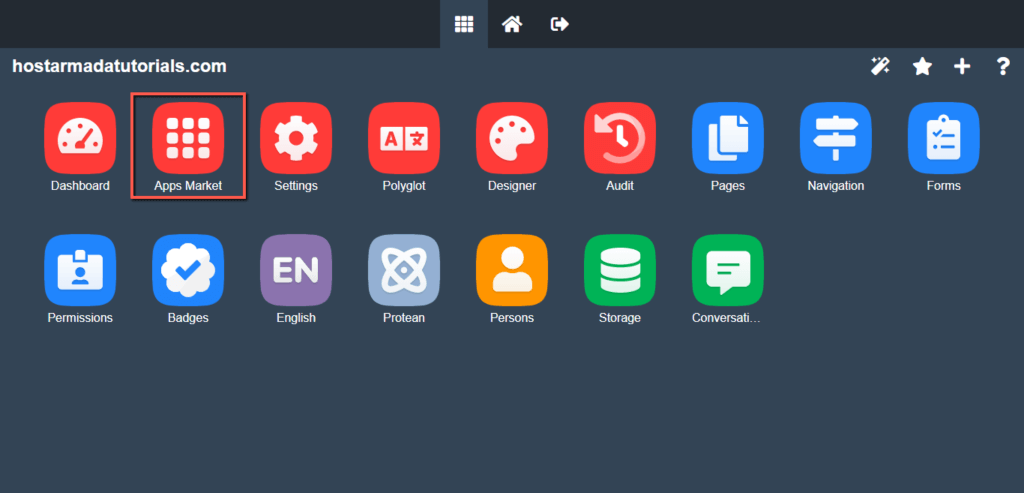
Within the Apps Market, you get to install and purchase any app or template you might need.
Installing Templates
In the Apps Market, you can navigate through the left-hand side menu bar. You can browse the available themes by navigating to Categories > Templates. You can also directly locate the desired template by using the search tool.
In any case, once you find the desired template, you have to click either on the "Download" button (for free templates) or on the button displaying the template price (for paid templates). In case you are planning to install a commercial template, you have to purchase it and process the payment before installing it.
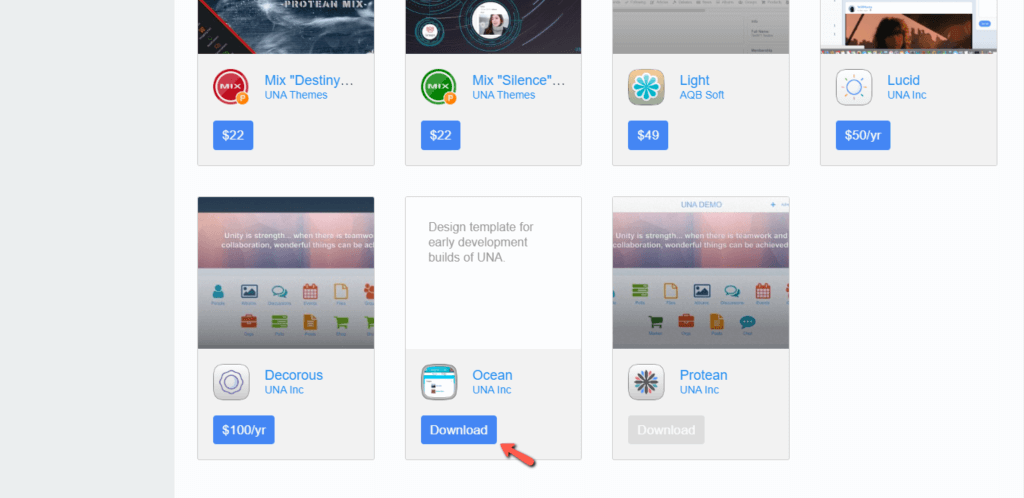
As soon as the template is downloaded/purchased, please switch to the corresponding "Downloaded"/"Purchases" tab. Under it, you are going to find your new template, and all left to be done is to click on the "Install" button.
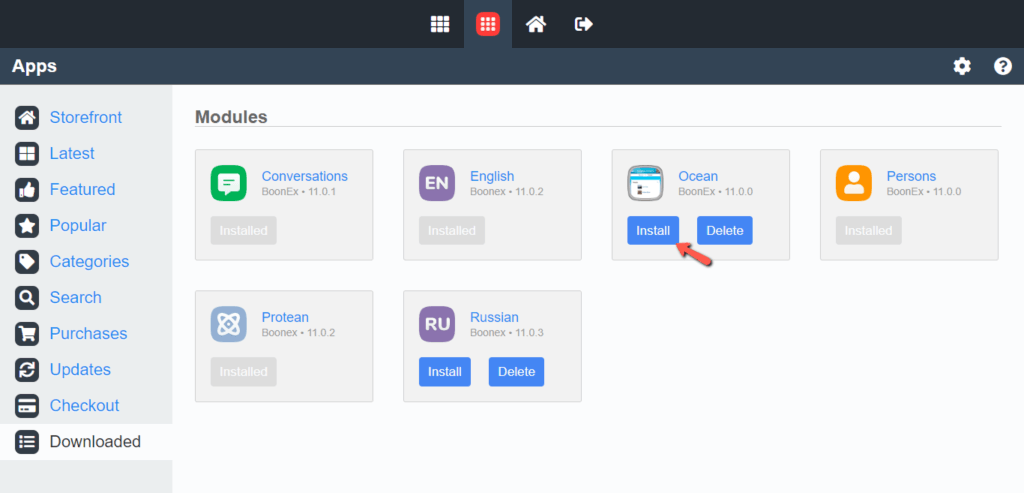
Within a few moments, the installation is going to be completed, and your new template will be ready to use.
Changing Templates
Now that your new template is successfully installed, it is time to set it up as the default template for your Una website.
To do so, please go back to the Home Page of your Una Studio and access the "Designer" App.
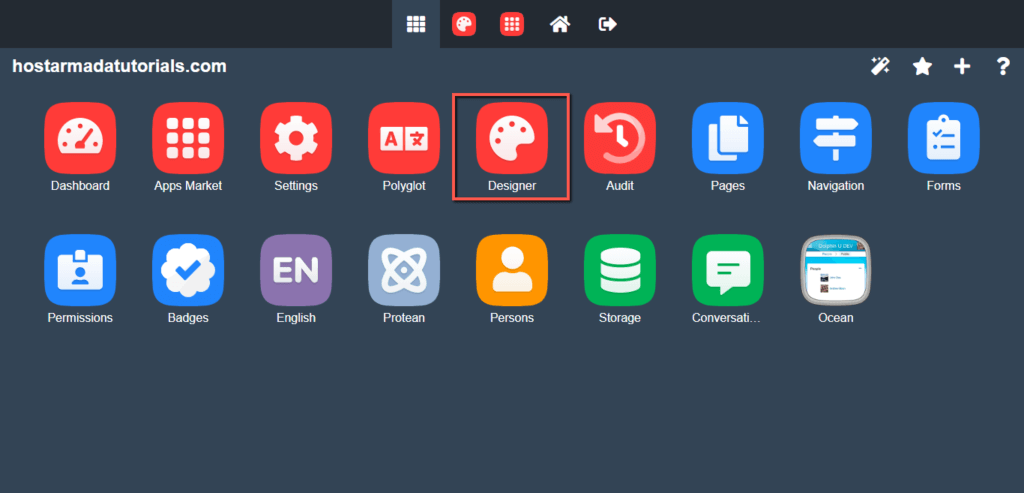
Under the "General" tab, you can see your newly installed template. To set it, please click on the "Make Default" button.
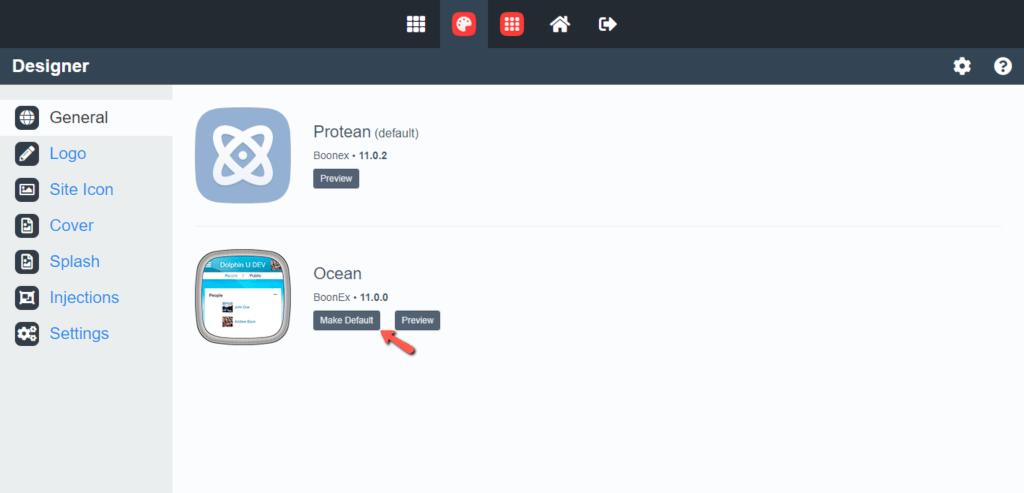
With this done, your Una template is successfully changed. You are now ready to start exploring and customizing it.
As we promised, installing Una templates is an effortless task. Therefore, we believe you were able to handle it on your own. If, at a certain point, you happen to experience any sort of difficulties, please make sure to submit a ticket request to our Support Team, and they will gladly assist further with the installation.












