It’s possible to synchronize the calendar within premium mailbox with Google Calendar. Once synced this will show the events that you have set on the calendar within premium mailbox on Google Calendar, both on desktop as well as on a phone.
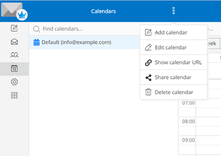
The first thing you will need to do is retrieve the URL from the premium mailbox webmail to sync the calendar. To get the URL for calendar sync, you will need to log into the webmail for the premium mailbox, go to the calendar tab on the left-hand side, click the three dots at the top of the page where it says Calendars and choose the Show Calendar URL option:
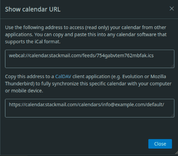
Within the window that opens, you will need to copy the first URL:
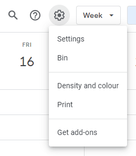
Now that you have this, you will need to log into the Google Account you wish to sync this with on a browser. Once logged in, you then need to go to the Google Calendar app. Once there, the option to sync the calendar will show on the settings page which you can get to from the top right of the calendar page:
Once you have clicked on the Settings option, you will then need to go to the Add Calendar option on the left-hand side and then choose From URL:
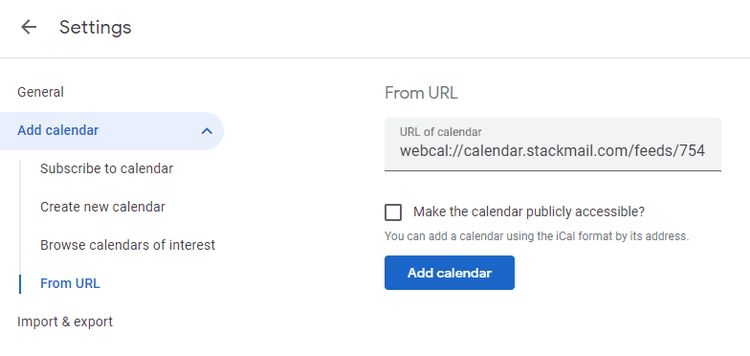
In the URL of Calendar field, you need to paste the URL that we retrieved from the premium mailbox webmail. Once you have pasted in the URL, you can choose if this should be made publicly accessible or not so you can share with others and then click Add Calendar.
Once added you can go back to the Calendar page, and you should be able to see this show under your Calendars like below:
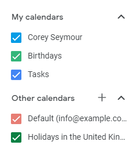
Any events that you had set up within the premium mailbox webmail will show on Google Calendar. If you are logged into the same Google account on your mobile, then you should be able to see these events on your phone within the Google Calendar app as well. You may just need to enable it to show.
Once you're in the Google Calendar app you need to click the hamburger icon in the top left and then choose the settings option at the bottom of the menu that opens. This will show your Google account and the calendars you have set up underneath however you may need to click Show More option to see the new calendar that you have added.
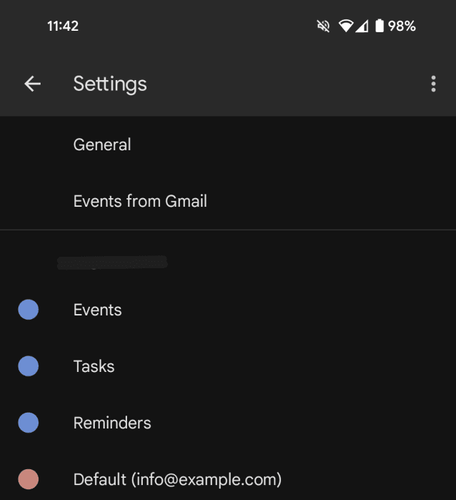
If you select the new calendar, this being Default in my example above, then you should be able to manage this as below:
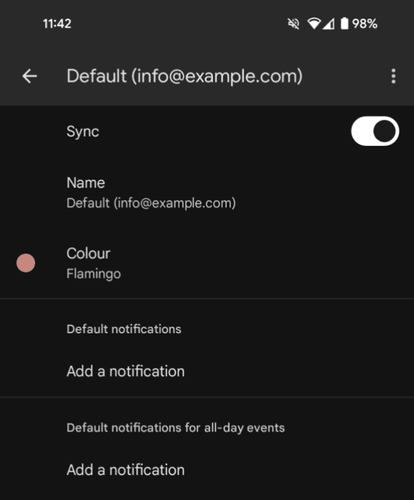
You may need to enable sync for this calendar to show within the Google calendar app. Once enabled you will see all the same events that show within the premium mailbox calendar.
Please note, when using providers such as Google, Outlook or Yahoo to sync from public iCal links it could take between 12 to 24 hours to sync any new events. We have no control over calendar syncing with outside providers, there could be times where events do not sync correctly. In these cases, there is little we can do as we have no control over how outside providers sync.












