What is a Catch-All forwarder?
A Catch-All forwarder refers to a configuration where all emails sent to a domain name, that do not match any specific email address, are forwarded to a designated email address.
For example, if you set up a catch-all forwarder for the domain example.com, any email sent to an email address that doesn’t exist on the example.com domain would be forwarded to the designated catch-all email address.
Catch-all forwarders are free with all our SIRSTEVEHQ CP Email Hosting.
Why should I use a Catch-All forwarder?
Catch-All forwarders can be useful for ensuring that emails to any potential address on a domain are captured and not lost. For example, if someone were to misspell the first part of the email address (e.g. instead of info@example.com they missed a letter and typed inf@example.com), with a catch-all forwarder set up, that email would still be delivered to the mailbox set on the catch-all forwarder.
Wildcard forwarding
We also support Wildcard Forwarding as well. Wildcard forwarding will automatically forward any e-mail sent to your domain to another domain with the same email address.
For example, if an email was sent to sales@example.com, and this address wasn’t set up, then a wildcard forward could be set up to send this email to sales@forward.com. The same address but a different domain.
How to set up catch-all forwarding
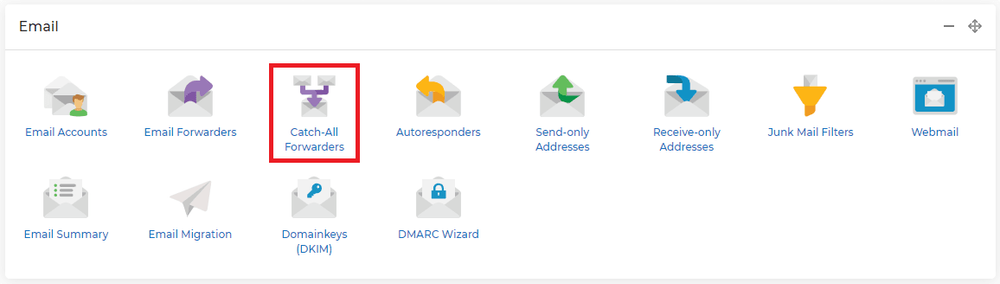
To set up catch-all forwarding, log in to the SIRSTEVEHQ CP and go to the hosting package you want to set this up on. Once you are in the hosting control panel, under the 'Email' section you will see an icon for Catch-all Forwarders.
Once you have opened the page you will be able to see the catch-all forwarding section, which looks like this:
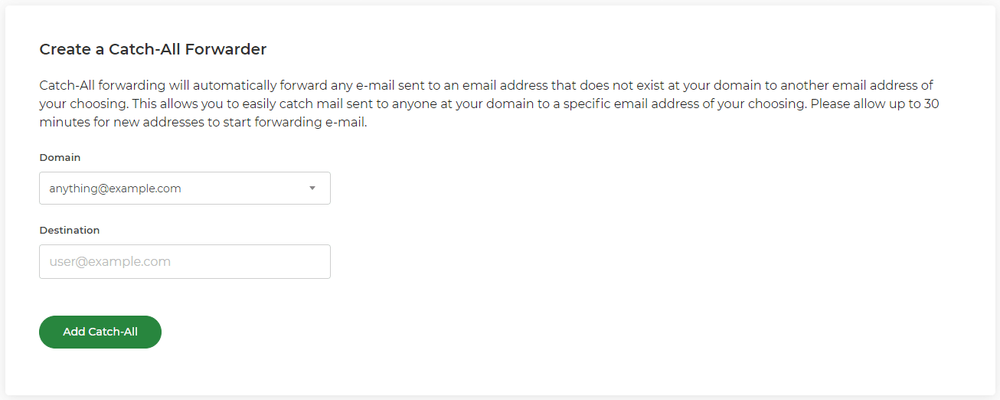
In the Domain field, select the domain that you want to set this up for. Within the Destination field, enter the email address where you want the emails to be forwarded to.
You can also set up wildcard forwarding on the same page.
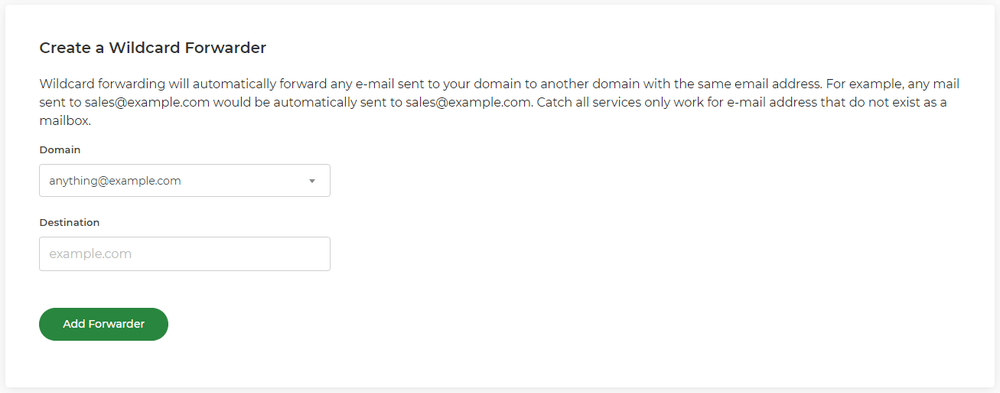
This follows the same rules as the catch-all forwarding, except instead of giving an email address you give it a domain to use.
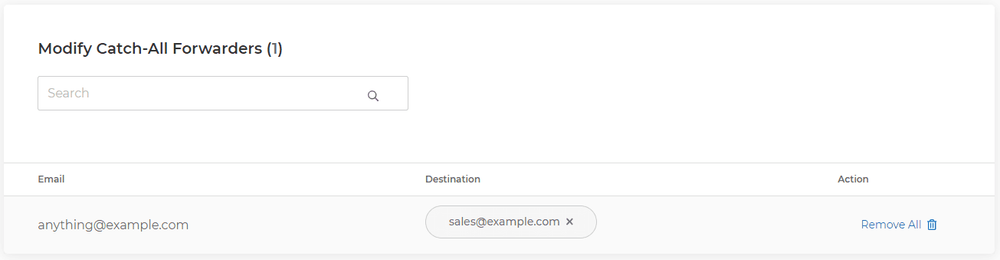
Once you have added either of these, then you will be able to see the results at the bottom of the page like this:
These forwarders can take up to 30 minutes to set up on our platform, so once you have set one up it should begin working after 30 minutes.












